Data Studio to Looker Studio: Automating Client Reporting
How to automate SEO client reporting in Looker Studio with scheduled delivery, template dashboards, and what still needs a human review.

Published August 2026. Automating SEO reporting means building a Looker Studio dashboard connected directly to Search Console and GA4, then using Looker Studio’s built-in scheduled delivery to email it to clients on a set cadence, instead of manually assembling screenshots and numbers every month. Once set up, the recurring reporting work drops from hours to minutes of review before each send. Data Studio itself was rebranded Looker Studio by Google in 2022, so if you’re searching for “Data Studio,” you’re looking for the same tool under its current name.
What’s the Difference Between the Old Data Studio Workflow and Today’s Looker Studio?
Functionally, Looker Studio and the old Google Data Studio are the same product — Google renamed it as part of folding it into the broader Looker analytics brand. If you built reports years ago in Data Studio, they still work and live in your Looker Studio account under the new name. The core reporting workflow — connect data sources, build charts, schedule delivery — hasn’t fundamentally changed, though Google has added features like AI-assisted chart suggestions and expanded connector options since the rebrand.
The practical implication for automation: if your agency has old Data Studio reports sitting unused, they’re a faster starting point than building from scratch, since the connectors and most chart configurations carry over directly.
How Do You Set Up Scheduled Report Delivery?
- Build the dashboard first, fully. Automation only works well once the report itself answers the right questions — scheduling a bad dashboard just automates sending something nobody reads.
- Open the Share menu and select “Schedule email delivery.” Looker Studio lets you set a recurring schedule — daily, weekly, monthly, or a custom frequency — for sending a PDF snapshot of the report.
- Set the recipient list per client report. Each client’s copy of the dashboard needs its own schedule and its own recipient list, since you’re sending a client-specific PDF, not a shared dashboard link.
- Choose which report tabs to include in the PDF. You can select specific pages of a multi-tab report to include, keeping internal-only tabs out of what clients receive.
- Test the schedule before relying on it. Send yourself a test copy to confirm formatting holds up in PDF form — some charts render differently in the exported PDF than in the live dashboard view.
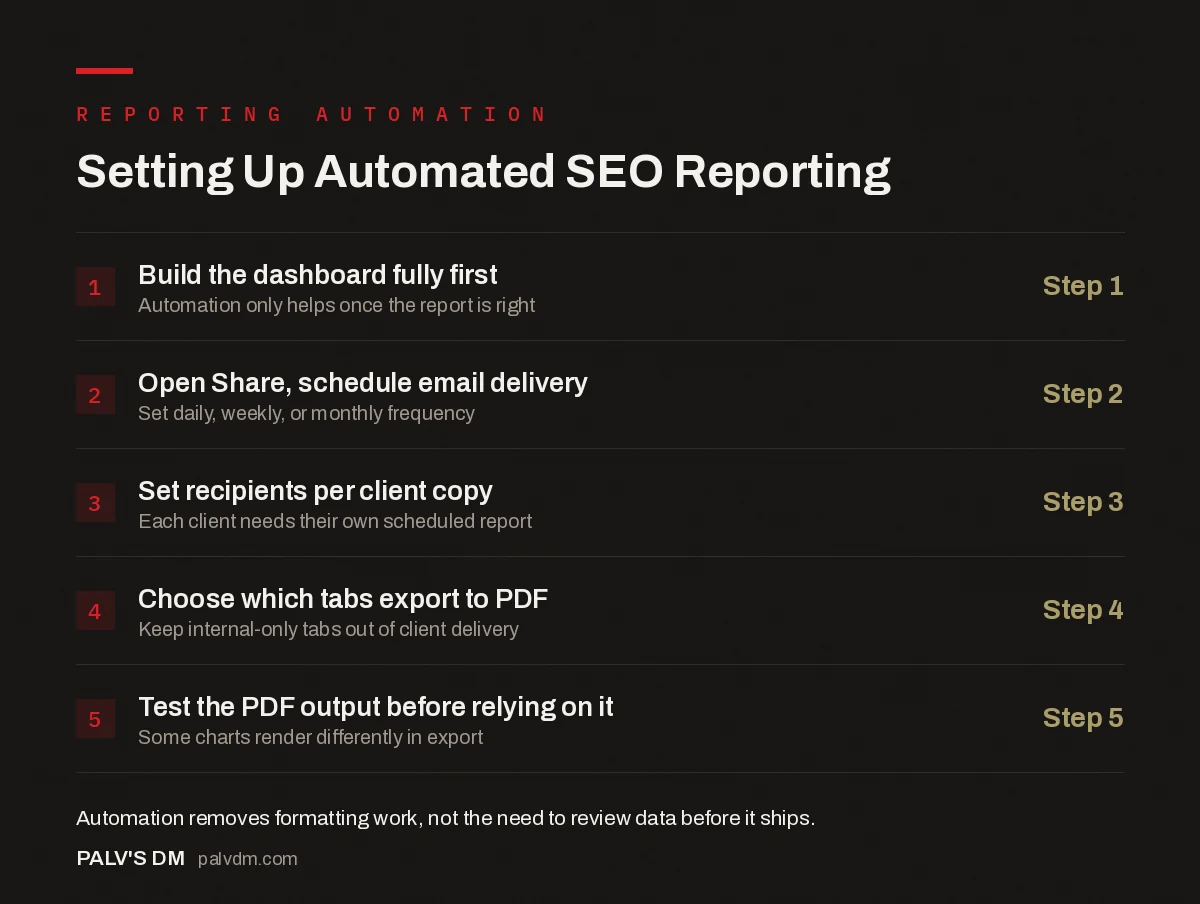
Setting Up Automated SEO Reporting
- Build the dashboard fully first — Step 1. Automation only helps once the report is right.
- Open Share, schedule email delivery — Step 2. Set daily, weekly, or monthly frequency.
- Set recipients per client copy — Step 3. Each client needs their own scheduled report.
- Choose which tabs export to PDF — Step 4. Keep internal-only tabs out of client delivery.
- Test the PDF output before relying on it — Step 5. Some charts render differently in export.
How Do You Scale This Across Multiple Client Accounts?
The typical agency pattern is a template dashboard with data source connections that get swapped per client. Build the report structure once, then for each new client, duplicate the report and reconnect the GSC and GA4 data sources to that client’s properties, leaving the layout and chart configuration untouched.
| Approach | Setup Effort | Best For |
|---|---|---|
| Manual report each month | High, repeated every cycle | One-off or highly custom client needs |
| Template dashboard, manual send | Medium upfront, low ongoing | Small client rosters wanting a personal touch on delivery |
| Template dashboard, scheduled delivery | Medium upfront, near-zero ongoing | Agencies managing several accounts on a consistent cadence |
| Data blending across multiple sources | High upfront, moderate ongoing | Clients needing cross-channel reporting beyond SEO |
Should You Use Looker Studio’s Native Scheduling or a Third-Party Tool?
Looker Studio’s built-in scheduled email delivery covers the core use case well: a recurring PDF snapshot sent to a fixed list of recipients on a set frequency. It’s free and requires no additional setup beyond the dashboard itself.
Dedicated agency reporting platforms (AgencyAnalytics, DashThis, and similar) add features Looker Studio doesn’t natively offer — white-labeled client portals, automated commentary generation, and multi-tool data blending without manual connector setup. These come with a subscription cost, which makes sense once you’re managing enough client accounts that the time saved outweighs the fee, but isn’t necessary to get basic automation working. Start with native Looker Studio scheduling and evaluate a dedicated platform only once you’ve outgrown what it offers.
What Should Still Be Done Manually, Even With Automation?
- The narrative summary. Automation delivers the numbers; it doesn’t write the sentence explaining why organic traffic dipped or which page drove a spike in leads. That interpretation still needs a person reviewing the data before it reaches the client.
- Anomaly checks before send. A scheduled report will happily deliver broken or misleading data if a connector fails silently or a data source stops updating. Build in a quick review step before the automated send, especially in the first few cycles after setup.
- Context for known events. If a client paused ad spend, changed their site, or a known algorithm update hit mid-month, that context needs to be added manually — the dashboard has no way to know why a number moved.
Automating delivery is not the same as automating judgment. Treat the scheduled report as removing the busywork of formatting and sending, not as removing the need for someone to actually look at the data before the client does.
What Are the Common Failure Points in Automated Reporting?
Data source disconnections are the most frequent issue — a GSC or GA4 connection can silently drop if account access changes or a property gets restructured, and the scheduled report will keep sending with stale or missing data unless someone catches it. Setting a recurring calendar reminder to spot-check each automated report monthly, even briefly, catches this before a client notices a report that looks wrong.
PDF rendering issues are the second common problem — a chart that displays correctly in the live dashboard can clip or misalign in the scheduled PDF export, particularly with wide tables or charts using long labels. Testing the actual PDF output, not just the live view, before trusting the schedule avoids this.
How Long Does the Initial Setup Actually Take?
For a single client with a dashboard already built, setting up scheduled delivery takes a few minutes — it’s a configuration step, not a build step. Building the template dashboard from scratch the first time, including choosing charts and getting layout right, more realistically takes one to two hours depending on how many data sources and tabs you’re including. Every client after the first, using the same template, should take a fraction of that, since it’s mostly reconnecting data sources rather than rebuilding the report.
FAQ
Can I automate reporting from tools other than GSC and GA4?
Yes, Looker Studio supports connectors for many platforms — Google Ads, Meta Ads, various rank trackers, and CRM tools through community or paid connectors. Native GSC and GA4 connectors are free and cover the core SEO reporting need; additional connectors may carry a cost depending on the provider.
Does scheduled delivery replace the need for a live client dashboard?
Not necessarily — the two serve different needs. Scheduled delivery ensures clients receive a summary without having to remember to check anything, while a live dashboard link gives them on-demand access between cycles. Many agencies offer both from the same underlying report.
How do I keep client data separate when using a shared template?
Each client’s report needs to be a separate copy with its own data source connections, not a single shared report with a filter. Sharing one report across clients risks one client seeing another’s data if permissions aren’t configured with real care — separate copies avoid that risk entirely.
What happens if a client wants a metric the automated report doesn’t include?
Add it to the template if it’s a request likely to recur across clients, or build a client-specific addition to their copy if it’s a one-off need. Either way, avoid customizing the automated report so heavily per client that it stops being a scalable template — at that point you’re back to manual reporting with extra steps.
Making Automation Actually Save Time
The value of automating SEO reporting isn’t eliminating the human review step — it’s eliminating the repetitive formatting and sending work so that review step is the only thing left to do each month. Done well, this turns reporting from a half-day task into a fifteen-minute check before a scheduled send goes out.
Setting up this kind of reporting infrastructure, and keeping it maintained as client accounts change, is part of the ongoing work in our SEO Growth service.
For the dashboard structure this automation delivers, see building an SEO dashboard in Looker Studio. For what belongs in the report itself, read the SEO report clients should get every month. And for the habit of catching issues before an automated report goes out, see building a weekly SEO metrics review habit.
For the Search Console data every automated report should be built on, see Google Search Console: the reports that actually matter.