GA4 Events and Conversions for a Service Business
Set up GA4 key events that actually reflect leads: form submits, phone clicks, and WhatsApp clicks, tested and marked correctly.

Published August 2026. SEO team at PalV’s DM.
For a service business, the GA4 events worth tracking as key events are almost always form submissions, phone clicks, WhatsApp clicks, and any booking or quote-request action, not page views or scroll depth, which GA4 tracks automatically but rarely represent an actual lead. Setting these up takes three steps: confirm the underlying event fires correctly, mark it as a key event in GA4’s Admin settings, and verify it’s counting accurately before trusting a month of reporting built on it.
Why do service businesses need custom key events instead of default ones?
GA4’s Enhanced Measurement automatically tracks page views, scrolls, outbound clicks, site search, video engagement, and file downloads without any setup. None of these represent a lead for a typical service business. A visitor scrolling 90% down a page or clicking an outbound link to your Instagram profile isn’t a conversion, they’re just browsing.
Real conversions for most Indian service businesses happen through a small set of specific actions: submitting a contact or quote form, clicking a phone number to call, clicking through to WhatsApp, or booking a consultation slot. None of these fire automatically as GA4 events without either Enhanced Measurement coincidentally catching them (rare) or explicit setup through Google Tag Manager or direct code.
How do you set up form submission tracking correctly?
GA4’s Enhanced Measurement includes a form_submit event that fires automatically for most standard HTML forms, but it has real limitations, it doesn’t distinguish between a genuine successful submission and a failed one with validation errors, and it can behave inconsistently with forms built through page builders or third-party form plugins that don’t submit through standard HTML form behaviour.
- Test first. Submit a test form entry and check GA4’s DebugView or Realtime report to confirm form_submit actually fires.
- If it doesn’t fire automatically, set up a Google Tag Manager trigger tied to your form plugin’s own “success” event or thank-you page view, which is more reliable than relying on generic form_submit detection.
- Mark it as a key event only after confirming it fires reliably, marking a broken event as a key event just produces confidently wrong conversion numbers.
How do you track phone and WhatsApp clicks specifically?
Neither phone clicks nor WhatsApp clicks are captured by GA4’s Enhanced Measurement automatically. Both need explicit event tracking, most reliably set up through Google Tag Manager:
| Lead type | Trigger condition | Event name (example) |
|---|---|---|
| Phone click | Click URL contains “tel:” | phone_click |
| WhatsApp click | Click URL contains “wa.me” or “api.whatsapp.com” | whatsapp_click |
| Email click | Click URL contains “mailto:” | email_click |
| Booking/calendar click | Click URL contains your booking tool’s domain | booking_click |
Set up a Click – Just Links trigger in GTM for each pattern, attach a GA4 Event tag firing the matching event name, and test through GTM’s Preview mode before publishing. This setup typically takes 20-45 minutes per event type the first time, faster once you’ve done it once and understand your form and link structure. Our dedicated walkthrough on tracking WhatsApp and call leads goes step by step through the WhatsApp-specific setup, since it’s usually the highest-volume lead channel for Indian SMBs.
Once an event fires, how do you actually mark it as a key event?
- Confirm the event fires correctly using GA4’s DebugView (for real-time testing) or the standard Realtime report before doing anything else.
- Go to Admin, then Events under the Data display section, and find the event name in the list, it needs to have fired at least once for it to appear.
- Toggle “Mark as key event” next to the event name. This applies going forward only, GA4 does not retroactively reclassify past event data as key events.
- Check Reports, then Key events over the following 24-48 hours to confirm the counts are appearing and look reasonable relative to known form or click volume.
- Repeat for each genuine conversion action, keeping in mind GA4 allows up to 30 key events per property, which comfortably covers most SMB tracking needs.
Should you use GA4’s built-in tracking or route everything through GTM?
For a small number of simple events, GA4’s native Enhanced Measurement or direct gtag code is fine. Once you’re tracking more than two or three custom actions, phone clicks, WhatsApp clicks, multiple form types, a booking widget, Google Tag Manager becomes worth the setup time. It centralises every tracking trigger in one place, lets non-developers adjust tracking without touching site code, and makes debugging far easier through its built-in Preview mode, which shows exactly which tags fired on a given page load or click.
The tradeoff is a slightly steeper initial learning curve. For a service business setting up tracking for the first time, budgeting half a day to get GTM installed, connected to GA4, and configured with your core three or four key events is realistic. After that, adding a new tracked action usually takes 15-20 minutes.
What’s a common mistake specific to Indian service business websites?
WhatsApp Business links frequently get added to a site without any click tracking at all, because the link itself (a simple wa.me URL) works perfectly well without any JavaScript. It’s easy to add and forget, which means it’s also easy to under-report how much of your actual lead volume is coming through WhatsApp versus the contact form. On sites we’ve audited, WhatsApp often turns out to be the highest-volume lead channel once it’s properly tracked, simply because it’s the lowest-friction way for a mobile visitor to make contact, yet it’s the channel most likely to be invisible in GA4 by default.
What does a realistic first-week setup timeline look like?
A service business starting from zero tracking can reasonably expect the following rough timeline: install and connect GTM to GA4 on day one, which usually takes under an hour including verifying the container is firing at all. Days two and three cover building and testing the phone, WhatsApp, and form triggers, checking each in Preview mode before publishing. By day four or five, events should be visible in GA4’s Realtime report, but the key events shouldn’t be marked yet, most teams wait a few days to confirm counts look stable and match rough manual expectations before flipping that toggle. Marking key events too early, before confirming the trigger conditions are accurate, is the single most common reason a month of “conversion” reporting later turns out to be wrong.
What mistakes cause the most downstream reporting problems?
A handful of setup errors show up repeatedly across client accounts:
- Marking page_view or scroll as a key event to artificially inflate a low conversion count, this makes reporting look better short-term and useless long-term, since it stops distinguishing browsing from intent.
- Not testing before marking as a key event, which means weeks of “conversion” data can be built on an event that was firing on the wrong trigger, like a form’s page load instead of its actual submission.
- Double-counting, for example, both a GTM-based WhatsApp click event and a native Enhanced Measurement outbound click event firing for the same click, inflating totals.
- Never revisiting key events as the business changes. If a new lead channel launches (say, a booking widget replacing a contact form), the key event list needs updating, not just adding to.
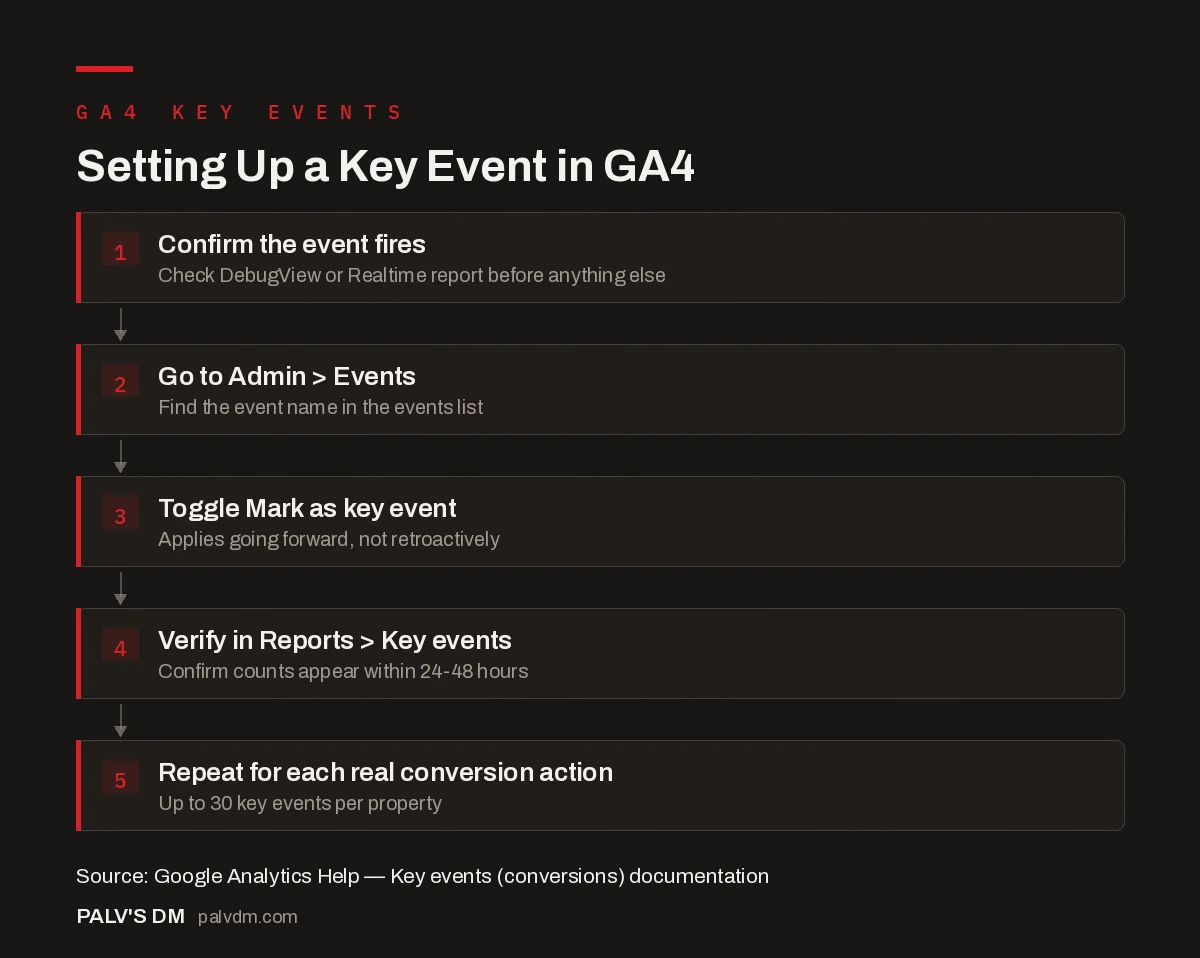
Setting Up a Key Event in GA4
- Confirm the event fires. Check DebugView or Realtime report before anything else.
- Go to Admin > Events. Find the event name in the events list.
- Toggle Mark as key event. Applies going forward, not retroactively.
- Verify in Reports > Key events. Confirm counts appear within 24-48 hours.
- Repeat for each real conversion action. Up to 30 key events per property.
How should key events feed into weighting lead quality, not just lead volume?
Once the core events are tracked reliably, a second-stage improvement worth planning for is passing a rough lead-quality signal back into GA4, rather than treating every key event as equally valuable. A form submission that includes a budget field or a service-type dropdown carries more qualifying information than a bare WhatsApp click, and GA4 supports capturing that as an event parameter, for example, sending the selected service type along with the form_submit event. This doesn’t require a second tracking system; it’s an extension of the same GTM setup, adding a variable that reads the form field value and passes it along with the event. Over time this lets a business separate “which channel drives the most clicks” from “which channel drives the most qualified leads,” which are often different rankings entirely.
Getting event tracking right before reporting on SEO performance is foundational, without it, “organic traffic grew” and “organic leads grew” can be two completely different, unconnected stories. This setup work is part of what we handle inside SEO Growth engagements, so conversion reporting reflects reality rather than convenient assumptions.
For the broader GA4 setup this event work sits inside, see our guide on GA4 for SEO: the setup that answers real questions, and once conversions are tracked accurately, it’s worth checking whether landing pages are actually holding attention using engagement rate instead of the old bounce rate metric.
FAQ
Do I need Google Tag Manager to track WhatsApp and phone clicks?
It’s the most reliable and maintainable method, though not strictly required, you can add gtag event code directly to your WhatsApp and phone links if you’re comfortable editing site code. GTM is generally preferred because it lets you add, test, and adjust tracking without redeploying code each time.
Why isn’t my form_submit event showing up in GA4?
This is common with forms built through page builders, third-party plugins, or JavaScript-heavy submission flows that don’t trigger a standard HTML form submit event. Test using DebugView first; if it’s not firing, set up a custom GTM trigger tied to your form tool’s own success event or a thank-you page view instead.
How many key events can I set up in GA4?
Up to 30 key events per property. For most service businesses, five to eight well-chosen key events (form submit, phone click, WhatsApp click, booking, and possibly a newsletter signup) cover the meaningful conversion paths without over-tracking low-value actions.
Will marking an event as a key event affect historical data?
No. Marking an event as a key event in GA4 only applies from that point forward. Past occurrences of that event are not retroactively counted as key events in historical reports, which is worth remembering when comparing “before and after” conversion numbers around the setup date.
Should every event parameter be sent to GA4, or is that overkill for a small business?
Start with the core event and only the trigger condition needed to fire it accurately. Adding parameters like service type or estimated budget is worth doing once the basic tracking is confirmed stable, but building an elaborate parameter set before the underlying event even fires reliably just adds more that can break. Sequence the setup: get the event firing correctly first, mark it as a key event once confirmed, then layer in parameters as a second pass.