Using the Search Console API for Bulk Query Data, Step by Step
How to pull bulk Search Console data with the Search Analytics API: real row limits, pagination, quotas, and BigQuery export.

The Search Console API’s Search Analytics query endpoint returns a maximum of 25,000 rows per request, and the default if you don’t set that limit yourself is only 1,000. That single detail causes more “why is my export missing data” support questions than anything else about this API. Set rowLimit explicitly, paginate with startRow, and you can pull the full picture for most sites without touching a third-party tool.
This walks through getting API access set up, pulling data correctly with pagination, and when it’s worth skipping the API entirely in favour of Search Console’s bulk export to BigQuery.
What’s the actual row limit, and how do you get past it?
The searchAnalytics.query method accepts a rowLimit parameter with a valid range of 1 to 25,000 and a default of 1,000, confirmed directly in Google’s current API reference. That’s up from a 5,000-row cap in earlier versions of the API, which is why some older tutorials still describe a lower ceiling.
To pull more than 25,000 rows for a single query, you paginate: request rowLimit: 25000 with startRow: 0, then run the identical query again with startRow: 25000, then 50000, and keep incrementing until a request comes back with zero rows. Each of those is a separate API call, which is where the per-minute quota below starts to matter for very large sites.
How do you actually set up API access, step by step?
Assuming you already have Search Console access to the property, this takes about fifteen minutes the first time.
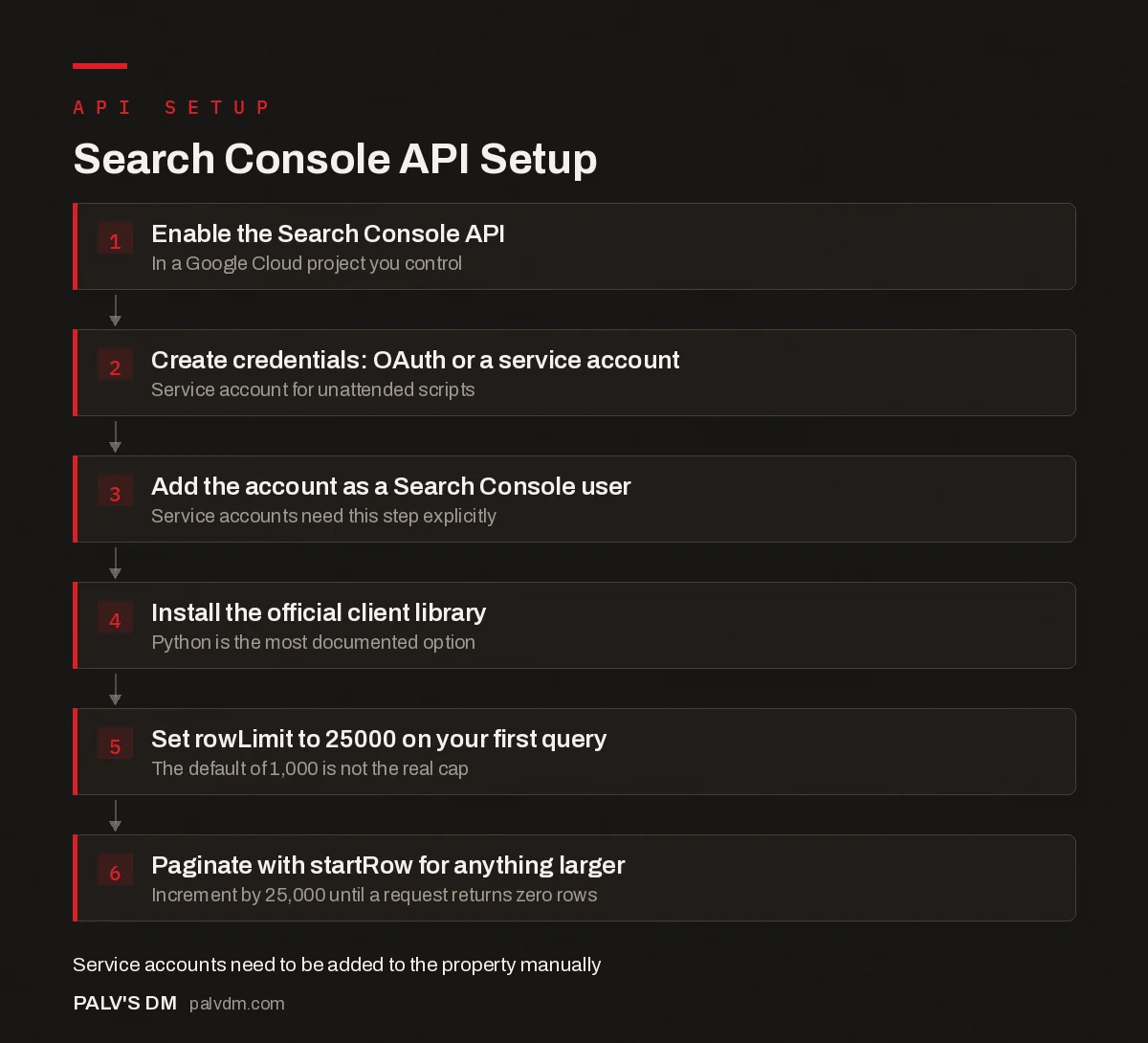
Search Console API Setup
- Enable the Search Console API. In a Google Cloud project you control.
- Create credentials: OAuth or a service account. Service account for unattended scripts.
- Add the account as a Search Console user. Service accounts need this step explicitly.
- Install the official client library. Python is the most documented option.
- Set rowLimit to 25000 on your first query. The default of 1,000 is not the real cap.
- Paginate with startRow for anything larger. Increment by 25,000 until a request returns zero rows.
OAuth or a service account: which one should you set up?
For a one-off pull you’re running yourself, OAuth is simpler: authorise once in a browser flow, and the token covers whatever properties your own Google account has access to in Search Console. For a scheduled script running unattended, a service account is the better fit, since there’s no human in the loop to click through a login prompt when a token expires. The catch with service accounts: they don’t automatically have Search Console access just because they exist. You have to add the service account’s email address as a user on the property inside Search Console itself, the same way you’d add a colleague, before any API call from it will succeed. Skipping that step is the single most common setup mistake we see, and the error message it throws back doesn’t make the cause obvious.
What quotas actually limit a real automation script?
Search Analytics enforces both a load quota (how expensive a query is to run, based on date range and grouping) and a rate quota (how many calls you make). The rate side breaks down clearly: 1,200 queries per minute per site, 1,200 per minute per user, and at the project level, 40,000 queries per minute with a ceiling of 30 million per day. For a single site pulling a monthly report, none of this is close to a concern. It starts to matter once you’re running a script across dozens of client properties on a shared schedule, where a naive loop with no delay between calls can trip the per-minute quota before it finishes the first site.
The load quota is the sneakier one. Queries grouped or filtered by both page and query string together are the most expensive, and a six-month date range costs more than a one-day range even for the same grouping. A script re-running the same broad query repeatedly (say, re-pulling all data for the last 90 days on every run instead of just the new days) burns load quota for no reason and is worth fixing before it becomes a support ticket.
API query, UI export, or bulk BigQuery export: which one should you actually use?
| UI export | API query | Bulk BigQuery export | |
|---|---|---|---|
| Row limit | 1,000 rows per table | 25,000 per request, paginate for more | No practical cap |
| Setup effort | None | Moderate: API key or OAuth, some code | Higher: BigQuery project, daily export config |
| Best for | A quick one-off check | Scheduled reports, dashboards, scripts | Full historical archives, exhaustive audits |
| Historical depth | 16 months, same as UI | 16 months, same as UI | Accumulates daily from setup date forward |
| Guarantees every row | No, capped and sampled | No, capped and sampled | Yes, this is the point of it |
The bulk export is the right call the moment “top rows only” stops being good enough, typically for large ecommerce catalogues or anyone doing a genuinely exhaustive query-level audit rather than a top-N report. Setting it up means enabling the BigQuery API on a Google Cloud project, granting the Search Console service account permission on that project, and specifying the export destination inside Search Console itself. It backfills nothing; data only starts accumulating from the day you turn it on, so this is a “set it up now, thank yourself in six months” task, not something to configure the day you actually need the historical depth.
What do people actually build once they have bulk access to this data?
A few patterns come up repeatedly on client accounts once the API is wired up and pulling more than the UI’s 1,000-row cap allows. Keyword cannibalisation checks, grouping by query and page together to spot multiple URLs competing for the same search term, are far more reliable at 25,000 rows than at 1,000, since cannibalisation often hides in queries that individually don’t rank high enough to make the UI’s default view. “Striking distance” reports, filtering for queries sitting at positions 8 through 20 with real impression volume, are a direct pull from the API and a genuinely useful weekly or monthly automation once set up. Content decay tracking, comparing a page’s clicks this quarter against the same quarter last year across the full URL list rather than just the top pages Search Console shows by default, is another one that’s basically impossible to do properly through the UI alone and straightforward once you’re pulling the full dataset on a schedule.
What mistakes cause people to think the API is broken?
- Never setting rowLimit. The default of 1,000 rows looks like a bug to someone expecting their full dataset. It’s working exactly as documented; the parameter just wasn’t set.
- Assuming the API returns every row that exists. Google states plainly that the API returns top rows by clicks, not a guaranteed complete set. For a report on your top 500 queries, this never matters. For an audit trying to catch every long-tail query with even one impression, it will miss some, and only the bulk export closes that gap.
- Requerying identical data on every scheduled run. Pulling the trailing 90 days fresh every single day multiplies load quota use for no benefit; store what you’ve already pulled and only fetch the new days.
- Forgetting Search Console data has a reporting lag. Data for a given day typically isn’t final for a couple of days. Pulling “yesterday” on a same-day schedule and getting partial numbers isn’t an API error, it’s the normal data pipeline; use
dataState: "final"if a script needs to wait for settled numbers.
Frequently asked questions
What’s the maximum number of rows the Search Console API returns per request?
25,000 rows per request, set via the rowLimit parameter. The default, if you don’t set rowLimit explicitly, is only 1,000, which is the single most common reason people think the API is returning incomplete data when they’ve simply never set the parameter.
How do you get more than 25,000 rows of data?
Paginate using the startRow parameter: request rowLimit 25,000 with startRow 0, then repeat with startRow 25,000, then 50,000, and so on until a request returns zero rows. For very large sites, Search Console’s bulk data export to BigQuery sidesteps the row cap entirely and is the better long-term solution.
Is there a daily limit on how much data I can pull?
Yes. Per-site and per-user quota is 1,200 queries per minute, and per-project quota is 40,000 queries per minute and 30 million queries per day. Most small and mid-size sites never come close to these limits; they matter mainly for automated scripts querying many properties on a schedule.
Does the API guarantee it returns every single row of data?
No. Google’s own documentation states the API is bounded by internal limitations and doesn’t guarantee returning all data rows, only the top ones by click count. For most reporting use cases this doesn’t matter, but for exhaustive audits of every query or page, the bulk BigQuery export is more complete.
Do I need to know how to code to use the Search Console API?
Basic scripting helps, but you don’t need much. Google’s official client libraries handle authentication for Python, and tools like Google Sheets add-ons (Search Analytics for Sheets is a common one) let you pull bulk data without writing code at all, at the cost of some flexibility.
Sources
- Search Analytics: query, Google Search Console API Reference
- Usage Limits, Google Search Console API
- Google Search Console: The Reports That Actually Matter
- Python for SEO: Five Scripts Worth Writing First
- PageSpeed Insights API for Bulk Speed Auditing
- Automating Reports With Google Sheets and Apps Script
Want this done on your site?
Every PalV’s DM engagement starts with a free audit of your actual website — a 12-point
crawl covering what is blocking indexation, on-page gaps against your primary keywords, speed
findings, and the three to five fixes worth making first. Delivered in two working days. No
payment details, and the findings are yours whether you hire us or not.
Get your free SEO audit
See one-time SEO project plans and prices