GA4 for SEO: The Setup That Answers Real Questions
A GA4 setup built for SEO needs Search Console linked, real key events, and organic traffic segmented. Here's how to set it up correctly.
Published August 2026. SEO team at PalV’s DM.
A GA4 setup that actually helps SEO work needs three things most default installs skip: Search Console linked in, key events defined around what your business calls a lead, and a landing page report segmented by channel so organic traffic isn’t blended with paid and direct. Without these three, GA4 can tell you traffic went up or down, but it can’t tell you whether that traffic did anything that mattered to the business.
Why isn’t the default GA4 setup enough for SEO reporting?
GA4 out of the box tracks page views, sessions, and basic engagement automatically through Enhanced Measurement. That’s useful for a general traffic overview, but it answers almost none of the questions an SEO program actually needs answered: which landing pages convert, which organic queries drive leads, and whether a ranking improvement translated into anything beyond a vanity metric.
The gap is structural. GA4 doesn’t know what a “conversion” means for your specific business until you tell it — a form submission, a WhatsApp click, a phone call, a demo booking. And without Search Console linked, GA4 has no visibility into which queries brought people to your site at all; it only knows the channel was “Organic Search,” not the specific term.
How do you link Search Console to GA4, and what does it actually unlock?
In GA4, this is done under Admin, in the Property column, via the Search Console Links section — it requires site owner or full permission on the linked Search Console property. Once linked, GA4 gains access to a Search Console report inside Acquisition, showing queries, landing pages, countries, and devices from Google’s organic search data alongside your on-site behaviour metrics.
This matters because it closes the loop that neither tool provides alone. Search Console shows you which queries generated impressions and clicks; GA4 shows you what happened after the click — did the session engage, did it convert, how long did they stay. Without linking the two, you’re stuck cross-referencing two separate reports manually, and dates, filters, and definitions rarely line up cleanly between them.
What should count as a key event for a service business?
GA4 calls conversions “key events” — a rename from “conversions” that took effect in late 2023. For most Indian service businesses and D2C brands, the meaningful key events are narrower than what Enhanced Measurement tracks automatically:
- Form submissions — contact forms, quote requests, callback requests.
- Phone number clicks — especially important for mobile-heavy Indian traffic where tap-to-call is a primary conversion path.
- WhatsApp clicks — a distinct and often dominant lead channel for Indian SMBs that standard GA4 tracking doesn’t capture without extra setup.
- Purchase or checkout completion — for e-commerce and D2C, this is the obvious core event.
- Demo or consultation bookings — for B2B and SaaS-style services.
Mark these as key events under Admin > Data display > Events by toggling “Mark as key event” once the underlying event is firing correctly. GA4 supports up to 30 key events per property, which is more than enough for almost any SMB setup.
What does a useful SEO-focused GA4 report actually look like?
| Report or exploration | What it answers |
|---|---|
| Landing page + session source/medium exploration | Which pages bring in organic sessions, and do they convert |
| Search Console query report (linked) | Which actual search terms are driving organic clicks |
| Engagement rate by landing page | Which pages hold attention versus which ones people bounce from |
| Key events by channel | Whether organic search converts at a similar rate to paid or direct |
| New vs returning users by landing page | Whether content pages are earning repeat visits over time |
Build these as a custom exploration under Explore rather than relying only on the standard reports, since the standard Acquisition and Engagement reports don’t let you combine landing page, channel, and key events into one view by default.
How do you avoid organic traffic getting blended into a meaningless total?
The single most common GA4 mistake we see in SEO reporting is looking at total site traffic and total conversions without segmenting by channel first. If paid search or a WhatsApp broadcast campaign is running at the same time as organic SEO work, blended numbers make it impossible to tell which channel is actually improving. Every SEO-focused report should filter or segment to Organic Search as the session default channel group before drawing any conclusion about SEO performance specifically.
It’s also worth checking for direct traffic inflation — some organic sessions get misattributed as direct due to referrer stripping on certain devices or apps, which can understate organic’s real contribution. This isn’t fixable perfectly, but knowing it exists prevents overcorrecting in the other direction when direct traffic looks unusually high.
What about engagement rate — does it matter for SEO specifically?
Yes, more than most teams realise. GA4 replaced the old Universal Analytics bounce rate with engagement rate, defined as the share of sessions lasting 10 seconds or longer, including two or more page views, or triggering a key event. For SEO, this metric is one of the few post-click signals available that hints at whether a landing page actually satisfied search intent, rather than just whether it ranked and got clicked.
A page with strong impressions and clicks but a low engagement rate is often a targeting mismatch — the title and snippet promised something the page content doesn’t fully deliver, so visitors leave quickly. This is worth checking landing-page by landing-page rather than as a site average, since averaging can hide individual pages that need a content rework. We go deeper on this metric, including how it compares to the old bounce rate calculation, in a separate breakdown of engagement rate versus bounce rate.
What early setup mistakes waste the most time later?
- Not excluding internal and staff traffic. A small team testing the site repeatedly can meaningfully distort session and engagement numbers on a low-traffic site.
- Leaving default channel grouping unchecked. Some paid campaigns without proper UTM tagging get miscounted as organic, inflating SEO’s apparent performance.
- Never verifying key events actually fire correctly. Use GA4’s DebugView or the real-time report to confirm a form submission or WhatsApp click event fires before trusting a month of “conversion” data built on it.
- Skipping the Search Console link entirely. Without it, every SEO conversation stays limited to “organic traffic,” never the specific queries actually responsible for that traffic.
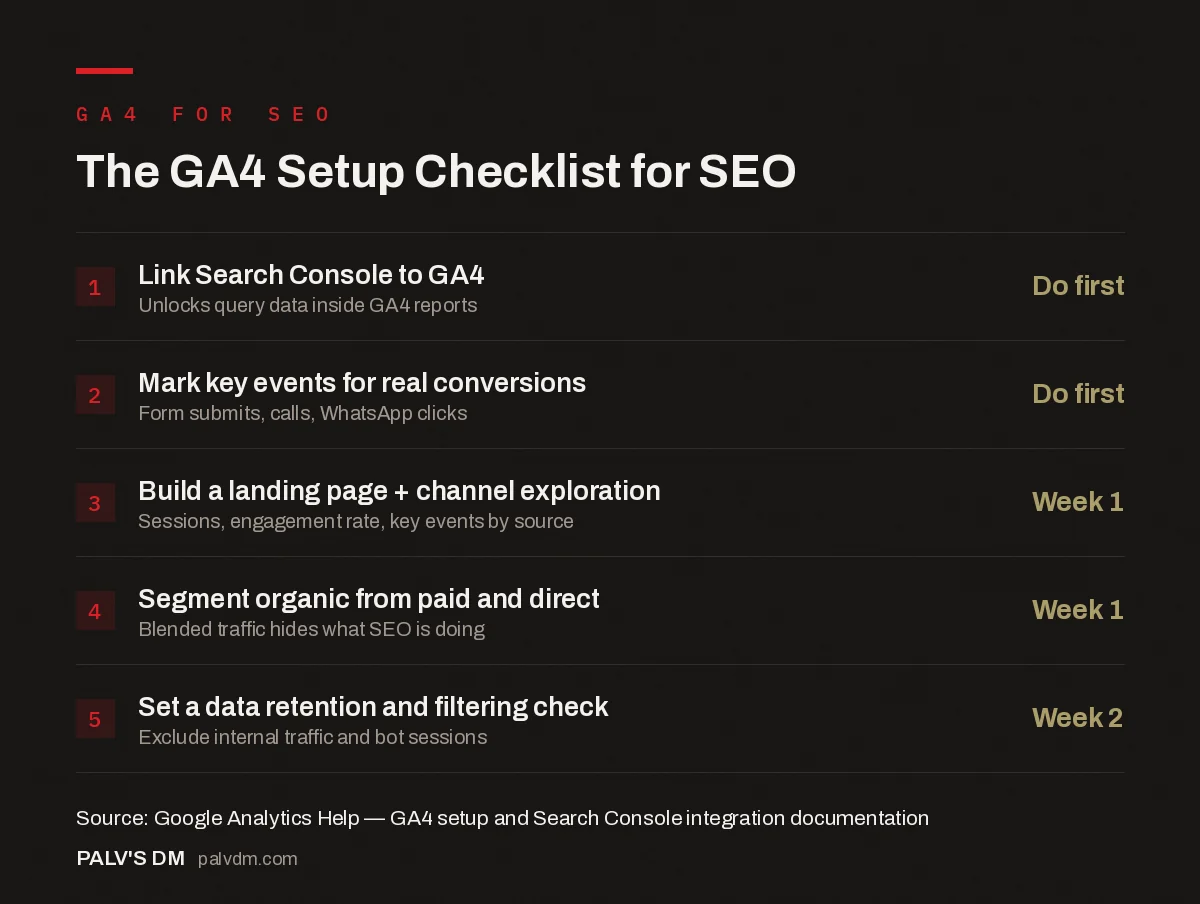
The GA4 Setup Checklist for SEO
- Link Search Console to GA4 — Do first. Unlocks query data inside GA4 reports.
- Mark key events for real conversions — Do first. Form submits, calls, WhatsApp clicks.
- Build a landing page + channel exploration — Week 1. Sessions, engagement rate, key events by source.
- Segment organic from paid and direct — Week 1. Blended traffic hides what SEO is doing.
- Set a data retention and filtering check — Week 2. Exclude internal traffic and bot sessions.
Getting this setup right the first time saves months of reporting on data nobody can actually trust. This is standard groundwork inside our SEO Growth engagements, where we set up GA4 alongside Search Console before any content or technical work begins, so results are measurable from day one.
For a deeper walkthrough of setting up specific key events for service businesses, see GA4 events and conversions for a service business, and if WhatsApp is a major lead channel, our dedicated guide on setting up conversion tracking for WhatsApp and call leads covers that setup step by step. This post is also part of our broader Google Search Console guide series on analytics and measurement.
FAQ
Do I need Google Tag Manager to set up GA4 for SEO reporting?
Not strictly, but it makes tracking non-standard events like WhatsApp clicks or specific button interactions much easier to manage without editing site code directly. Basic GA4 setup, including Search Console linking and key event marking, can be done without GTM. Custom event tracking for WhatsApp and call leads is easier with it.
What’s the difference between “conversions” and “key events” in GA4?
They’re the same concept under a different name. Google renamed “conversions” to “key events” in GA4 in late 2023 to better distinguish app and web conversion concepts. Functionally, marking an event as a key event does the same thing marking it as a conversion used to do.
How long does it take for GA4 data to become reliable after setup?
Basic session and engagement data starts flowing immediately, but meaningful trend analysis needs at least 4-6 weeks to smooth out normal week-to-week variance, and key event data needs verification in the first few days to confirm events are firing correctly before trusting the numbers.
Can GA4 show me which specific keywords converted, not just which drove traffic?
Only indirectly, once Search Console is linked. You can see which queries drove clicks to a landing page in the Search Console report, and separately see that landing page’s conversion rate in GA4, but GA4 does not attribute a specific key event to a specific search query directly — you’re combining two adjacent reports, not one unified one.