Critical CSS: Extracting It Without Breaking Layout
Critical CSS speeds up render time but breaks layouts when done carelessly. The extraction, inlining, and testing sequence that keeps both the speed win and the design intact.

Critical CSS is the above-the-fold subset of a page’s stylesheet, inlined directly in the HTML head so the browser can paint visible content before the full CSS file finishes downloading — and it breaks layouts almost exclusively when it’s extracted from one viewport size, one page state, and shipped everywhere else without testing. Done correctly, it’s one of the more reliable Largest Contentful Paint improvements available. Done carelessly, it produces a flash of unstyled or wrongly-styled content that’s worse for users than the slow load it was meant to fix.
The technique itself isn’t complicated. What trips teams up is treating extraction as a one-time build step instead of something that needs to be re-verified every time a template, breakpoint, or component changes.
What problem does critical CSS actually solve?
CSS is render-blocking by default: the browser won’t paint anything until it has parsed the stylesheets referenced in the page’s head. On a page with a single 200KB stylesheet, that means every visitor waits for the entire file to download and parse before seeing anything, even though only a fraction of those rules apply to what’s visible without scrolling.
Critical CSS splits that stylesheet into two parts: the rules needed for the initial viewport, inlined directly in a <style> tag in the head, and everything else, loaded asynchronously so it doesn’t block the first paint. The visible part of the page renders as soon as the HTML and the small inlined block are parsed; the rest of the site’s styling catches up a moment later, invisibly to a user who’s already looking at a rendered page.
How do you extract critical CSS without breaking the layout?
Extraction tools like Critical (the most widely used open-source option) work by loading the page in a headless browser at a specified viewport, recording which CSS rules apply to elements in that viewport, and outputting just those rules. The failure mode is running this process once, at one screen size, and assuming the output is correct everywhere.
| Step | What it does | Common mistake at this step |
|---|---|---|
| 1. Define viewports | Set the breakpoints to extract against (mobile, tablet, desktop) | Extracting only at one desktop width |
| 2. Run extraction per template | Generate a separate critical CSS block per distinct layout | Using the homepage extraction on every template |
| 3. Inline and defer | Inline the critical block, load the rest async with a preload/onload swap | Forgetting a no-JS fallback via <noscript> |
| 4. Test against real content | Verify with dynamic content loaded, not a static snapshot | Testing only against placeholder or cached content |
| 5. Re-run on template change | Regenerate whenever CSS or the above-the-fold layout changes | Treating extraction as a one-time setup task |
How do you extract critical CSS in five steps?
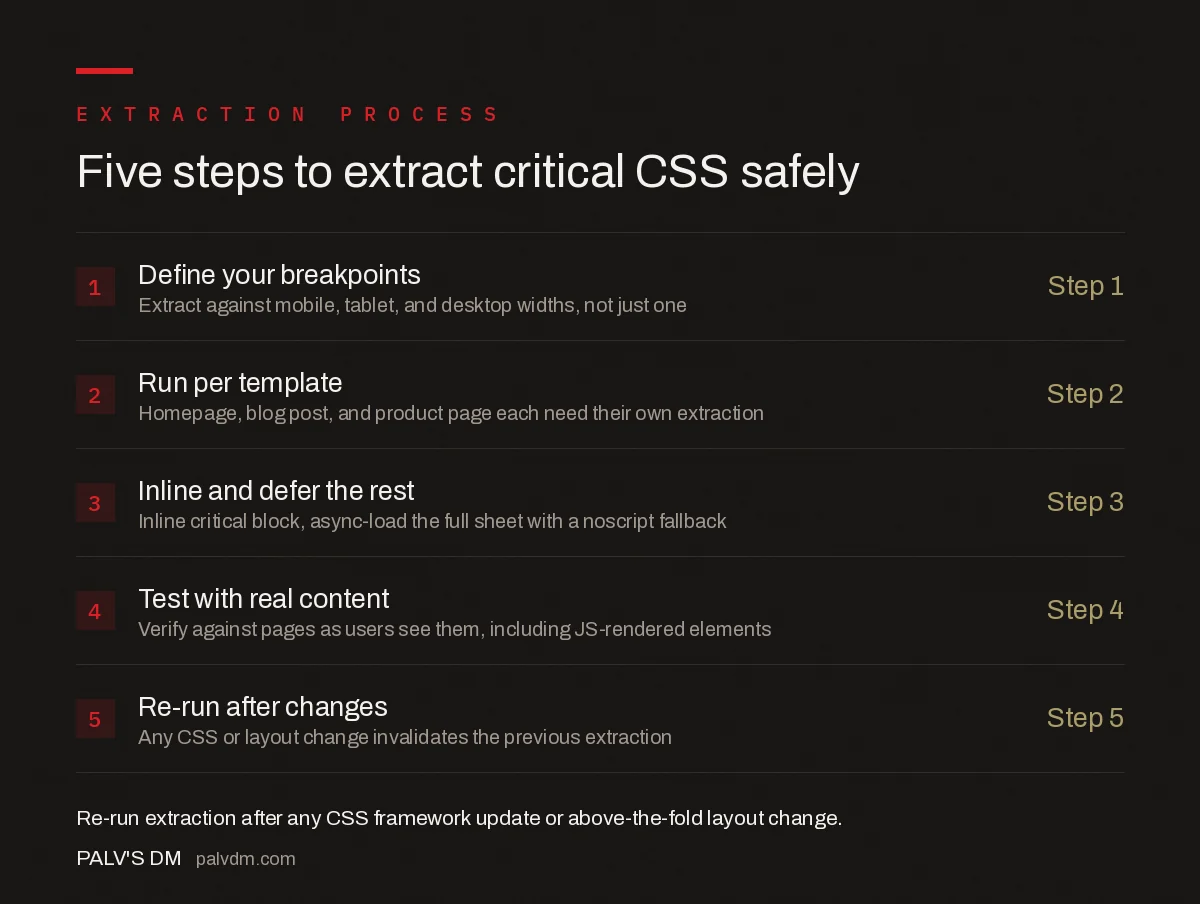
The five-step extraction process
- 1. Define your breakpoints — Extract against mobile, tablet, and desktop viewport widths, not just one.
- 2. Run per template — Homepage, blog post, product page, and category page each need their own extraction.
- 3. Inline and defer the rest — Inline the critical block in the head; load the full stylesheet asynchronously with a <noscript> fallback.
- 4. Test with real, dynamic content — Verify against pages as users actually see them, including JavaScript-rendered elements.
- 5. Re-run after every relevant change — Any CSS framework update, component change, or above-the-fold redesign invalidates the previous extraction.
What causes critical CSS to break a layout?
- Single-viewport extraction. CSS that positions elements correctly on a 1920px desktop screen can leave mobile layouts broken if the extraction never ran at a mobile width, because different media queries apply.
- Missing the async-load fallback. The standard pattern loads the full stylesheet with
rel="preload"and an onload handler that swaps it torel="stylesheet"; skipping the<noscript>fallback means visitors with JavaScript disabled or blocked never get the rest of the CSS at all. - Extraction against stale content. A page that loads dynamic content via JavaScript (a carousel, a personalised hero) can have a different “above the fold” than what the extraction tool saw during a static crawl.
- Oversized critical blocks. Inlining CSS well beyond what a single TCP round trip can carry (roughly 14KB) starts delaying the very render it was meant to speed up, and large inlined blocks are harder to keep in sync with the full stylesheet.
- No process for keeping it current. A redesign or a new component ships, and the critical CSS extraction from six months ago is still what’s inlined, no longer matching the current layout.
How do you verify critical CSS didn’t break anything before deploying?
Run a visual regression check — either a dedicated tool or a manual pass — comparing the page with critical CSS enabled against the same page with the full stylesheet loaded normally, at each of your defined breakpoints. Look specifically for a flash of unstyled content in the first second of load, layout shift as the async stylesheet finishes loading, and any element that renders in the wrong position only in the critical-CSS version. Chrome DevTools’ “Coverage” panel, run against the inlined block, also flags rules that were included but never actually apply to the visible viewport — a sign the extraction picked up more than it needed.
How does critical CSS interact with a CSS framework or component library?
Utility-first frameworks like Tailwind complicate extraction slightly because a single visible component can pull classes from across a large generated stylesheet rather than a handful of scoped rules. Extraction tools still handle this correctly in most cases, since they work against rendered output rather than source structure, but the resulting critical CSS block tends to be larger for utility-class-heavy sites than for sites using scoped, component-level CSS. That’s a reasonable tradeoff to accept rather than a sign the extraction is broken — checking the final inlined size against the roughly 14KB guideline is still the right test.
Component libraries that ship their own CSS bundles (a carousel plugin, a modal library) need their critical-path styles included in the extraction run if that component appears above the fold on page load. A component that only becomes visible after a user interaction, like a modal, generally doesn’t need to be part of the critical block at all — its styles can load with the deferred stylesheet without affecting first paint.
Is critical CSS worth the maintenance cost?
For a small number of high-traffic templates — a homepage, a handful of landing pages, the main blog post layout — yes, consistently. The Largest Contentful Paint improvement is measurable and the maintenance is bounded to those specific templates. For sites built on frequently-changing page builders with dozens of unique layouts, the maintenance burden of keeping every extraction current can outweigh the gain, and a simpler render-blocking-resource cleanup (minifying and combining stylesheets, removing unused CSS) is often a better first step before committing to full critical CSS extraction.
Frequently asked questions
What is critical CSS?
Critical CSS is the subset of a page’s stylesheet needed to render everything visible in the initial viewport, before any scrolling. Inlining just that subset in the HTML head lets the browser paint above-the-fold content without waiting for the full stylesheet to download.
Why does critical CSS break layouts?
Most breakage comes from extracting CSS at a single viewport size and shipping it to every device, or from a build process running on a snapshot of the page that doesn’t match what real users see after JavaScript renders dynamic content. The fix is testing extraction against every breakpoint and every major template, not just the homepage at desktop width.
How much CSS should be inlined as critical?
Google’s general guidance is to keep inlined critical CSS under roughly 14KB, since that’s approximately what fits in the first TCP round trip. Beyond that size, the inlined block itself starts delaying render, working against the goal.
Does every page need its own critical CSS?
Every distinct template does, not every individual page. A blog post template, a product page template, and a homepage typically have different above-the-fold layouts and need separate critical CSS extractions; individual pages sharing a template can usually share the same critical CSS block.
Should I automate critical CSS extraction or do it manually?
Automate it with a build-time tool like Critical, but review the output manually on real devices before deploying, especially after any template or CSS framework update. Automation handles the extraction; a human still needs to confirm nothing visually broke.
Sources
- Extract Critical CSS — web.dev, Google
- Core Web Vitals: The Complete Guide
- Technical SEO: The Complete Working Guide
- Render-Blocking Resources: Finding and Eliminating Them
- Server Response Time and TTFB: Diagnosing the Real Cause
Want this done on your site?
Every PalV’s DM engagement starts with a free audit of your actual website — a 12-point
crawl covering what is blocking indexation, on-page gaps against your primary keywords, speed
findings, and the three to five fixes worth making first. Delivered in two working days. No
payment details, and the findings are yours whether you hire us or not.