Setting Up Google Tag Manager Without Breaking Your Site
How to install Google Tag Manager correctly, avoid double-firing tags, and keep containers clean without slowing down your site.
Published August 2026. Google Tag Manager breaks sites most often not because it’s complicated, but because it gets installed carelessly: duplicate GA4 tags firing twice, container snippets pasted in the wrong place, or a dozen unused tags left active from a redesign two years ago. The fix isn’t avoiding GTM — it’s installing it in the right order and testing before you publish. This guide walks through a setup that won’t slow your site down or double-count your conversions.
What Is Google Tag Manager and Why Use It Instead of Hardcoding Tags?
Google Tag Manager is a free container that sits between your website and every tracking script you need — GA4, Google Ads conversion tracking, Meta Pixel, LinkedIn Insight Tag, heatmap tools. Instead of editing your site’s code every time you add or change a tracking pixel, you install the GTM container once and manage everything else from GTM’s web interface.
The alternative — hardcoding each script directly into your theme or CMS — means every new tracking tool needs a developer, and every removed tool leaves orphaned code that slows the site down. GTM centralizes that, but it shifts the risk: instead of code errors, you get tag-firing errors, which are just as capable of breaking a site if you don’t test changes before publishing.
How Do You Install the GTM Container Correctly?
- Create a container in tagmanager.google.com scoped to “Web,” using your domain name so it’s identifiable later if you manage multiple properties.
- Place the head snippet immediately after the opening <head> tag on every page template. Placing it lower delays tag firing and can cause GA4 to miss the very first pageview.
- Place the noscript snippet immediately after the opening <body> tag. This is a fallback for the roughly 2% of visitors with JavaScript disabled — skipping it doesn’t break tracking for most visitors, but it does mean you’re not following Google’s own installation spec.
- Verify installation with the GTM/GA4 debug tools before adding a single tag. Use GTM’s Preview mode, which connects your browser session to the container and shows every tag, trigger, and variable firing in real time.
- Publish only after Preview confirms clean firing. A container with zero tags is safe to publish. A container mid-configuration is not — always finish and test a tag before pushing it live.
If you’re on WordPress, a plugin like GTM4WP or Site Kit can insert the snippets for you, but check the plugin isn’t also injecting a duplicate GA4 tag through its own settings while GTM fires the same tag — that double-count is one of the most common GTM mistakes on WordPress sites.
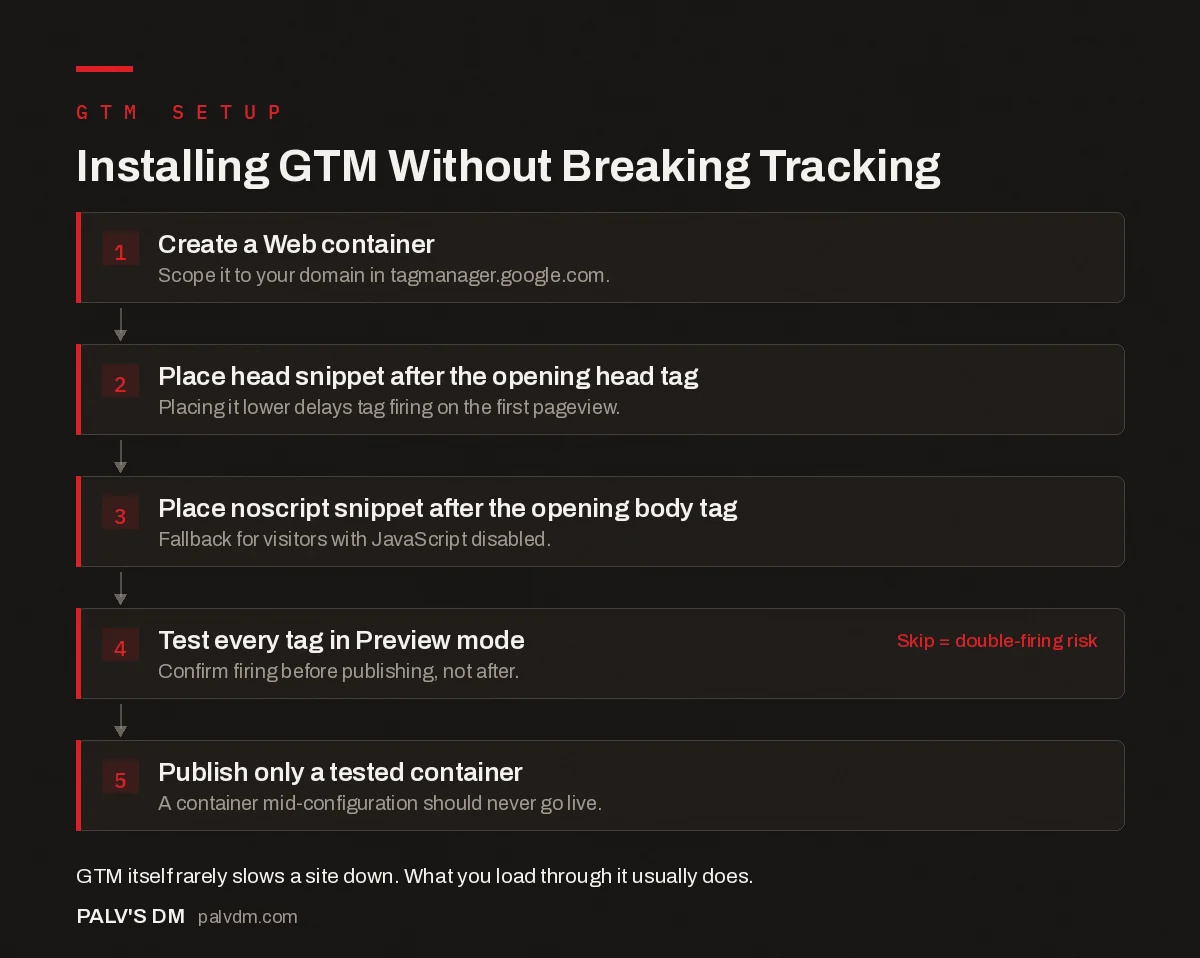
Installing GTM Without Breaking Tracking
- Create a Web container. Scope it to your domain in tagmanager.google.com.
- Place head snippet after the opening head tag. Placing it lower delays tag firing on the first pageview.
- Place noscript snippet after the opening body tag. Fallback for visitors with JavaScript disabled.
- Test every tag in Preview mode. Confirm firing before publishing, not after. Skip = double-firing risk
- Publish only a tested container. A container mid-configuration should never go live.
What Causes GTM to Slow Down a Site?
GTM itself is a small, asynchronous script and rarely the direct cause of slow load times. The damage usually comes from what you load through it:
- Too many third-party tags. Every heatmap tool, chat widget, and marketing pixel you add through GTM is still a script the browser has to fetch and execute. GTM makes adding them easy, which is exactly why containers accumulate bloat over time.
- Tags set to fire on “All Pages” that don’t need to. A remarketing pixel that only matters on product pages shouldn’t fire sitewide. Scope triggers tightly.
- Synchronous custom HTML tags. Custom HTML tags in GTM can block rendering if written poorly. Keep custom scripts asynchronous wherever the vendor supports it.
- No tag audit cadence. Containers that haven’t been reviewed in a year commonly carry tags for tools nobody uses anymore. A quarterly audit — checking which tags actually received hits in the last 90 days — catches this before it becomes a performance problem.
How Do You Prevent Tags From Firing Twice?
Double-firing is the single most common GTM support issue and it usually comes from one of these causes:
| Cause | Symptom | Fix |
|---|---|---|
| GA4 configured in GTM and also hardcoded in theme | Sessions and events roughly double actuals | Remove the hardcoded gtag.js snippet; keep only the GTM-managed tag |
| Same tag added twice in one container | Duplicate hits visible in GA4 DebugView | Search the container’s tag list for duplicate Measurement IDs |
| GTM installed in both theme header and a plugin | Two GTM containers loading, both firing configured tags | Pick one installation method and remove the other |
| Conversion tag fires on both form-submit event and thank-you page load | Ad platform conversions inflated | Choose one trigger per conversion action, not both |
What Naming Conventions Keep a Container Manageable?
GTM containers turn into a mess less because of tag volume and more because of naming chaos. A container with tags called “GA4,” “New GA4,” “GA4 test,” and “GA4 – copy” is unmanageable within six months, even for the person who built it.
- Prefix tags by type and destination. Something like “GA4 – Config” or “Ads – Conversion – Contact Form” tells you what a tag does without opening it.
- Name triggers by the condition, not the tag they serve. A trigger called “Click – WhatsApp Button” is reusable across multiple tags; a trigger called “GA4 Trigger 1” is not.
- Use folders for large containers. GTM supports folders once you’re past roughly 15-20 tags — group by platform (Google, Meta, LinkedIn) or by function (analytics, ads, chat).
- Document what each custom HTML tag does. GTM has a notes field on every tag. Use it. Six months later, nobody remembers what an unlabeled custom script was for.
None of this is optional polish — a badly named container is the reason handovers between agencies or in-house teams take days instead of hours, and it’s the reason duplicate tags get added because nobody could tell one already existed.
What Is the dataLayer and Do You Need to Understand It?
The dataLayer is a JavaScript object that passes information from your website to GTM — things like which product a visitor viewed, what form they submitted, or what category a blog post belongs to. Basic GTM use (installing GA4, firing a pixel on all pages) doesn’t require touching it.
You’ll need dataLayer pushes once you want to track specific interactions: e-commerce purchases, multi-step form completions, or WhatsApp click events that don’t correspond to a standard page load. A developer typically adds a small dataLayer.push() snippet at the relevant point in the code, and GTM reads that data through a Data Layer Variable. This is usually the point where a marketing team and a developer need to collaborate — GTM handles the tag logic, but someone has to push the right data into the layer in the first place.
Should You Set Up Server-Side GTM Instead?
Server-side tagging moves tag processing from the visitor’s browser to a server you control, which can improve page speed and give you more control over what data reaches third parties. It’s a genuinely different level of complexity, though, requiring cloud hosting costs and ongoing maintenance most small teams don’t need on day one. For most Indian SMB and D2C sites, get client-side GTM clean and well-tested first. Server-side is worth evaluating once you have complex tracking needs client-side can’t solve — we cover that trade-off in detail separately.
FAQ
Do I need a developer to install GTM?
Not for the initial container install if you’re on WordPress with a page builder or theme that has a header/footer script field. You paste two snippets once. Ongoing tag configuration inside GTM’s interface generally doesn’t require a developer either, though complex custom HTML tags or dataLayer pushes for specific events sometimes do.
How many tags is too many in one container?
There’s no fixed number, but if you can’t explain what each tag does and why it’s still active, you have too many. A useful habit is reviewing the container every quarter and removing anything with zero fires in GTM’s built-in tag firing summary over the last 90 days.
Will GTM hurt my Core Web Vitals scores?
A clean GTM container with a handful of well-scoped tags has minimal impact. A bloated container with a dozen unscoped, synchronous third-party scripts absolutely can hurt Largest Contentful Paint and Interaction to Next Paint. The container isn’t the problem; what you load through it is.
Can I use GTM alongside Google Site Kit on WordPress?
Yes, but pick one to manage each specific tag. If Site Kit is handling GA4 directly, don’t also add a GA4 configuration tag in GTM — that’s the double-firing scenario described above. Decide up front which tool owns which tag.
Getting GTM Right Without the Usual Breakage
The pattern behind most “GTM broke my site” stories is the same: someone published a container without testing it in Preview mode first, or let tags accumulate for years without an audit. Neither problem is caused by GTM being inherently risky — both come from skipping the fifteen minutes it takes to verify a change before it goes live.
If your current tag setup already feels tangled, it’s usually faster to audit and rebuild the container than to keep patching it. Our SEO Growth service includes tracking and tag audits as part of the technical SEO work we do for clients moving from ad hoc tracking to a properly maintained measurement stack.
Once your container is clean, the next step is usually consent configuration — see our guide on Consent Mode and DPDP Act compliance — followed by proper conversion tracking, covered in GA4 events and conversions for a service business. If you’re weighing whether to go further into server-side tagging, read server-side tracking: is it worth the complexity before committing engineering time to it.
For the reporting foundation GTM feeds into, see Google Search Console: the reports that actually matter.