SEO Chrome Extensions Actually Worth Installing in 2026
A short, working list of SEO Chrome extensions for technical checks, keyword research and competitive analysis, plus why fewer installed is usually better.

A handful of Chrome extensions replace a lot of manual tab-switching for SEO work: checking meta tags, tracing redirect chains, spotting nofollow links and pulling rough keyword volume without leaving the search results page. The mistake most people make isn’t picking bad extensions, it’s installing fifteen of them and running all of them at once.
Every SEO Chrome extension list online reads the same, ranked by whoever paid for placement that month. This one is the short set we actually keep enabled day to day, organised by what job each one does, plus the ones we tried and stopped using and why.
Which extensions handle technical and on-page checks?
- Detailed SEO Extension. Click it on any page and it surfaces title tag, meta description, headings hierarchy, canonical tag, robots directives, and whether structured data is present, all in one panel. This is the one we open first on almost every page audit, free and no account required.
- Redirect Path. Shows the full chain of HTTP status codes a URL passes through before landing on its final destination. Catches redirect chains and loops that are invisible just clicking a link normally, since the browser follows redirects silently by default.
- Wappalyzer. Identifies the CMS, hosting, analytics tools, and frameworks running on any site you visit. Useful for quickly confirming whether a prospect or competitor is on WordPress, Webflow, or something custom before a call.
- Check My Links. Scans a page and highlights broken links directly on the rendered page. Faster than a full site crawl when you just need to sanity-check one page before publishing.
Which extensions help with keyword and content research?
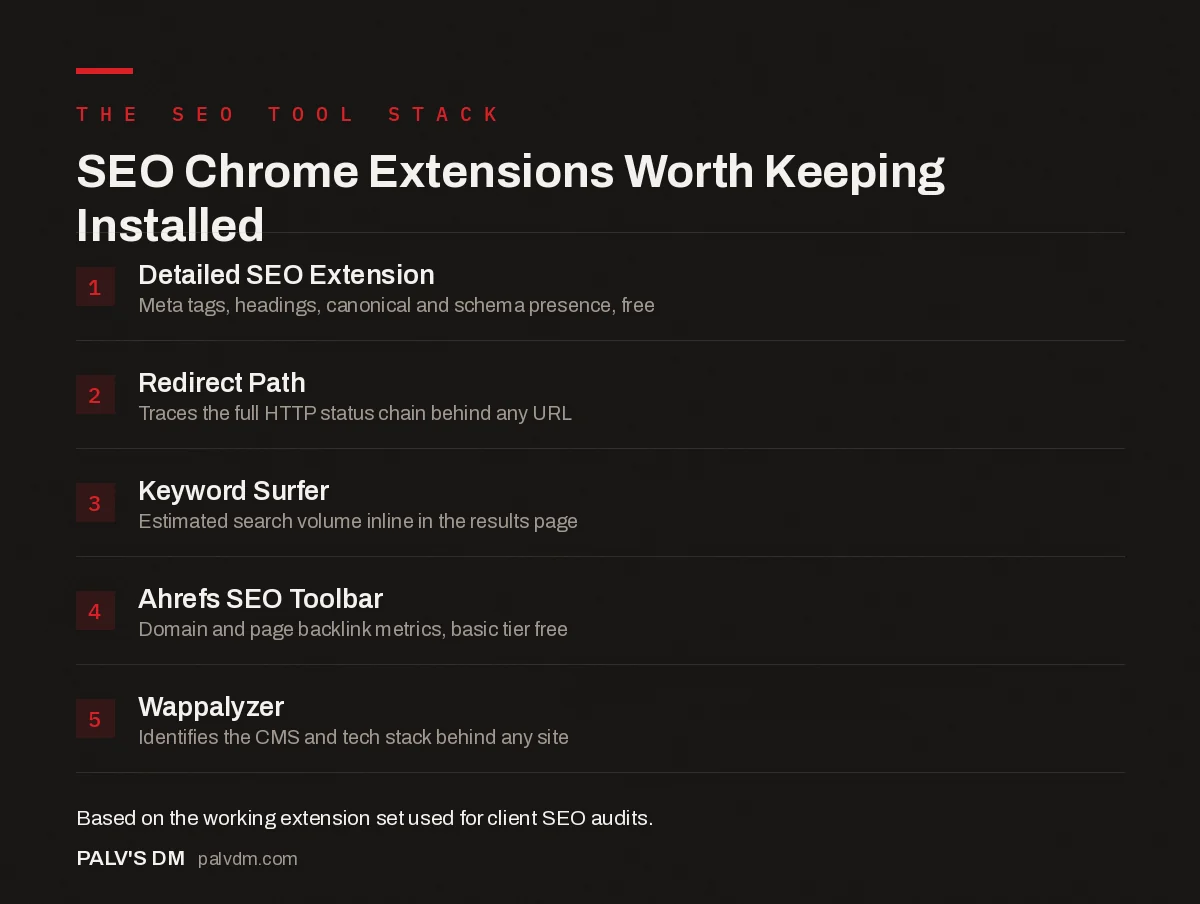
SEO Chrome Extensions Worth Keeping Installed
- Detailed SEO Extension. Meta tags, headings, canonical and schema presence, free.
- Redirect Path. Traces the full HTTP status chain behind any URL.
- Keyword Surfer. Estimated search volume inline in the results page.
- Ahrefs SEO Toolbar. Domain and page backlink metrics, basic tier free.
- Wappalyzer. Identifies the CMS and tech stack behind any site.
Keyword Surfer overlays estimated monthly search volume and related keywords directly in the Google results page, next to the organic listings, without needing to open a separate keyword tool for a quick gut check. It’s not a replacement for a proper keyword research platform when you’re building a content plan, but for a fast “is this even worth writing about” check mid-browsing, it saves a genuine number of tab switches over a working week.
NoFollow highlights every link on a page, colour-coded by whether it carries a nofollow, sponsored, or UGC attribute. Handy for quickly auditing whether a guest post or directory listing actually passed the link value it promised, without viewing page source and searching manually.
Which extensions help with competitive and link analysis?
| Extension | What it’s for | Free tier |
|---|---|---|
| Ahrefs SEO Toolbar | Domain and page-level backlink metrics inline in search results | Basic metrics free, full backlink data needs a paid Ahrefs account |
| SEOquake | On-the-fly SERP audit, keyword density, internal/external link counts | Fully free, no account needed for core features |
| Similarweb | Estimated traffic, top referral sources, audience overlap for any domain | Free summary view, full reports need a paid plan |
| Detailed SEO Extension | On-page meta, headings, canonical and schema presence check | Fully free |
The Ahrefs and Similarweb extensions are the two we treat as “good enough for a fast gut check, not good enough for a client-facing report.” The free view gives a rough sense of a competitor’s authority or traffic tier in about three seconds, which is genuinely useful mid-research. For anything going into a formal audit deliverable, we pull the actual number from the full platform, because the free extension figures are estimates and can shift noticeably between refreshes.
What did we try and stop using, and why?
SEO audit extensions that try to do everything in one panel (meta checks, keyword density, link analysis, page speed estimate, all in a single sidebar) sound efficient and end up being the ones we disable first. The all-in-one panels tend to load slower, clutter the results page more than a focused single-purpose tool, and the page speed estimates in particular are consistently less reliable than just running PageSpeed Insights directly, which pulls from real Chrome User Experience Report data rather than a simulated in-browser test.
Keyword density checkers are the other category we’ve quietly dropped. Keyword density as a standalone metric stopped meaningfully predicting rankings years ago, and an extension built around a metric that doesn’t matter much anymore is mostly just visual noise on the toolbar.
How many should you actually run at once?
Three to five active extensions is the practical ceiling before Google results pages start noticeably slowing down, since every SERP-injecting extension makes its own requests and renders its own overlay on the same page load. Our working set stays around four: Detailed SEO Extension and Redirect Path enabled all the time, Ahrefs Toolbar and Keyword Surfer toggled on only during active research sessions rather than left running by default.
Chrome’s extension icon bar getting crowded is usually the first sign it’s time to prune, not add. If you can’t remember the last time you clicked a particular icon, that’s the one to remove, not the newest addition you just installed last week.
What should you check before installing a new one?
- Read the requested permissions. “Read and change all your data on the websites you visit” is broad access. On a machine logged into client CMS backends and analytics dashboards, that’s worth pausing on rather than clicking through automatically.
- Check who publishes it. Extensions from established SEO companies (Ahrefs, Semrush, established independent developers with a track record) carry less risk than an anonymous developer with no history and a handful of installs.
- Check the last update date. An extension untouched for two or three years is more likely to break against a current Chrome version, or worse, get acquired and repurposed to inject ads or tracking without much warning.
- Uninstall, don’t just disable, anything you’re not using. A disabled extension still sits in Chrome’s profile and occasionally reactivates after an update. If you’re not using it, remove it fully.
Is there anything worth installing specifically for AI search visibility?
Not really, not yet, as a browser extension category. Checking whether a page gets cited in ChatGPT, Perplexity or Google’s AI Overviews isn’t something a Chrome extension can do reliably, because those answers are generated per query, per session, and often per account, in a way that doesn’t lend itself to a simple in-browser overlay the way a page’s meta tags do. A few extensions claim to show “AI visibility scores,” and we’ve tried a couple. The numbers didn’t correlate with anything we could verify by manually checking the same prompts, so we dropped them rather than build a workflow around a metric we couldn’t trust.
What actually works for this right now is manual, unglamorous, and outside the browser extension model entirely: running a fixed set of prompts through each AI engine on a schedule and logging whether your domain gets cited. That’s a spreadsheet exercise, not a one-click extension, at least until the tooling in this space matures past where it currently sits.
What’s the difference between a general SEO extension and DevTools?
Chrome’s built-in DevTools (right-click, Inspect) does a lot of what dedicated SEO extensions do, viewing rendered HTML, checking network requests, running a Lighthouse audit for performance and accessibility, without installing anything third party. The trade-off is speed of access. DevTools requires more clicks and more familiarity with where things live; a purpose-built extension surfaces the same class of information in one click, formatted for someone who just wants the SEO-relevant fields without digging through a general-purpose developer console.
For anyone doing SEO work occasionally rather than daily, Lighthouse inside DevTools (Chrome’s own built-in audit, no extension required) covers page speed and basic accessibility checks well enough that installing a separate extension just for that isn’t necessary. It’s the higher-frequency, single-purpose checks, meta tags, redirects, nofollow status, where a dedicated extension earns its place in the toolbar.
Frequently asked questions
How many SEO Chrome extensions should I actually have installed?
Three to five, active at once, is the practical ceiling. Each extension that injects data into the search results page adds processing overhead, and running six or more simultaneously can noticeably slow down how fast a Google results page finishes loading. Keep a small core set enabled and toggle specialty ones on only when you need them.
Are SEO Chrome extensions safe to install?
Most well-known ones from established SEO companies are safe, but check requested permissions before installing anything, especially “read and change all your data on websites you visit,” which is broad access. For agency machines logged into client dashboards and CMS backends, that permission is worth taking seriously.
Do I need a paid SEMrush or Ahrefs subscription to get value from their extensions?
No, both extensions show some free data, domain and page-level metrics like referring domains or estimated traffic, without a paid account, though the depth is limited. A paid subscription gives access to the full backlink and keyword data behind the summary numbers the free view shows.
Which Chrome extension is best for checking schema markup on a page?
A general on-page extension like Detailed SEO Extension surfaces whether structured data is present, but for actually validating that the schema is correctly formatted and error-free, Google’s own Rich Results Test and the Schema Markup Validator are the more reliable tools, since they check against the current, official specification.
Do SEO extensions slow down Chrome overall?
A few well-chosen ones make no noticeable difference for everyday browsing. The slowdown shows up specifically on search results pages when multiple SERP-injecting extensions run at once, since each one makes its own additional requests and renders its own overlay on the same page.
Sources
- Chrome for Developers: Extension permission warnings explained
- Google Search Central: Rich Results Test
- Technical SEO: The Complete Working Guide
- Free SEO Tools That Replace Paid Ones (Mostly)
- The SEO Tool Stack a Small Agency Actually Needs
- How to Verify a Tool’s Data Before You Trust It
Want this done on your site?
Every PalV’s DM engagement starts with a free audit of your actual website — a 12-point
crawl covering what is blocking indexation, on-page gaps against your primary keywords, speed
findings, and the three to five fixes worth making first. Delivered in two working days. No
payment details, and the findings are yours whether you hire us or not.
Get your free SEO audit
See one-time SEO fix plans and prices