Lazy Loading Done Right (Without Hurting LCP)
Lazy loading speeds up most pages but hurts Largest Contentful Paint when applied to the wrong element. The rules for which images to lazy-load and which to never touch.

Lazy loading is safe and beneficial for every image below the initial viewport, and actively harmful for the one image that determines your Largest Contentful Paint score — the fix is knowing which is which before you apply loading="lazy" sitewide. Sites that lazy-load every image indiscriminately, including hero banners and above-fold product photos, routinely see LCP get worse even though total page weight goes down, because the browser now waits to even start fetching the image that matters most for the metric.
This isn’t a reason to avoid lazy loading. Deferring genuinely offscreen images is one of the highest-value, lowest-effort speed fixes available on an image-heavy page. It’s a reason to apply it selectively.
What is lazy loading and how does it affect page speed?
Lazy loading defers the browser’s fetch of an image or iframe until it’s about to enter the viewport, instead of downloading every asset on the page immediately on load. On a page with dozens of images — a product listing, a long article, an image gallery — this can cut the initial network payload substantially, since only the images visible at first paint are fetched right away.
The tradeoff is timing: an image marked for lazy loading isn’t requested until the browser detects it’s about to be needed, which introduces a delay that’s invisible for offscreen content and directly damaging for anything the user sees immediately.
Why does lazy loading hurt LCP when applied incorrectly?
Largest Contentful Paint measures how long it takes the largest visible element — usually a hero image, a banner, or a large text block — to render in the initial viewport. If that element has loading="lazy" applied, or is deferred by a JavaScript intersection-observer library, the browser deliberately delays the fetch until it calculates the element is near the viewport, which on the very first paint it always is. The result is a slower LCP than an eagerly loaded version of the same image would produce, because lazy loading adds a calculation step in front of a fetch the browser should have started immediately.
Which images should you lazy load, and which should you not?
| Image | Lazy load? | Why |
|---|---|---|
| Hero banner / above-fold LCP candidate | No | Delaying it directly delays the LCP metric |
| Product images below the fold on a listing page | Yes | Not visible at load, no reason to fetch immediately |
| Images inside an accordion or tab not open by default | Yes | Hidden content shouldn’t compete for bandwidth on load |
| Logo in the header | No | Small file, always visible, negligible savings from deferring it |
| Images in a footer or comments section | Yes | Rarely seen without scrolling the full page |
How do you implement native lazy loading correctly?
Add loading="lazy" directly to the <img> tag for every image below the fold: <img src="product.jpg" loading="lazy" width="600" height="400" alt="...">. Always pair it with explicit width and height attributes — this reserves the correct space in the layout before the image loads, which prevents layout shift regardless of when the fetch actually completes.
For the LCP candidate itself, do the opposite on every count: omit loading="lazy" entirely, add fetchpriority="high" to tell the browser to prioritise this fetch ahead of other resources, and consider a <link rel="preload" as="image"> tag in the document head so the browser starts fetching it before it even parses the rest of the HTML.
How do you fix the “LCP image was lazily loaded” Lighthouse warning?
This warning identifies the specific element Lighthouse measured as the LCP candidate and flags that it’s carrying a lazy-load attribute or being deferred by script. The fix is almost always mechanical: locate that element in the template, remove loading="lazy", and add fetchpriority="high". On WordPress sites, this often means excluding the featured image or hero block from whatever plugin or theme setting applies lazy loading sitewide by default — check the plugin’s exclusion settings before writing custom code.
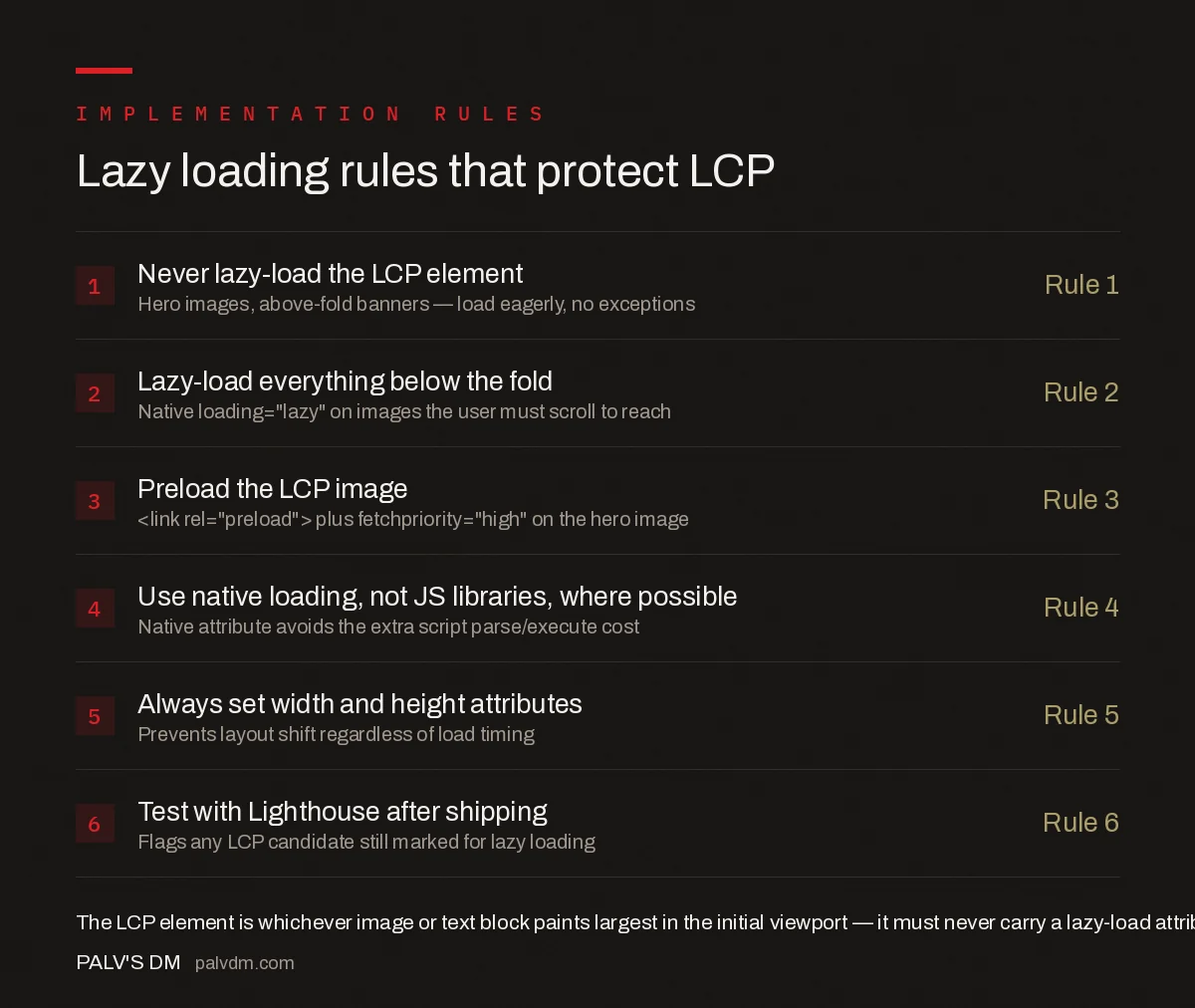
Lazy loading rules that protect LCP
- Never lazy-load the LCP element — Rule 1. Hero images, above-fold banners — load eagerly, no exceptions.
- Lazy-load everything below the fold — Rule 2. Native loading=”lazy” on images the user must scroll to reach.
- Preload the LCP image — Rule 3. <link rel=”preload”> plus fetchpriority=”high” on the hero image.
- Use native loading, not JS libraries, where possible — Rule 4. Native attribute avoids the extra script parse/execute cost.
- Always set width and height attributes — Rule 5. Prevents layout shift regardless of load timing.
- Test with Lighthouse after shipping — Rule 6. Flags any LCP candidate still marked for lazy loading.
What does a correct LCP image implementation look like in code?
A well-configured hero image tag combines several attributes at once rather than relying on any single fix:
| Attribute | What it does |
|---|---|
fetchpriority="high" | Tells the browser to fetch this resource ahead of lower-priority ones |
width / height | Reserves layout space before the image loads, preventing shift |
No loading="lazy" | Ensures the browser fetches immediately rather than deferring |
<link rel="preload" as="image"> in <head> | Starts the fetch before the browser reaches the image tag itself |
The preload link is the piece most often skipped, because it requires knowing which image will be the LCP candidate before the page even renders — for a fixed hero banner this is straightforward, but for a template where the LCP element varies by page (a blog post’s featured image, for instance), the preload tag needs to be generated dynamically per page rather than hardcoded once in the theme.
Do JavaScript lazy-load libraries ever make sense over the native attribute?
Native loading="lazy" covers the vast majority of cases and should be the default choice — it requires no additional script, adds no parse or execution cost, and is supported by every major modern browser. A JavaScript-based library still has a narrow use case: sites needing finer control over the loading threshold — fetching images earlier than the browser’s native trigger point, for a smoother scroll experience on a fast connection — or needing to lazy-load background images set through CSS, which the native attribute doesn’t cover at all. Outside those specific needs, adding a library on top of native lazy loading is extra weight solving a problem that’s already solved.
One more practical check worth running before shipping a template change: view the page’s network waterfall in Chrome DevTools and confirm the LCP image is among the first few requests fired, not queued behind a dozen lower-priority scripts and stylesheets. A correctly configured LCP image typically starts downloading within the first 10-20% of the total load timeline; if it’s starting much later than that, something in the loading order — not just the lazy-load attribute itself — is still working against it.
What other mistakes show up in lazy-loading implementations?
- Lazy-loading iframes that sit above the fold. Embedded video players or maps near the top of a page suffer the same LCP delay as images do.
- Missing width/height on lazy-loaded images. Without reserved space, the layout jumps as each image finishes loading, which damages Cumulative Layout Shift even if LCP is unaffected.
- Relying on a plugin default without checking exclusions. Many WordPress performance plugins apply lazy loading to every image including the featured image, unless explicitly excluded in settings.
- Lazy-loading background images set via CSS. Native
loading="lazy"only applies to<img>and<iframe>elements; CSS background images need a different, script-based deferral approach if lazy loading them at all.
Frequently asked questions
Does lazy loading help or hurt SEO?
Both, depending on which images it’s applied to. Lazy-loading below-fold images reduces initial page weight and can improve load speed. Lazy-loading the Largest Contentful Paint element delays the metric Google uses for ranking and typically hurts SEO.
How do I know which image is my LCP element?
Run the page through Lighthouse or PageSpeed Insights and check the Largest Contentful Paint audit, which names the specific element measured. It’s usually the largest visible image or text block in the initial viewport, and it can differ between mobile and desktop layouts.
Should I use loading=”lazy” or a JavaScript lazy-load library?
Use the native loading=”lazy” HTML attribute wherever the browser support requirement allows it. It achieves the same deferral without the extra JavaScript parse and execution cost that intersection-observer-based libraries add to every page load.
Why does Lighthouse say my LCP image was lazily loaded?
This warning means the image Lighthouse identified as the LCP candidate has a loading=”lazy” attribute or is being deferred by a JavaScript lazy-load script, forcing the browser to wait before it can even start fetching the image that paints the page’s largest content.
Sources
- Browser-level image lazy loading for the web — web.dev, Google Chrome team
- Core Web Vitals: The Complete Guide
- Technical SEO: The Complete Working Guide
- Critical CSS: Extracting It Without Breaking Layout
- How to Fix a Poor LCP Score, Step by Step
Want this done on your site?
Every PalV’s DM engagement starts with a free audit of your actual website — a 12-point
crawl covering what is blocking indexation, on-page gaps against your primary keywords, speed
findings, and the three to five fixes worth making first. Delivered in two working days. No
payment details, and the findings are yours whether you hire us or not.