How to Read a robots.txt File Line by Line
A line-by-line method for reading any robots.txt file: user-agent groups, Allow/Disallow precedence, wildcards, and the sitemap line, plus the mistakes that quietly break crawling.
Reading a robots.txt file line by line means working through it in a fixed order: identify each User-agent group first, then read the Allow and Disallow lines inside that group by longest-path match, then check any wildcard characters literally, then confirm the Sitemap line points somewhere real. Skip that order and it’s easy to misread a file that looks simple but is quietly blocking — or exposing — pages you didn’t intend.
Most robots.txt files are short, ten to forty lines, and that brevity is deceptive. A single misplaced wildcard or a Disallow line grouped under the wrong user-agent can deindex a section of a site for weeks before anyone notices in Search Console. The method below is the same one used in a technical audit: read groups, not lines in isolation.
What does each line in a robots.txt file actually do?
A robots.txt file is a plain text file at the root of a domain — example.com/robots.txt — made of rule groups. Each group starts with one or more User-agent lines and is followed by Allow and Disallow lines that apply only to the crawlers named above them. A Sitemap line can appear anywhere and isn’t tied to any group. That’s the entire vocabulary Google supports: User-agent, Allow, Disallow, and Sitemap. Anything else in the file — Crawl-delay, Host, comments starting with # — is either ignored by Googlebot or purely informational.
Step 1: How do you identify the user-agent groups first?
Before reading a single Allow or Disallow line, scan the whole file for every line starting with User-agent:. Each one either starts a new group or, if it directly follows another User-agent line with no rules between them, joins the group above it. This matters because a Disallow line belongs to the nearest group above it — not to the whole file. A common misread is assuming a Disallow near the top applies everywhere, when it’s actually scoped to a narrow bot named three lines earlier.
User-agent: * is the group that matters most on nearly every site — it covers Googlebot, Bingbot, and effectively every crawler except a handful Google requires to be named explicitly, like AdsBot-Google. If a site also has a group for User-agent: Googlebot specifically, that more specific group overrides the wildcard group for Google’s own crawler, and the wildcard group is ignored for Googlebot entirely — Google doesn’t merge the two.
Step 2: How do you read Disallow and Allow lines correctly?
Inside a group, read every Disallow and Allow line as competing path patterns, not as a sequence. Google’s parser doesn’t care which line comes first — it finds every rule whose path matches the URL being checked, then applies whichever matching rule has the longest (most specific) path. A shorter, more general Disallow always loses to a longer, more specific Allow underneath it, even if the Disallow was written first.
| Rule | Path length | Result for /blog/drafts/public-post/ |
|---|---|---|
Disallow: /blog/drafts/ | 15 characters | Matches, blocks by default |
Allow: /blog/drafts/public-post/ | 29 characters | Longer match wins — page is crawlable |
An empty Disallow: line (nothing after the colon) means “disallow nothing” — it’s functionally a no-op, not a block-everything rule. That trips people up because it reads like a blank check to disallow, when it’s the opposite.
Step 3: How do you check wildcards and path matching?
Google supports two special characters in paths: * matches zero or more of any character, and $ anchors the end of the URL. Disallow: /*.pdf$ blocks any URL ending in .pdf, anywhere in the path, but not a URL like /report.pdf?utm_source=x, because the query string means the URL no longer ends in .pdf. That’s a frequent gap: teams block file extensions expecting to catch every instance, then find tracked or parameterized versions of the same file still crawlable.
Without a trailing $, a Disallow path matches as a prefix. Disallow: /blog — no trailing slash — blocks /blog, /blog/, and also /blog-archive/, because the string “/blog” is a prefix of all three. Reading the line literally as a prefix match, not as a folder reference, is the fix for that misread.
How do you find the sitemap line and confirm it’s correct?
The Sitemap: line should point to an absolute URL, not a relative path, and it should return a 200 status when fetched directly. It’s easy to skim past a Sitemap line pointing to a sitemap that was renamed or moved during a CMS migration months ago — the robots.txt file itself doesn’t break, so nobody revisits it. Check the URL by requesting it directly, not by assuming the line is current because the file around it looks fine.
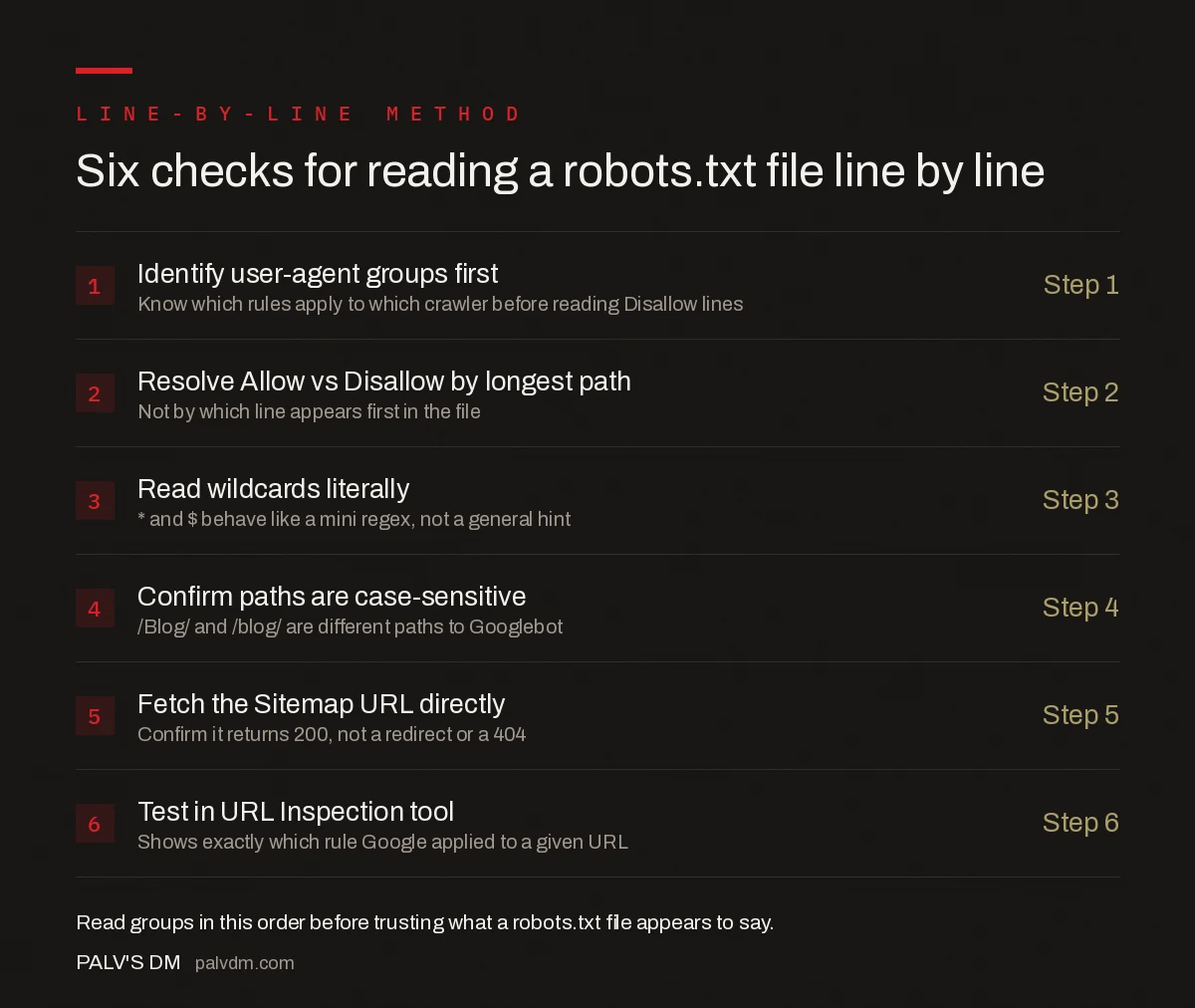
Six checks for reading a robots.txt file line by line
- Identify every User-agent group first — know which rules apply to which crawler before reading any Disallow line.
- Resolve Allow vs Disallow by longest path — not by which line appears first in the file.
- Read wildcards literally —
*and$behave like a mini regex, not a general hint. - Confirm paths are case-sensitive —
/Blog/and/blog/are different paths to Googlebot. - Fetch the Sitemap URL directly — confirm it returns 200, not a redirect or a 404.
- Test the live file in Search Console’s URL Inspection tool — it shows exactly which rule Google applied to a given URL.
What common mistakes turn a working robots.txt into a broken one?
- Blocking CSS and JS needed for rendering. A blanket
Disallow: /assets/written years ago for a different reason can quietly block the files Google needs to render the page, hurting how it’s evaluated even though the HTML itself is crawlable. - Assuming Disallow removes a page from search results. It only stops crawling. A blocked URL that’s heavily linked can still appear in results with no snippet, which confuses teams trying to deindex something.
- Leaving a staging-site rule in production.
Disallow: /underUser-agent: *, copied from a staging environment during a deploy, blocks the entire live site from every crawler until someone spots it. - Editing the file without testing the specific URL affected. A change that looks correct for the URL you had in mind can unintentionally match a longer or shorter path elsewhere on the site.
What do you need before auditing a robots.txt file?
- Read access to
/robots.txton the live domain, fetched directly in a browser or with curl — not a cached or staging copy. - Search Console access, specifically the URL Inspection tool, to confirm what Googlebot currently sees.
- A list of the URL patterns you actually intend to block or allow, written out before touching the file, so you’re checking the file against a plan rather than reading it in isolation.
Once the groups, the path precedence, and the wildcards are read correctly, most robots.txt confusion resolves itself — the file is small enough that the remaining errors are almost always in how it was written, not in how Google interprets it.
Frequently asked questions
What does User-agent: * mean in a robots.txt file?
It starts a rule group that applies to every crawler except ones Google requires to be named explicitly, such as AdsBot. Any Allow or Disallow lines beneath it apply to all of those crawlers until the next User-agent line starts a new group.
Does the order of Allow and Disallow lines matter?
Not for Google. Google’s parser picks whichever rule has the longest matching path, regardless of which line appears first. Order can matter for less sophisticated crawlers, so don’t rely on ordering as your only control.
Can a robots.txt file block a page from ranking in Google?
Not reliably. Disallow stops Googlebot from crawling a URL, but if other pages link to it, Google can still index the URL with no description, using just the anchor text. To fully remove a page from search results, use a noindex tag on a crawlable page, not a robots.txt block.
What does Crawl-delay do in Google’s robots.txt implementation?
Nothing. Googlebot ignores the Crawl-delay directive entirely, even though Bing and some other crawlers honor it. Crawl rate for Google is adjusted in Search Console’s crawl rate settings or, more effectively, by fixing server response times.
Is the Sitemap line in robots.txt required?
No, but it’s a cheap, reliable way to point every crawler that respects the standard to your sitemap without submitting it separately to each search engine. It’s optional and can appear anywhere in the file, not just at the top.
Sources
- Introduction to robots.txt — Google Search Central
- Technical SEO: The Complete Working Guide
- Conflicting Signals: When Canonical and Sitemap Disagree
- Infinite Scroll and Load-More: Making Them Crawlable
- Image and Video Sitemaps: Worth Building?
Want this done on your site?
Every PalV’s DM engagement starts with a free audit of your actual website — a 12-point
crawl covering what is blocking indexation, on-page gaps against your primary keywords, speed
findings, and the three to five fixes worth making first. Delivered in two working days. No
payment details, and the findings are yours whether you hire us or not.