WordPress Child Theme: When You Actually Need One (And When You Don’t)
A child theme protects customizations from being wiped out on update. Here is exactly when you need one, and when Additional CSS is enough.
You need a WordPress child theme the moment you’re editing PHP, template files, or writing more than a screen’s worth of CSS, because every one of those changes gets wiped out the next time the parent theme updates. For a handful of colour tweaks, WordPress’s built in Additional CSS panel does the job with zero setup.
The confusion around this topic isn’t really about what a child theme is. Most people can repeat the definition back after one Google search. It’s about the threshold: exactly when a two-minute CSS edit stops being “good enough” and starts being a liability. Get that threshold wrong in either direction and you either waste an afternoon building infrastructure for three lines of CSS, or you lose a week of client customization the first time an update runs.
What actually breaks when you skip a child theme?
Every WordPress theme update replaces the theme’s files wholesale. If you opened functions.php or a template file inside the parent theme and added your own code directly, that code lives in the same file WordPress is about to overwrite. There’s no merge, no warning, no diff. The update runs, the file gets replaced, and your changes are gone.
This is not a hypothetical. It’s the single most common way agencies and freelancers lose client customizations, and it usually surfaces weeks later when nobody remembers what was changed in the first place. I’ve inherited more than one site where a “quick fix” from a previous developer lived directly in the parent theme’s header.php, and it vanished on the first auto-update after handover. Nobody noticed until the client complained the phone number in the header had disappeared.
A child theme sidesteps this entirely. WordPress loads the child theme’s files first and falls back to the parent for anything the child doesn’t override. Update the parent all you want; your overrides sit untouched in a separate folder.
When do you actually need one?
Not every project needs this. The threshold is really about what you’re touching, not how the site looks.
| Situation | Do you need a child theme? |
|---|---|
| Changing colours, fonts, spacing via a few CSS rules | No. Use Appearance > Customize > Additional CSS. |
| Editing 15+ lines of CSS or maintaining a full style layer | Yes. Additional CSS isn’t version controlled or portable. |
| Adding a PHP snippet (custom hook, shortcode, filter) | Yes. A code snippets plugin works too, but a child theme keeps template and logic together. |
Overriding a single template file (e.g. single.php) | Yes. This can only be done safely in a child theme or full theme fork. |
| Building on a block theme, only moving logo/footer text | Usually no. Full Site Editing stores this in the database. |
| Custom block patterns or theme.json overrides you want in version control | Yes, even on a block theme. |
| Temporary staging or test site you’ll tear down | No. Not worth the setup time. |
Notice the pattern. It’s not about how experienced you are or how “serious” the site is. It’s about whether the change lives in a file the parent theme owns.
How do you build a WordPress child theme correctly?
The mechanics are simple, but two steps trip people up constantly: the Template header field and how the stylesheet gets loaded. Get either wrong and the child theme either won’t activate or will silently fail to load your CSS.
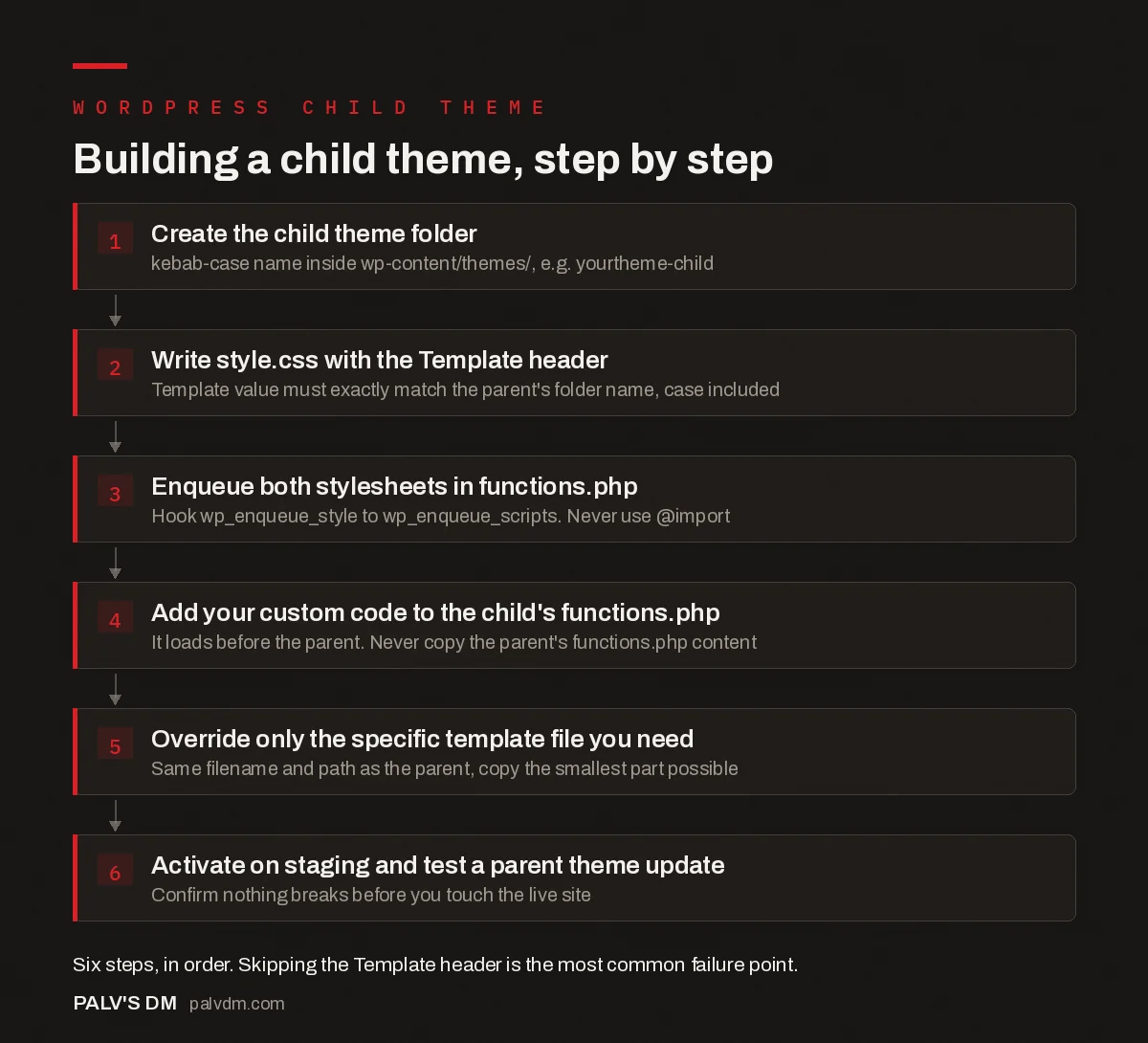
Building a child theme, step by step
- Create the child theme folder. kebab-case name inside wp-content/themes/, e.g. yourtheme-child.
- Write style.css with the Template header. Template value must exactly match the parent’s folder name, case included.
- Enqueue both stylesheets in functions.php. Hook wp_enqueue_style to wp_enqueue_scripts. Never use @import.
- Add your custom code to the child’s functions.php. It loads before the parent. Never copy the parent’s functions.php content.
- Override only the specific template file you need. Same filename and path as the parent, copy the smallest part possible.
- Activate on staging and test a parent theme update. Confirm nothing breaks before you touch the live site.
The step that catches almost everyone out is stylesheet loading. Older tutorials tell you to use @import inside the child’s style.css to pull in the parent’s styles. Don’t. It’s an extra render-blocking HTTP request and it’s been considered bad practice for years. Enqueue both stylesheets properly through functions.php instead, hooked to wp_enqueue_scripts.
What about block themes and full site editing?
This is where the advice genuinely changed over the last couple of years. Classic themes store almost everything in PHP template files, so a child theme was close to mandatory for any real customization. Block themes push template and style changes into theme.json and the Site Editor, and those user customizations are saved to the database as a kind of unofficial fourth layer on top of WordPress core, parent theme, and child theme.
Practically: if you’re on a block theme like Twenty Twenty-Five and you’re only rearranging the header, swapping colours in the Site Editor, or adjusting spacing, you don’t need a child theme. Those edits persist through updates because they never touched theme files to begin with.
You still want one if you’re registering custom block patterns via PHP, overriding a specific template part the parent ships, or adding functionality through functions.php that has nothing to do with the visual editor. The rule from the section above still applies: if the change lives in a file the parent theme owns, protect it in a child theme.
Child theme, code snippets plugin, or full theme fork: which one fits?
A child theme isn’t the only way to keep customizations safe. Two other tools solve overlapping problems, and picking the wrong one wastes time either way.
A code snippets plugin (WPCode is the one I reach for most) is the right call when your only need is PHP: a tracking pixel, a custom shortcode, a small hook into wp_head. It’s theme-independent, so it survives a full theme change, not just a theme update. The tradeoff is that your custom code lives disconnected from any templates it might relate to, which gets messy past ten or twenty snippets.
A full theme fork, meaning you copy the entire parent theme and rename it, makes sense only when you’re rewriting most of the theme anyway. This happens more than people expect on older client sites where the “parent” theme hasn’t been updated by its original author in three years and effectively is your codebase now. Forking commits you to maintaining security patches yourself, which a child theme never asks of you, so don’t do this lightly.
For everything in between, meaning template overrides, style layers past what Additional CSS handles comfortably, and PHP that’s genuinely tied to how the theme renders things, the child theme remains the default answer. It’s the only one of the three that keeps you eligible for parent theme updates while still isolating your work.
Common mistakes that defeat the purpose
- Copying the parent’s entire functions.php. Both files load, the child’s functions run first, and duplicate function names throw a fatal error. Write only the new function you need.
- Getting the Template header wrong. It has to match the parent theme’s folder name exactly, character for character, including case. A typo here means WordPress won’t recognise it as a child theme at all.
- Duplicating a full template file to change one line. Once you override
single.phpwholesale, you stop inheriting any future improvements the parent theme ships to that file. Override the smallest template part you can, not the whole page. - Never testing the update path. Build the child theme, then actually update the parent theme on staging and confirm nothing broke. Skipping this step is how “it worked when I built it” turns into a support ticket six months later.
- Treating a child theme as a substitute for good documentation. A child theme protects the code. It does not explain why the code exists. Comment your
functions.phplike someone else has to maintain it, because eventually someone will.
Frequently asked questions
What is a WordPress child theme, exactly?
A child theme is a separate theme folder that inherits the templates, styles and functionality of a parent theme while keeping your changes in its own files. WordPress loads the child theme first, so anything you add there overrides the parent without editing the parent’s code.
Do I need a child theme just to change a few CSS rules?
No. WordPress has a built in Additional CSS panel under Appearance, Customize that survives theme updates. A child theme is worth setting up once you are past roughly ten to fifteen lines of CSS, or you need to touch PHP, template files or theme.json.
Will a child theme slow down my site?
Not meaningfully. A child theme adds one extra stylesheet lookup and, if set up correctly, one extra enqueue call. The performance cost is negligible compared to the plugins and unoptimised images that actually slow WordPress sites down.
Can I turn an already customized theme into a child theme after the fact?
Yes, but it takes some care. You create the child theme folder, move your customized template files and functions.php code into it, then reset the original theme to its unmodified state so future updates apply cleanly.
Do block themes still need child themes?
Less often. Full Site Editing themes store template and style changes in the database, so simple edits like moving the logo or changing colours do not require one. You still want a child theme for custom PHP, custom block patterns, or theme.json overrides you want version controlled.
What happens if I skip a child theme and just edit the parent theme files?
The next theme update overwrites every file you touched, silently, with no warning. This is the single most common way agencies lose client customizations, and it is entirely avoidable.
Sources
- Child Themes — WordPress Theme Handbook
- What Is a WordPress Child Theme? Pros, Cons, and More — WPBeginner
- WordPress SEO: The Complete Configuration Guide
- Choosing a WordPress Theme That Won’t Sabotage Core Web Vitals
- Page Builders vs Native Gutenberg Blocks: The Real Cost
- Block Patterns: Reusable Layouts Without Plugin Lock-In
Want this done on your site?
Every PalV’s DM engagement starts with a free audit of your actual website — a 12-point
crawl covering what is blocking indexation, on-page gaps against your primary keywords, speed
findings, and the three to five fixes worth making first. Delivered in two working days. No
payment details, and the findings are yours whether you hire us or not.
Get your free SEO audit
See Web Development plans and prices