WordPress Block Patterns: Reusable Layouts Without Plugin Lock-In
WordPress block patterns let you reuse page layouts natively, no builder plugin required. Here is how to register, sync and manage them properly.
WordPress block patterns are pre-built groups of blocks you insert with one click and then edit freely, and you don’t need a page-builder plugin to use or create them. Core WordPress has supported them natively since version 5.5, and since 5.8 you can register your own straight from a theme file. That’s the whole trick: most agencies still install Elementor or a “shortcode library” plugin to solve a problem core already solves for free.
The confusion usually isn’t about what patterns look like. It’s about what happens after you insert one, and what the difference is between a pattern and the confusingly similar “synced pattern” (the feature formerly called reusable blocks). Get that distinction wrong and you’ll either lose an edit you meant to keep everywhere, or accidentally change twenty pages when you only meant to change one.
What exactly is a block pattern?
A block pattern is a saved arrangement of core Gutenberg blocks, columns, headings, buttons, images, grouped and styled to work as a single section. Insert a “call to action with two buttons” pattern and you get a fully formed section, spacing and typography included, that you then treat as ordinary blocks on the page.
The critical detail: once inserted, a standard pattern is unsynced. It’s a one-time copy. Edit the heading text on page A and page B, built from the same pattern, doesn’t change. That’s different from what most people expect coming from a page builder, where “global sections” usually mean linked-everywhere by default.
Pattern, synced pattern, or reusable block: which is which?
WordPress 6.3 folded reusable blocks into the patterns system and renamed them. The underlying behaviour didn’t change, just the label and where you find the toggle. Here’s the practical breakdown as of WordPress 6.3 and later.
Patterns vs Synced Patterns at a Glance
| Pattern (unsynced) | Synced pattern (formerly reusable block) | |
|---|---|---|
| Behaviour on insert | Independent copy of blocks | Linked instance of one source |
| Edit one instance | Only that page changes | Every instance updates everywhere |
| Typical use case | Section layouts, hero areas, feature grids | Footer CTA, site-wide notice, author bio block |
| Where it’s registered | Theme’s /patterns folder, register_block_pattern(), or Pattern Directory | Created and saved from inside the editor |
| Introduced / renamed | Core since WP 5.5, custom registration since 5.8 | Renamed from “reusable block” in WP 6.3 (Aug 2023) |
Most of the confusion I see on client sites traces back to someone building a “reusable” header years ago, before the 6.3 rename, and nobody on the team realising it’s now technically a synced pattern with completely different sync behaviour than the newer unsynced patterns sitting next to it in the inserter.
How do you register a custom block pattern?
You have two supported routes, and neither one needs a plugin.
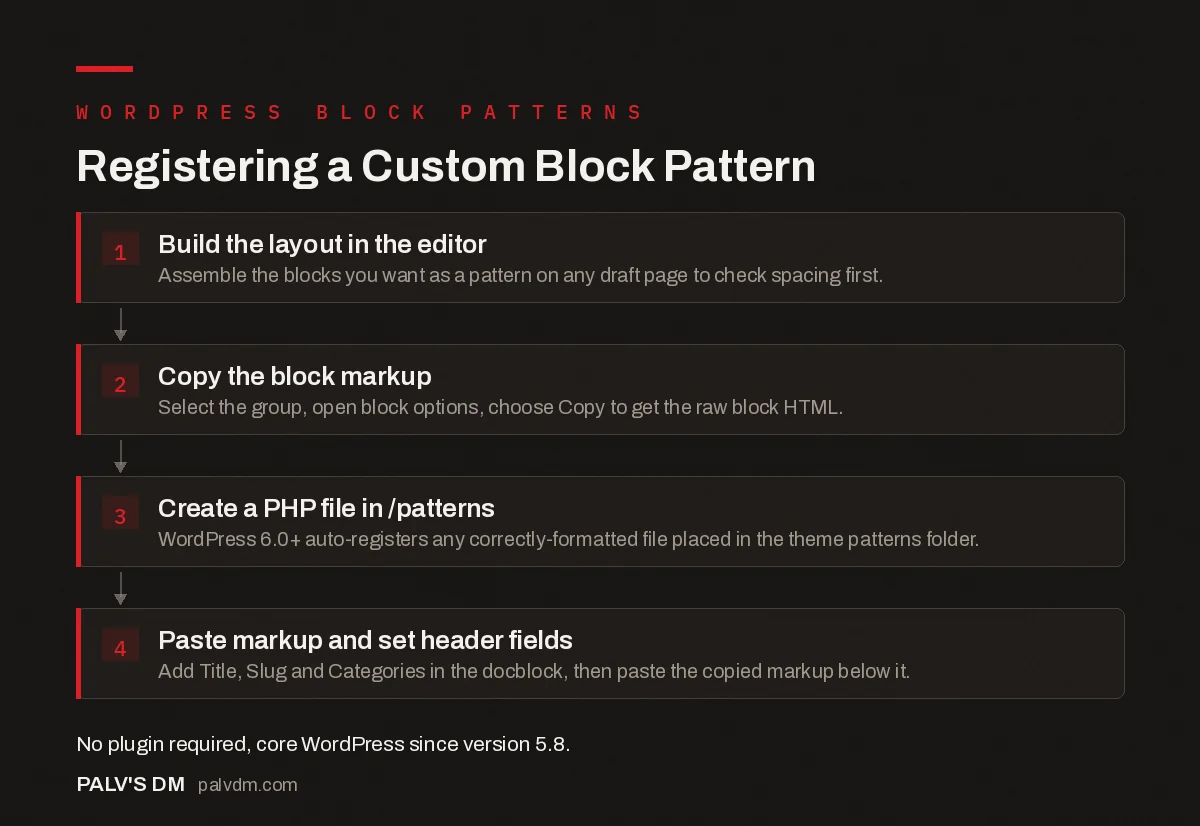
Registering a Custom Block Pattern
- Build the layout in the editor. Assemble the blocks you want as a pattern on any draft page to check spacing first.
- Copy the block markup. Select the group, open block options, choose Copy to get the raw block HTML.
- Create a PHP file in /patterns. WordPress 6.0+ auto-registers any correctly-formatted file placed in the theme patterns folder.
- Paste markup and set header fields. Add Title, Slug and Categories in the docblock, then paste the copied markup below it.
The alternative is calling register_block_pattern() directly in functions.php, which is the older method and still works fine, it’s really a matter of preference once you understand what the function needs (a unique slug and an array with title, description, content, and categories). For a child theme managing five or six patterns, the /patterns folder approach is cleaner because each pattern lives in its own file instead of one long array in functions.php.
Where do ready-made patterns come from before you build your own?
Check the built-in inserter before writing anything. On WordPress 6.0 and newer, the block inserter’s Patterns tab pulls directly from the official Pattern Directory at wordpress.org/patterns, thousands of free, community-submitted patterns you can insert with a click, no copy-paste, no download. Your active block theme also ships its own bundled patterns, which is usually the better starting point because they already match your site’s fonts and colour palette from theme.json.
In practice, the directory search rarely surfaces exactly what a client brief calls for. Generic “hero section” searches return dozens of results that are close but not right in spacing or column count. What ends up shipping on most of the sites I build is a five-line custom PHP file adapted from a directory pattern, not the directory pattern used as-is.
When does a plugin still make sense?
Core patterns cover section layouts well. They don’t cover everything a page builder does, and pretending otherwise causes more problems than it solves.
- Dynamic, data-driven blocks. If a section needs to pull live data (a filtered post grid, a WooCommerce product carousel with logic), that’s a custom block or a focused plugin, not a static pattern.
- Client-editable global sections used across dozens of pages. Synced patterns handle this at moderate scale. Past a few hundred pages, a proper custom post type with an ACF field group is usually more maintainable than one giant synced pattern everyone is scared to touch.
- Advanced animation or interaction. Native patterns render static markup. If you need scroll-triggered animation beyond what core’s `duotone` or `scale` block supports, that’s a targeted animation plugin, not a patterns problem.
- Non-technical teams who need visual drag positioning. Patterns still require understanding block nesting. Teams that genuinely can’t work in that structure sometimes are better served by a constrained builder, though this is rarer than agencies assume.
The honest position: default to core patterns first, reach for a plugin only when the specific requirement is dynamic content, not layout. Most sites we take over from another agency have three page-builder plugins installed to do what fifteen registered patterns would do for free, with none of the plugin’s CSS and JS bloat sitting on every single page load.
Do patterns work the same in a classic theme?
Mostly, with one caveat. Classic (non-block) themes can still register and use patterns through the same PHP functions, and the pattern inserter works in the block editor regardless of theme type. What you lose without a block theme is theme.json-driven styling consistency and full-site editing template parts, so patterns in a classic theme will pick up your global CSS but won’t integrate with things like the Site Editor’s template part library. If you’re planning a rebuild anyway, that’s one more argument for moving to a block theme rather than patching patterns onto a classic one.
Does a patterns-first approach actually save build time?
Yes, but not on the first page. The payoff shows up on page six of a build, not page one. Writing the first pattern still takes the same time as building any custom section: pick the blocks, set the spacing, get the typography right. What changes is page seven. Instead of rebuilding a similar hero from scratch, or hunting through a page builder’s template library for something close enough, you drop in the registered pattern and adjust the copy. On a twelve-page brochure site, that’s the difference between roughly two days of layout work and closer to half a day once the first three or four patterns exist.
There’s a maintenance argument too, one that rarely gets mentioned. A page builder’s saved templates live inside that plugin’s database tables. Deactivate the plugin, or the developer who set it up stops renewing the license, and those layouts can become unreadable markup dumped into the content field. A pattern registered in the theme’s own /patterns folder is portable PHP and block markup, readable by any future developer who opens the theme folder, no plugin dependency, no license to keep current. For a client who might change agencies in two years, that difference in transferability matters more than the time saved during the build.
Frequently asked questions
What’s the difference between a block pattern and a reusable block?
A block pattern inserts as an independent copy: editing it later changes only that instance. A reusable block, renamed synced pattern in WordPress 6.3, stays linked to the original, so one edit updates every place it’s used on the site.
Can I create my own block patterns without a plugin?
Yes. WordPress core has supported custom pattern registration since version 5.5, either by dropping a PHP file into a theme’s /patterns folder or by calling register_block_pattern() in functions.php. No plugin is required for either method.
Where do I find free WordPress block patterns?
The official WordPress Pattern Directory at wordpress.org/patterns has thousands of free, block-theme-compatible patterns you can insert directly from the block inserter on WordPress 6.0 and later, no download or copy-paste needed.
Do block patterns slow down my site?
Not on their own. A pattern is just markup for core blocks that were going to render anyway. Slowdowns come from what’s inside the pattern (heavy images, unoptimised embeds) or from a page-builder plugin loading its own CSS and JS framework to render something equivalent.
Can I edit a block pattern after inserting it?
Yes, freely. Once an unsynced pattern lands on the page it behaves like any other group of blocks: move it, restyle it, delete parts of it. That instance no longer has any connection to the original pattern definition.
Sources
- Block Patterns API reference, WordPress Developer Handbook
- Synced Patterns: The Evolution of Reusable Blocks, WordPress News
- WordPress SEO: The Complete Configuration Guide
- Custom Post Types for Scalable Content Architecture
- Building a WordPress Child Theme: When and Why
- Page Builders vs Native Gutenberg Blocks: The Real Cost
Want this done on your site?
Every PalV’s DM engagement starts with a free audit of your actual website — a 12-point
crawl covering what is blocking indexation, on-page gaps against your primary keywords, speed
findings, and the three to five fixes worth making first. Delivered in two working days. No
payment details, and the findings are yours whether you hire us or not.
Get your free SEO audit
See Web Development plans and prices