Getting Admin Access to Your Own Google Analytics Account
Lost admin access to your own Google Analytics property? Here's the exact ownership-verification process Google requires, step by step, and what it won't fix.
To recover admin access to your own Google Analytics account when nobody has it, you prove you own the website the property tracks, not who originally set the account up. Google’s process runs on a specific verification file or meta tag, uploaded to your domain, followed by a support form. It works, but only if you can actually get a file onto that domain.
This comes up more than you’d expect. An agency built the site three years ago, the contact who set up Analytics left the company or the agency, and now nobody currently on the account has admin rights to add anyone new. Google built a formal recovery path for exactly this, separate from the normal “ask the current admin” flow, because the current admin is the problem.
Why does nobody end up with admin access?
A few patterns account for most cases. An agency or freelance developer sets up Analytics under their own Google account during a build, hands over the finished site, and never transfers Analytics ownership. A single employee owned the Google Workspace account that held Analytics, and they left without documenting or transferring it. Or an account genuinely has no active admin because the person with that role removed themselves or their access lapsed, and nobody caught it until someone needed to check traffic data and couldn’t get in.
In every one of these, the fix isn’t a password reset. There’s no “forgot admin” button. Google requires proof that you, not the account you’re locked out of, control the underlying property.
What do you need before you start?
Two things, minimum: the ability to upload a file to your domain’s root (or edit a page’s HTML if you can’t upload files), and the exact measurement ID or account ID for the Analytics property in question. You can usually find the measurement ID in old onboarding emails, in your site’s tracking code if it’s still live in the page source, or by asking your hosting provider or developer who might still have records.
If Google Ads or AdSense accounts are linked to the same Analytics account, you’ll also need proof of ownership for those: recent billing details, the exact amount and date of the last charge, and the last four digits of the payment method on file.
How does the recovery process actually work?
Six steps, and Google is strict about the wording in step two matching exactly.
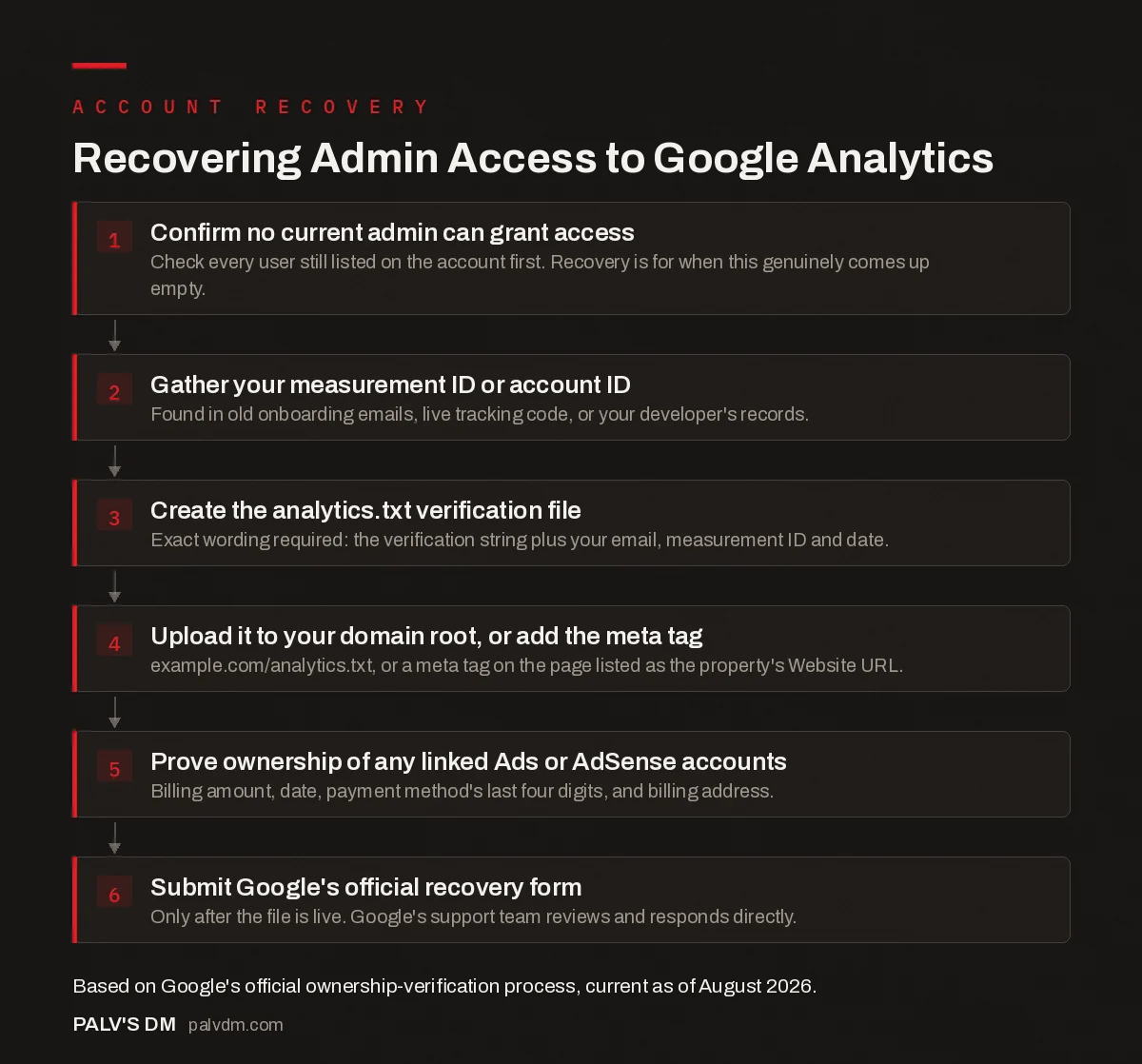
Recovering Admin Access to Google Analytics
- Confirm no current admin can grant access. Check every user still listed on the account first. Recovery is for when this genuinely comes up empty.
- Gather your measurement ID or account ID. Found in old onboarding emails, live tracking code, or your developer’s records.
- Create the analytics.txt verification file. Exact wording required: the verification string plus your email, measurement ID and date.
- Upload it to your domain root, or add the meta tag. example.com/analytics.txt, or a meta tag on the page listed as the property’s Website URL.
- Prove ownership of any linked Ads or AdSense accounts. Billing amount, date, payment method’s last four digits, and billing address.
- Submit Google’s official recovery form. Only after the file is live. Google’s support team reviews and responds directly.
The exact verification string Google requires, taken directly from their support documentation, is: GooGhywoiu9839t543j0s7543uw1 - pls add {your email} to GA account {measurement ID} with 'Administrator' permissions - date {date}. Copy it precisely. Google’s own guidance warns that incomplete or incorrect wording stops the request from proceeding, and that’s not a formality. We’ve seen a request bounce back over a missing dash.
What if you can’t upload a file to the domain?
Use the meta tag alternative instead. Add the same verification string as a meta tag on the page identified as the property’s Website URL in Analytics. This matters if your CMS doesn’t give you root file access, or if a host locks down file uploads for security reasons. Either method proves the same thing to Google: control of the actual site, not just a claim of ownership.
If a former agency still controls hosting and won’t grant file access at all, that’s a separate and more serious problem than lost Analytics access. Read our guide on checking who currently owns your domain before going further, since domain-level ownership is usually the faster fight to win first.
What if there’s a linked Google Ads or AdSense account?
This is where most recovery attempts stall. If any Ads or AdSense account is linked to the Analytics property, Google requires proof of ownership for that account too, on top of the site verification. You’ll need to supply the exact amount and date of the last payment or invoice, partial payment-instrument details (never the full card number), the company name and billing address on file, and the display URL used in the ads. Missing any one of these fields is enough for Google to decline the request, since a linked, unverified Ads account is treated as a second point of failure, not a formality to skip.
What this process can’t fix
- Google Tag Manager access. Google states this recovery path doesn’t currently cover GTM. A locked-out container generally means starting a new one and re-tagging the site.
- Google Analytics for Firebase. Same limitation, explicitly called out in Google’s own documentation.
- A deleted property. Recovery restores access to an existing property. If the property itself was deleted, Google only retains it for a limited window before the data is gone permanently, and this process doesn’t reach back past that.
- Partial ownership. If you can prove control of some but not all sites or apps sending data into the account, Google will not grant access. It’s all your properties verified, or none.
What does a typical recovery timeline actually feel like?
Slower than the client wants, faster than they fear. In the cases we’ve walked clients through, the file upload and form submission themselves take under an hour once you have file access and the correct measurement ID in hand. The waiting is on Google’s side, and it’s genuinely unpredictable: sometimes a response in a few days, sometimes longer, and Google doesn’t commit to a service-level window anywhere in its own documentation. That uncertainty is exactly why this shouldn’t be the first time you’re finding out who has admin rights on a property.
One detail worth flagging before you submit: double-check every measurement ID tied to the account, not just the one you care about right now. Google’s instructions are explicit that partial ownership proof across a multi-property account gets the whole request declined. If the account has three properties and you can only verify two, gather proof for the third before you submit rather than finding out after a rejection.
How do you stop this from happening again?
Once you’re back in, create a Google account in the business’s own name (not a personal Gmail belonging to one employee or agency contact), make it the account owner, and add individual staff and agency contacts as users under that. This is the same principle behind never letting a single vendor hold sole custody of your domain registrar, hosting, or search console access. If you want the fuller list of accounts a business should always control directly, we cover it in our rundown of the accounts you must have in your own name.
Document who has admin rights somewhere outside of Analytics itself, a shared password manager or an internal wiki page works fine, and review it whenever someone with admin access leaves the company or the engagement ends.
Frequently asked questions
What if I don’t know who set up the Google Analytics account?
It doesn’t matter for the recovery process. Google’s ownership-verification method doesn’t ask who created the account. It only checks whether you can prove control of the website or app the property tracks, by uploading a file or adding a meta tag to it.
How long does Google Analytics account recovery take?
There’s no published turnaround time, and it varies by case. Submissions with the analytics.txt wording exactly correct and every measurement ID accounted for move faster. Incomplete or incorrectly worded submissions get sent back, which resets the clock.
Can I recover access to Google Tag Manager the same way?
No. Google states plainly that recovery for Google Tag Manager and Google Analytics for Firebase is not currently available through this process. If you’ve lost access to a GTM container with no admin, you’ll need to rebuild the container from scratch and re-add the new one to your site.
What if the analytics account has a linked Google Ads account I don’t control?
You need to prove ownership of that too. Google asks for payment details on the Ads or AdSense account: the exact amount and date of the last charge, the payment method’s last four digits, and the billing address. Without this, the linked account blocks the whole recovery.
Does recovering GA4 access also restore historical data?
Yes, if the property itself hasn’t been deleted. Recovery restores administrative access to the existing property, historical data included. It’s a different situation entirely if the property was deleted outright, since Google only holds a deleted property for a limited recovery window before it’s gone for good.
Sources
- No one has administrative access, Google Analytics Help
- Analytics access roles and permissions, Google Analytics Help
- WordPress SEO: The Complete Configuration Guide
- The Five Accounts You Must Have in Your Own Name
- Who Should Own Your Domain, Hosting and Analytics Accounts
- How to Check Who Currently Owns Your Domain
Want this done on your site?
Every PalV’s DM engagement starts with a free audit of your actual website — a 12-point
crawl covering what is blocking indexation, on-page gaps against your primary keywords, speed
findings, and the three to five fixes worth making first. Delivered in two working days. No
payment details, and the findings are yours whether you hire us or not.
Get your free SEO audit
See Web Development plans and prices