How to Read a Screaming Frog Crawl Report
A Screaming Frog crawl report should be read in a fixed order: response codes, indexability, the Issues tab, then on-page elements. Here is why, and what each tab actually tells you.
Read a Screaming Frog crawl report in a fixed order — Response Codes first, then Indexability, then the Issues tab, then on-page elements — because each tab’s numbers only make sense once the previous one is accounted for. Skipping straight to the Issues tab, which is the most common mistake, means chasing warnings on URLs that are broken, redirected, or already excluded from indexing anyway.
A default crawl surfaces dozens of columns across a dozen tabs. Most of that data is only useful once you’ve filtered out the noise — the URLs that don’t matter because they’re not live, not indexable, or not real pages in the first place.
What should you check first in a Screaming Frog crawl?
Start with the Response Codes tab, filtered to anything that isn’t a clean 200. This surfaces 404s, 5xx server errors, and 3xx redirects before you look at anything else, because a redirecting or broken URL will show up again and again in other tabs — as a missing title, a thin page, a slow load time — and every one of those secondary flags is irrelevant until the response code itself is resolved.
Sort by status code and scan for patterns rather than individual URLs: a cluster of 404s from one folder usually points to a single broken template or an incomplete migration, not dozens of unrelated problems.
What order should you read the rest of the report in?
| Order | Tab | What it tells you |
|---|---|---|
| 1 | Response Codes | What’s broken, redirecting, or erroring before anything else matters |
| 2 | Indexability | Which live pages are actually eligible to appear in search results |
| 3 | Issues | Colour-coded, prioritised list of problems Screaming Frog has already grouped |
| 4 | Page Titles / Meta Description | Missing, duplicate, or length-violating on-page elements |
| 5 | Internal / Links | Orphan pages, broken internal links, and link depth from the homepage |
| 6 | Images / Directives | Missing alt text, oversized images, and robots directive conflicts |
How do you read the Indexability tab?
The Indexability column shows two things per URL: whether Screaming Frog considers the page indexable, and if not, the specific reason — noindexed, canonicalised to a different URL, blocked by robots.txt, or excluded because of a non-200 status. This is frequently the single most informative column in the entire crawl, since it directly answers “can this page even compete for a ranking” before you spend time optimising its title tag or content.
Filter to “Non-Indexable” and review the reason breakdown. A high count of pages canonicalised elsewhere is often expected on faceted or paginated URLs; a high count of pages accidentally noindexed is not, and needs investigating immediately since it directly removes pages from search results.
How do you use the Issues tab without getting overwhelmed?
The Issues tab groups problems by type and severity, colour-coded so errors, warnings, and opportunities are visually distinct at a glance. Work through it filtered by “Errors” first, then “Warnings,” rather than reading every row of every issue type in sequence — Screaming Frog’s own severity classification is a reasonable starting point for triage, even though it doesn’t know which templates on your specific site drive the most traffic.
Cross-reference each issue against the URL count it affects. An issue affecting three URLs and an issue affecting three thousand URLs might carry the same severity label, but they don’t carry the same priority for a fix.
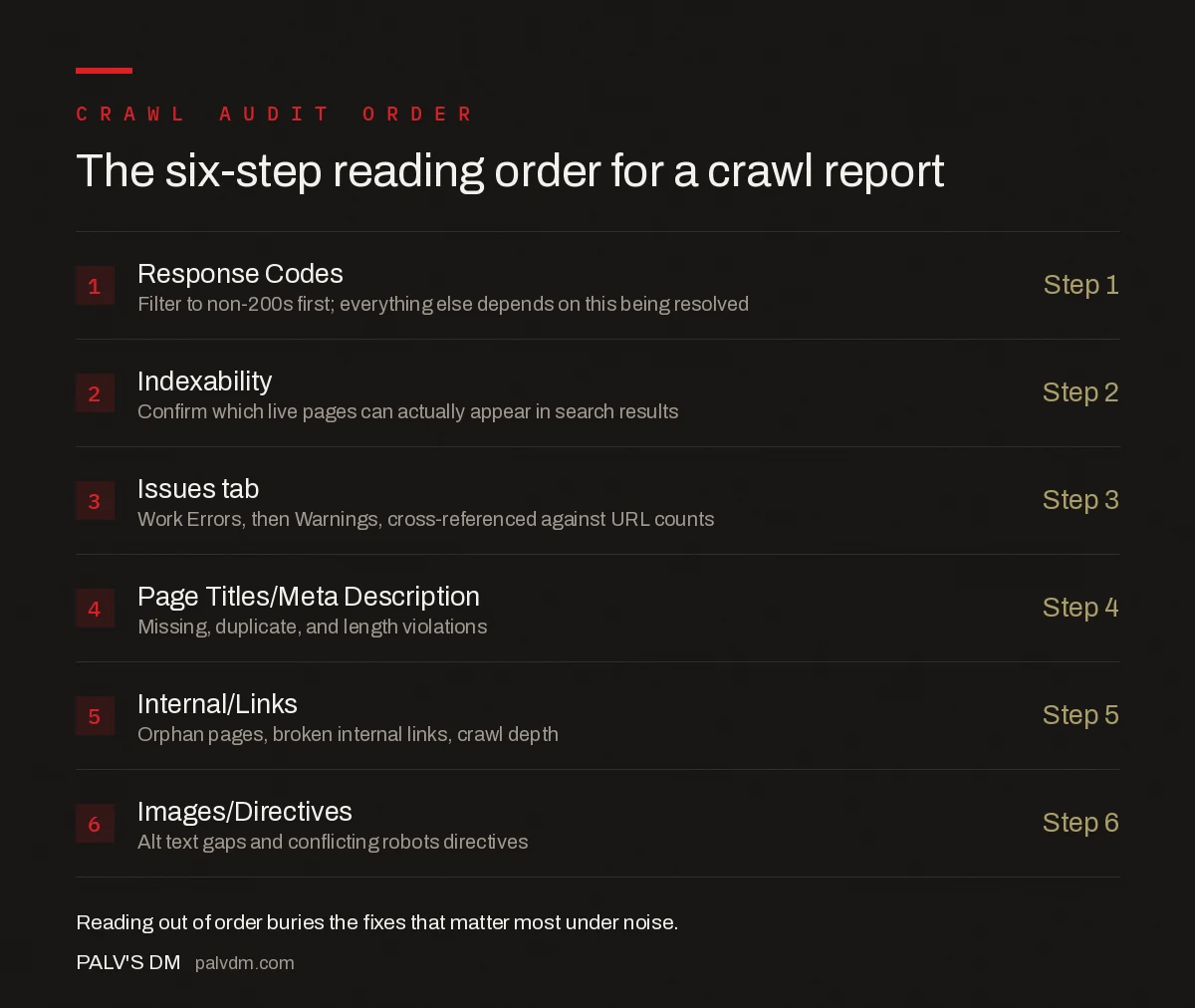
The six-step reading order
- 1. Response Codes — Filter to non-200s first; everything else depends on this being resolved.
- 2. Indexability — Confirm which live pages can actually appear in search results.
- 3. Issues tab — Work Errors, then Warnings, cross-referenced against URL counts.
- 4. Page Titles/Meta Description — Missing, duplicate, and length violations.
- 5. Internal/Links — Orphan pages, broken internal links, crawl depth.
- 6. Images/Directives — Alt text gaps and conflicting robots directives.
How do you prioritise fixes from a crawl report?
Rank by two factors: how many URLs an issue touches, and how close those URLs sit to revenue — a category or product template outranks a handful of old blog posts every time, regardless of which issue type technically looks more “severe” in the tool’s own labelling. A response-code error on a template used by five thousand pages is a bigger fix than a missing meta description on twenty.
Export the affected URL list for each priority issue rather than working inside the tool for the fix itself — most fixes happen in the CMS, template code, or .htaccess file, and having a clean CSV to hand off to a developer moves faster than screen-sharing the crawl.
What common mistakes do beginners make reading crawl reports?
- Starting with the Issues tab. Without filtering out broken and non-indexable URLs first, the Issues tab surfaces warnings on pages that don’t matter yet.
- Treating all “duplicate” flags the same. Duplicate title tags on paginated URLs with a correct canonical tag are expected; duplicate titles on unique landing pages are a real problem — the tab doesn’t distinguish, you have to.
- Crawling without JavaScript rendering on a JS-heavy site. A text-only crawl reports links and content missing that Googlebot’s own renderer would find, producing false positives across several tabs at once.
- Ignoring the URL count next to each issue. An issue title alone doesn’t convey priority; the affected-page count does.
- Not re-crawling after a fix. Confirming a fix means running the crawl again and checking the specific URLs, not assuming a code change worked based on how it looks in a browser preview.
Frequently asked questions
What should I look at first in a Screaming Frog crawl?
Start with Response Codes, filtered to anything other than 200, since broken and redirecting URLs distort every other tab’s numbers until they’re accounted for. Only after that should you move to the Indexability tab and then the Issues tab.
What does the Indexability column actually tell you?
It shows whether Screaming Frog considers each URL indexable, and if not, the specific reason: canonicalised elsewhere, noindexed, blocked by robots.txt, or a non-200 status. This single column often explains more about why a page doesn’t rank than any other tab in the crawl.
How do I prioritise which issues to fix first from a crawl report?
Rank by pages affected and proximity to revenue-driving templates, not by the number of issue types. A response-code or indexability problem hitting a category template that spans thousands of URLs outranks a missing meta description on a handful of blog posts.
Why does my crawl show far more URLs than pages on my site?
Parameterised URLs, paginated archives, faceted navigation, and duplicate content across HTTP/HTTPS or www/non-www variants all count as separate crawled URLs. Check the URL list sorted alphabetically to spot parameter patterns generating unintended duplicates.
Should I crawl with JavaScript rendering turned on?
Yes, for any site built with a client-side framework, since a text-only crawl will report content and links as missing that Googlebot’s own renderer would actually see. Compare a rendered crawl against a raw HTML crawl to spot exactly what depends on JavaScript execution.
Sources
- SEO Spider User Guide — Screaming Frog
- Technical SEO: The Complete Working Guide
- Screaming Frog Custom Extraction: Practical Recipes
- X-Robots-Tag: Controlling Non-HTML Files
- Image and Video Sitemaps: Worth Building?
Want this done on your site?
Every PalV’s DM engagement starts with a free audit of your actual website — a 12-point
crawl covering what is blocking indexation, on-page gaps against your primary keywords, speed
findings, and the three to five fixes worth making first. Delivered in two working days. No
payment details, and the findings are yours whether you hire us or not.