WordPress Staging Environments: Why Every Site Needs One
A WordPress staging site is a private copy of your live site for testing changes safely. Here's how to set one up and what breaks without it.
A WordPress staging site is a private, password-protected copy of your live site where you test plugin updates, theme changes and code before any of it touches the version your visitors see. It sits on the same host account, mirrors your files and database, and gets refreshed or thrown away once testing is done. If you’re updating core, switching themes, or installing a new plugin on a site that makes you money, testing it on staging first isn’t extra caution. It’s the difference between a five-minute update and an emergency restore at 11pm.
Most site owners learn why staging matters the hard way. A plugin update breaks checkout. A theme switch hides the pricing table. A “quick” edit turns into three hours of restoring from backup while a client’s homepage sits blank. None of that is rare or dramatic. It’s the default outcome of editing a live production site directly, and it’s avoidable on most decent hosts at no extra cost.
What exactly is a staging environment?
Staging is not a backup. A backup is a snapshot you restore from after something breaks. Staging is a working copy you can click into, log in to, and actively test on before anything reaches production. Good staging environments copy both the files (theme, plugins, uploads) and the database (posts, settings, users) so what you see mirrors the live site closely enough to trust the result.
The environment should sit on its own subdomain or path, be locked behind HTTP authentication or a login wall, and carry a noindex directive so it never competes with your real pages in search results. Skip any of those three and you’ve built a liability instead of a safety net.
Why does skipping it keep causing outages?
Plugin authors test against a handful of common configurations. Your site is a specific combination of theme, plugins, PHP version and server settings that nobody else has tested exactly. A caching plugin update that works fine on ten thousand other sites can still conflict with your particular page builder. Multiply that by every update you apply directly to production, and the odds catch up eventually.
WordPress core updates, PHP version bumps, and theme changes are the three that bite hardest, because they touch everything on the site at once rather than one isolated feature. A plugin conflict usually breaks one thing. A PHP version mismatch can break the entire site, including the admin dashboard you’d need to fix it.
Which staging method should you actually use?
There are three realistic ways to get a staging environment, and they trade off setup effort against control. Here’s how they compare.
| Method | Setup effort | Typical cost | Best for |
|---|---|---|---|
| Host-native one-click staging (Kinsta, WP Engine, SiteGround, Cloudways) | Low, usually one click | Included in most managed plans | Anyone on managed WordPress hosting |
| Staging plugin (WP Staging, All-in-One WP Migration) | Moderate, plugin install plus config | Free tier available, paid tiers for large sites | Shared or unmanaged hosting without built-in staging |
| Manual subdomain clone | High, manual file and database copy | Free but time-heavy | Developers comfortable with SFTP and phpMyAdmin |
If your host includes staging in the plan you’re already paying for, use it. There’s no reason to install a plugin to replicate something your hosting bill already covers. Kinsta, for example, gives every site one free staging environment that clones files and database with a single click, and lets you choose exactly what to push back: files only, database only, or both.
How do you set one up, step by step?
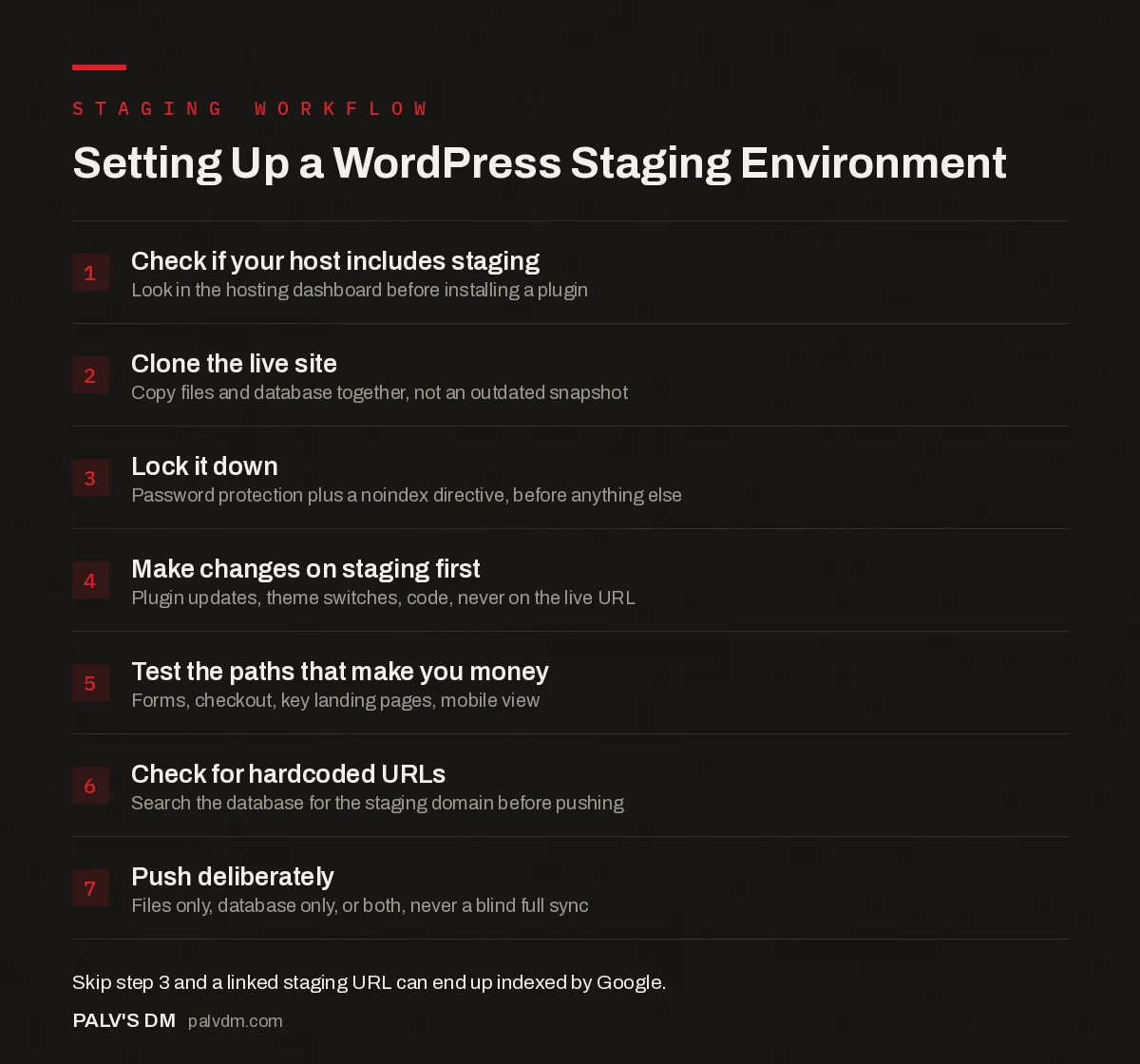
Setting Up a WordPress Staging Environment
- Check if your host includes staging. Look in your hosting dashboard before installing anything. Most managed WordPress hosts already have a one-click option.
- Clone the live site. Copy files and database together so staging reflects your actual production state, not an outdated snapshot.
- Lock it down. Add password protection and a noindex meta tag or robots directive before you do anything else with it.
- Make your changes on staging first. Install the plugin update, switch the theme, run the code change there, never on the live URL.
- Test the paths that make you money. Forms, checkout, key landing pages, and the mobile view of anything you changed.
- Check for hardcoded URLs. Search the database for the staging domain before pushing, so you don’t accidentally push staging.yoursite.com links live.
- Push deliberately. Choose files only, database only, or both, based on what actually changed. Never push a full sync blind.
What should you test before pushing anything live?
Not everything needs the full staging treatment, but a specific set of changes should never skip it:
- WordPress core and PHP version updates. These touch the whole site simultaneously and are the most common cause of a fully broken homepage.
- Plugin updates on checkout or payment flows. A broken cart costs revenue every hour it’s live, not just reputation.
- Theme switches or major page builder changes. Visual regressions are easy to catch on staging and embarrassing to catch from a customer screenshot.
- Redirect and permalink structure changes. These can silently break internal links and tank rankings if they go wrong at scale.
- New caching or CDN configuration. Caching bugs often only show up under real traffic patterns, so test with cache enabled, not disabled.
What mistakes trip people up most?
The single most common mistake I see: someone tests a plugin update on staging, confirms it works, then forgets that staging environments almost never sync the uploads folder automatically in both directions. The fix goes live without the media it depended on, and a “successful” test turns into a broken image grid on production twenty minutes later. Check what your specific staging tool actually syncs before you trust it blindly.
The second: leaving staging publicly indexed. A staging URL that gets linked in a Slack message, a client email, or an unprotected robots.txt can get crawled and cached before anyone notices. Password-protect it on day one, not after a client asks why an unfinished homepage is showing up in search results.
The third: pushing a full database sync back to a live site that received orders, comments, or form submissions during the testing window. That data gets overwritten. If your site takes live transactions, push files and database separately and reconcile new content manually rather than syncing blind.
A fourth, quieter mistake: treating staging as a second production environment instead of a testing one. Some hosts, Kinsta included, put staging environments to sleep after 24 hours of inactivity to save resources. That’s fine for testing, but it means staging is the wrong place to demo a site to a client on a call three weeks after you built it. Use it, test on it, and move on. Don’t leave client work parked there long-term.
Is staging worth it for a small site with barely any traffic?
Yes, and I’d push back on anyone who tells a five-page brochure site owner to skip it. The setup cost on a host that already includes staging is close to zero: a few minutes the first time, then seconds for every update after that. The downside of skipping it isn’t proportional to your traffic. A broken contact form during business hours costs you the same lead whether you get ten visitors a day or ten thousand. Traffic volume changes how fast you notice the problem, not whether it happens.
The only case where I’d genuinely skip it is a purely static one-page site with no plugins, no forms and no database dependencies to speak of, where “testing” means opening the HTML file in a browser. That describes almost nobody reading this. If your site runs on WordPress with an active plugin list, the risk staging protects against is already present, whether the site gets ten visits a day or ten thousand.
Frequently asked questions
What is a WordPress staging site?
A staging site is a private, password-protected copy of your live WordPress site, usually on a separate URL, where you install updates and test changes before they touch the version visitors see. It mirrors the files and database of the live site closely enough that if something works on staging, it will almost always work in production too.
Do I need a staging site for a small five-page brochure site?
Yes, if your host offers it for free, which most decent WordPress hosts do. The size of the site has nothing to do with the risk. A five-page site with a broken homepage during business hours loses just as many visitors as a five-hundred-page one, and staging costs nothing beyond a few minutes of setup.
Will Google index my staging site by mistake?
It can, if you skip the password protection and noindex step. Staging URLs that get linked externally, shared in Slack, or crawled before you lock them down have shown up in search results before. Password-protect the environment and add a noindex directive as the first step, not an afterthought.
Can I create a staging site for free?
On most managed WordPress hosts, yes, one staging environment is included in the plan at no extra cost. If your host doesn’t offer it, free plugins like WP Staging can create a staging copy in a subdirectory of the same account, though very large sites may hit resource limits on shared hosting.
How do I move changes from staging to the live site safely?
Push deliberately, not automatically. Decide whether you need files only, the database only, or both, since pushing a full database sync can overwrite orders, comments or form submissions that happened on the live site while you were testing. Most host staging tools let you choose exactly what moves.
Sources
- WordPress Hosting Staging Environments, Kinsta Docs
- Why You Need a WordPress Staging Site, WP Rocket
- WordPress SEO: The Complete Configuration Guide
- Website Maintenance: What Actually Needs Doing Monthly
- Backups and Restore: Testing Before You Need It
- WordPress Security Basics Every Business Site Needs
Want this done on your site?
Every PalV’s DM engagement starts with a free audit of your actual website — a 12-point
crawl covering what is blocking indexation, on-page gaps against your primary keywords, speed
findings, and the three to five fixes worth making first. Delivered in two working days. No
payment details, and the findings are yours whether you hire us or not.
Get your free SEO audit
See Web Development plans and prices