WordPress Backup Strategy: Test the Restore Before You Need It
A working WordPress backup strategy needs offsite storage, a real restore test and a retention plan. Here is how to set one up and trust it.
A WordPress backup strategy that works has three parts: automated backups stored offsite, a retention window long enough to catch problems you don’t notice immediately, and a restore you’ve actually tested. Most sites have the first part. Almost none have the third, and that’s the part that decides whether a backup saves you or just sits there looking reassuring.
We’ve inherited client sites where the backup plugin had been “running” for two years, dutifully generating files nobody had ever tried to restore. Half the time, the restore failed the first time it mattered: a corrupted archive, a database export that didn’t match the file backup by three weeks, or a plugin that changed its storage format mid-subscription and silently broke old backups. A backup you haven’t tested is a guess, not a plan.
What does a WordPress backup actually need to cover?
Two things, and people forget the second one constantly: the database and the files. The database holds every post, page, comment, user account and setting. The files folder (specifically wp-content/uploads, your theme, and any custom plugins) holds media, customizations and anything not stored as rows in a table. Backing up only the database gets you your content back onto a broken site with no images. Backing up only the files gets you a folder of pictures with no site to put them on. You need both, and they need to be from close to the same point in time.
Also grab wp-config.php and any custom .htaccess rules separately if your backup tool doesn’t already bundle them. These aren’t huge files, but losing custom redirect rules or a hand-edited config during a restore creates hours of debugging that a five-second file copy would have prevented.
Which backup method should you actually use?
A layered approach: a dedicated backup plugin sending copies offsite, plus whatever snapshot feature your host provides on top. Don’t rely on either one alone.
- UpdraftPlus. The most widely installed option, with more than 3 million active sites and a 4.8-star rating from over 8,500 reviews on WordPress.org. The free tier handles scheduled database and file backups to Google Drive, Dropbox, Amazon S3 or email. Paid tiers add incremental backups and priority migration tools.
- Host-level snapshots. Managed hosts (Kinsta, WP Engine, SiteGround and similar) often keep daily snapshots automatically. Useful as a second layer, but retention windows are frequently short, sometimes seven days, and restoring usually means a support ticket rather than a self-service click inside wp-admin.
- Manual exports. Fine as a one-off before a risky change (a theme switch, a major plugin update), never as your only ongoing system. Nobody remembers to do this weekly by hand.
How do you set up a backup schedule that won’t quietly fail?
Here’s the sequence we run on every client site, in order.
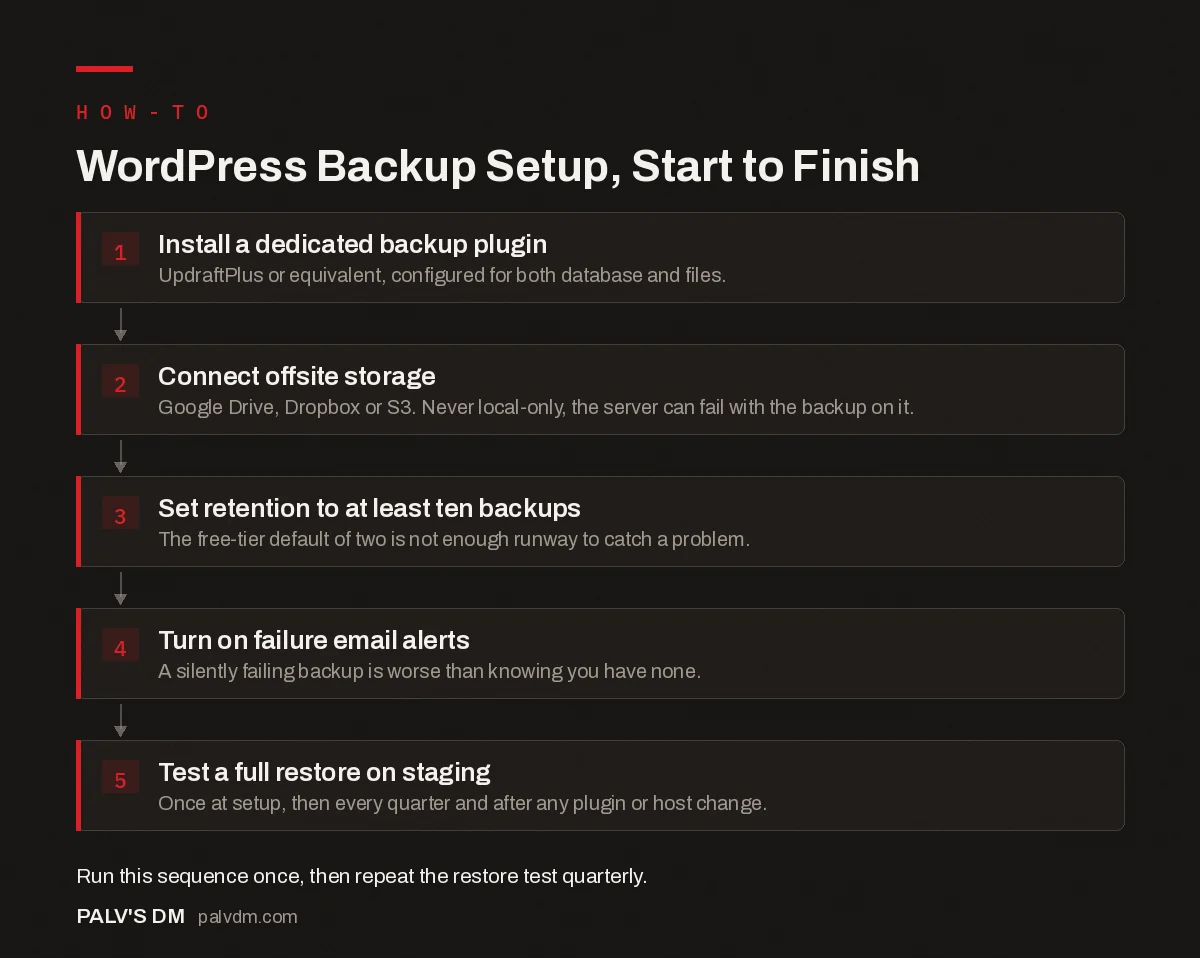
WordPress Backup Setup, Start to Finish
- Install a dedicated backup plugin. UpdraftPlus or equivalent, configured for both database and files.
- Connect offsite storage. Google Drive, Dropbox or S3. Never local-only, the server can fail with the backup on it.
- Set retention to at least ten backups. The free-tier default of two is not enough runway to catch a problem.
- Turn on failure email alerts. A silently failing backup is worse than knowing you have none.
- Test a full restore on staging. Once at setup, then every quarter and after any plugin or host change.
Why does the retention count matter more than the schedule?
UpdraftPlus’s free-tier default only keeps two backups before it starts deleting the oldest one to make room. That number trips people up constantly. If a plugin update quietly breaks something and nobody notices for four days, by the time you go looking, the clean backup from before the update is already gone. We bump retention to at least ten on every site we manage, sometimes more on anything that publishes daily. Storage on Google Drive or S3 is cheap. A missing recovery point during an actual incident is not.
The same logic applies to timing. If your backup runs at 2 AM and a hacked plugin injects malicious code at 9 AM, that night’s backup includes the infection. Keeping several days of history, not just “the latest one,” is what actually lets you roll back to a genuinely clean state instead of restoring the same problem you’re trying to fix.
How do you actually test a restore?
This is the step almost everyone skips, and it’s the one that determines whether your backup strategy is real. Testing on the live site is not an option, so you need somewhere safe to try it.
- Spin up a staging copy. Most managed hosts include one-click staging. If yours doesn’t, a local environment (LocalWP, DevKinsta) works fine for this test.
- Restore your most recent backup onto it. Use the same plugin and process you’d use in a real emergency, not a shortcut.
- Check the things that break silently. Log in as an admin, open a few pages, check that images load, submit a test form if you have one, and confirm the database didn’t restore three weeks out of sync with the files.
- Time yourself. Note how long the full restore took. That number is what you tell a client when they ask “how fast can we be back up,” and it’s usually longer than people assume.
Do this once when you first set up backups, then again every quarter, and always after switching backup plugins or hosts. A restore process that worked in January isn’t guaranteed to still work in October if the plugin pushed an update or your host changed its PHP version underneath you.
What’s the difference between a backup plan for a blog and one for a store?
A content site that publishes a few posts a week can survive losing a day of changes. An ecommerce or membership site taking orders every hour cannot, and treating both the same way is a mistake we see constantly. For transactional sites, database backups need to run far more frequently than the standard daily schedule, sometimes hourly, because the cost of losing a day’s orders is real money, not just inconvenience. Pair that with your payment processor’s own transaction records as a secondary source of truth. If a database restore does happen, reconciling against Stripe or Razorpay logs catches orders the backup itself might have missed.
What commonly goes wrong with WordPress backups?
- Backups stored only on the same server. If the host account gets suspended, hacked or simply deleted, a local-only backup disappears with it. Offsite storage isn’t optional.
- No one ever checks that backups are actually running. A plugin can silently fail for weeks (a full Google Drive quota, an expired API token) with no obvious warning inside wp-admin unless you’ve set up failure email alerts.
- Database and file backups drift out of sync. If they’re on different schedules, a restore can bring back a database that references images that were never backed up, or vice versa.
- Nobody knows the wp-admin login for the backup plugin. Sounds trivial until the person who set it up leaves the company and the next developer can’t get into the restore dashboard during an actual incident.
Frequently asked questions
How do I back up my WordPress site for free?
UpdraftPlus’s free tier covers scheduled database and file backups sent to Google Drive, Dropbox or email at no cost. It has over 3 million active installs and a 4.8-star rating on WordPress.org. The free version is enough for a small business site, provided you configure offsite storage and don’t rely on the default two-backup retention.
How often should I back up a WordPress site?
Daily database backups and weekly full-file backups suit most business sites. A store or membership site taking orders every day needs the database backed up more often, sometimes hourly, since losing a day of transactions is a bigger problem than losing a day of blog drafts.
Where should WordPress backups be stored?
Never only on the same server as the live site. If that server fails, gets hacked or gets suspended by the host, a local-only backup goes down with it. Send copies to Google Drive, Dropbox, Amazon S3 or a similar offsite location, and keep at least one copy outside your hosting account entirely.
Can I restore a WordPress backup myself?
Yes, most backup plugins including UpdraftPlus include a one-click restore inside wp-admin. The harder part isn’t clicking restore, it’s knowing beforehand that the backup actually works, which is why testing a restore on a staging site before an emergency matters more than the backup itself.
Does my WordPress host already back up my site?
Many hosts, including managed WordPress hosts, keep their own snapshots, but retention windows vary widely (some as short as 7 days) and restoring often requires opening a support ticket rather than a self-service click. Treat host backups as a second layer, not a replacement for your own plugin-based backup.
Sources
- UpdraftPlus: WP Backup & Migration Plugin, WordPress.org
- WordPress Backups, WordPress.org Support
- WordPress SEO: The Complete Configuration Guide
- Staging Environments: Why Every Site Needs One
- Website Maintenance: What Actually Needs Doing Monthly
- WordPress Security Basics Every Business Site Needs
Want this done on your site?
Every PalV’s DM engagement starts with a free audit of your actual website — a 12-point
crawl covering what is blocking indexation, on-page gaps against your primary keywords, speed
findings, and the three to five fixes worth making first. Delivered in two working days. No
payment details, and the findings are yours whether you hire us or not.
Get your free SEO audit
See Web Development plans and prices