How to Migrate From Wix to WordPress Without Losing Rankings
A step-by-step sequence for moving a site from Wix to WordPress without a traffic cliff: URL mapping, redirects, metadata, and the checks to run before and after launch.

Moving from Wix to WordPress without losing rankings comes down to one non-negotiable: every indexed Wix URL needs a 301 redirect to its exact WordPress equivalent, set up before the new site goes live, backed by metadata that was manually copied over because Wix doesn’t export it. Everything else in a safe migration — content transfer, design rebuild, plugin setup — is standard web work. The redirect map and the metadata rebuild are the two steps that are specifically about not losing what you already ranked for.
The risk isn’t the platform change itself. Google doesn’t penalise a site for switching CMS. The risk is what typically goes missing in the process: a URL that changes shape and never gets redirected, a meta description that doesn’t get rebuilt, an image alt text left blank because it didn’t carry over in the export.
Step 1: Audit and document the current Wix site
Before touching WordPress, build a complete record of what exists on Wix. Crawl the live site with Screaming Frog or a similar tool to generate every indexable URL — don’t rely on Wix’s own page list, since it can miss dynamically generated URLs from blog tags, filters, or old campaign pages. For each URL, record: the current meta title, meta description, H1, and word count. This becomes the baseline you’re rebuilding against, not just a backup.
Cross-check the crawl against Google Search Console’s Pages report and your analytics’ top-landing-pages report. Any URL earning organic traffic or already indexed needs to appear in your migration spreadsheet, even if it looks minor — a single ranking blog post generating modest traffic is still traffic worth protecting.
Step 2: Set up WordPress and rebuild the site structure
Install WordPress on hosting that supports server-level redirects (most standard WordPress hosts do — this matters because it’s what makes a clean 301 map possible, unlike some page-builder platforms). Rebuild the site’s page and post structure so permalinks match the target URLs in your redirect map as closely as possible; matching old URL patterns exactly, where feasible, reduces the redirect map to a smaller set of true structural changes instead of a 1:1 remap of every single page.
Install an SEO plugin (Yoast SEO or Rank Math are the common choices) before importing content, so metadata fields exist for every post and page as it’s created rather than being added afterward.
Step 3: Map every old URL to its new WordPress URL
Build a two-column spreadsheet: old Wix URL in column A, new WordPress URL in column B. This is the single most important artifact in the whole migration. Every row needs to resolve — no blanks, no “TBD.” Where a page is being merged, removed, or restructured, that decision still needs a specific destination URL, not a blanket redirect to the homepage, which loses relevance signal and creates a soft-404 pattern in Google’s eyes.
| Wix pattern | Typical WordPress equivalent | What to check |
|---|---|---|
| /product-page/item-name | /shop/item-name/ | Trailing slash consistency, exact slug match |
| /blog/post-title-with-random-string | /blog/post-title/ | Wix often appends IDs — strip them in the new slug |
| /category/blog-tag | /category/blog-tag/ | Confirm the WordPress category slug matches exactly |
| Dynamic filter or search URLs | Usually not recreated | Redirect to the closest static category page, not the homepage |
Step 4: Implement the 301 redirects
Upload the mapping via a redirect plugin (Redirection is the common free choice) or, for larger sites, at the server level through an .htaccess or Nginx rule set generated from the spreadsheet. Test a sample of at least 20 redirects manually by requesting the old URL directly and confirming a single-hop 301 to the correct new page — not a redirect chain through an intermediate URL, which dilutes the signal transfer.
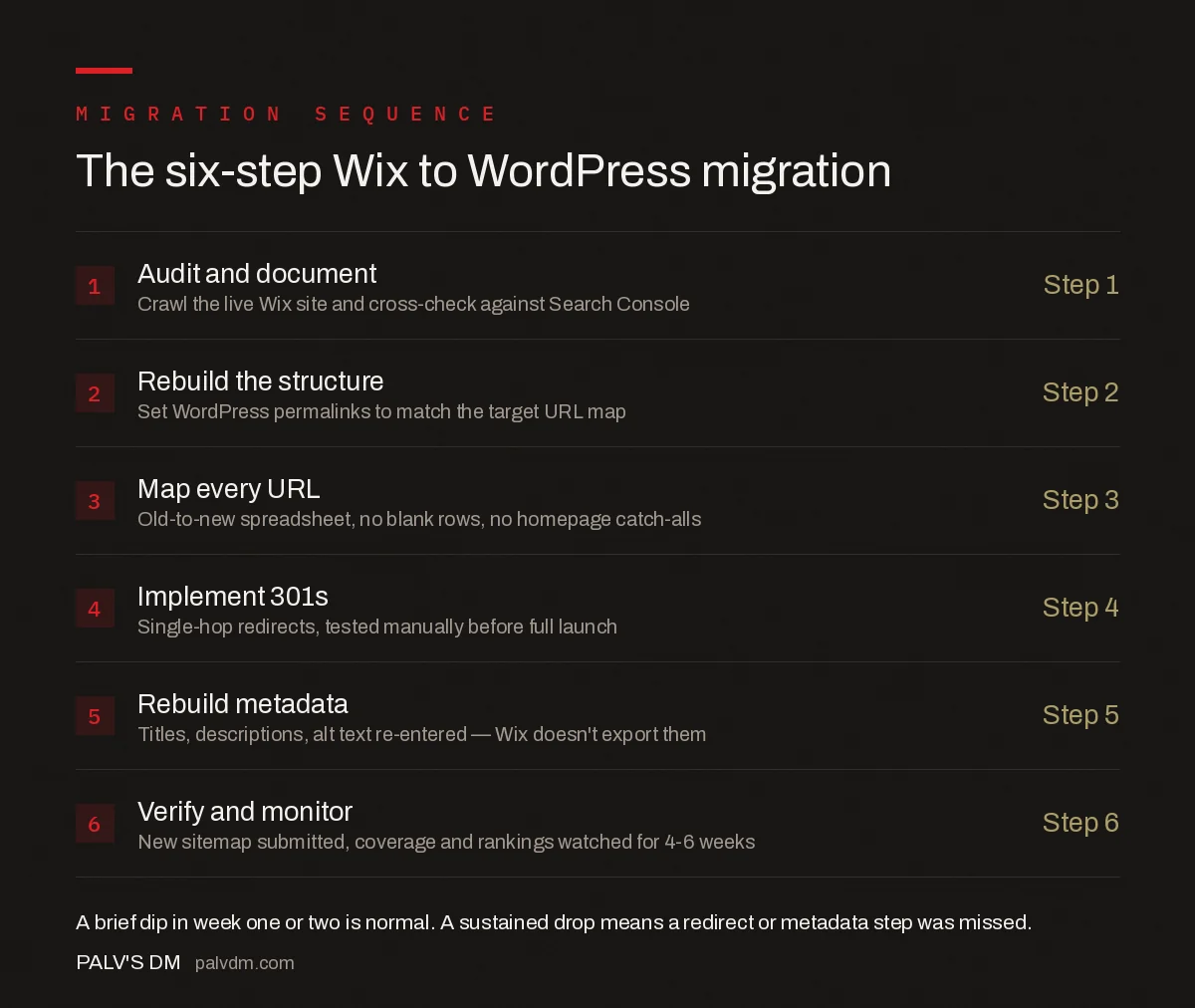
The six-step migration sequence
- 1. Audit and document — Crawl the live Wix site and cross-check against Search Console for every indexed URL.
- 2. Rebuild the structure — Set up WordPress with permalinks matching the target URL map wherever possible.
- 3. Map every URL — A complete old-to-new spreadsheet, no blank rows, no homepage catch-alls.
- 4. Implement 301s — Single-hop redirects only, tested manually on a sample before full launch.
- 5. Rebuild metadata — Meta titles, descriptions, and alt text re-entered, since Wix doesn’t export them.
- 6. Verify and monitor — Submit the new sitemap, watch Search Console coverage and rankings for 4-6 weeks.
Step 5: Rebuild metadata Wix never exported
This is the step migrations skip under deadline pressure, and it’s costly to skip. Meta titles and meta descriptions set in Wix’s SEO panel are not part of any standard content export — they have to be manually copied from the documentation done in Step 1 into the new SEO plugin fields, page by page. Image alt text is the other commonly missed field; Wix stores it separately from the image file itself, and generic import tools often leave it blank on the WordPress side.
Step 6: Verify and monitor after launch
Submit the new XML sitemap in Google Search Console immediately after DNS cutover, and request indexing on the 10-15 highest-value URLs manually rather than waiting for organic recrawl. Check the Coverage/Pages report daily for the first week for a spike in 404s or “not found” errors — that’s the fastest signal a redirect was missed. Watch organic sessions and average position for your top 20 landing pages weekly for the following month; a well-executed migration shows a brief dip in the first 1-2 weeks as Google reprocesses the site, then recovers to baseline.
How long does a Wix-to-WordPress migration typically take?
For a site under 50 pages with a straightforward structure, the audit-through-launch sequence usually runs two to four weeks, most of it spent on the redirect map and metadata rebuild rather than the visual design work. Larger sites with hundreds of blog posts or a large product catalog stretch that to six to ten weeks, largely because the URL mapping spreadsheet and metadata documentation scale linearly with page count while the technical setup doesn’t. Rushing the mapping step to hit a launch date is where most of the ranking risk in this migration actually comes from.
What are the most common mistakes in a Wix-to-WordPress migration?
- Redirecting everything to the homepage. This looks like it “solves” 404s quickly but tells Google the old page’s content no longer exists anywhere specific, and rankings for that URL don’t transfer.
- Launching before the redirect map is complete. Even a handful of missing redirects on pages that were ranking is enough to cause a visible traffic dip that takes weeks to diagnose after the fact.
- Forgetting image URLs. Wix serves images from its own CDN with URLs that don’t carry over; if those images were ranking in Google Images or embedded elsewhere, they need their own redirect consideration.
- Skipping a post-launch crawl. Crawling the new WordPress site with the same tool used in Step 1 catches broken internal links and orphaned pages the manual process missed.
Frequently asked questions
Will I lose rankings when I move from Wix to WordPress?
Not if every old URL 301-redirects to its exact new equivalent and the on-page metadata is rebuilt before launch. Ranking loss on platform migrations almost always traces back to missing redirects or metadata that wasn’t carried over, not the platform switch itself.
Does Wix export SEO titles and meta descriptions?
No. Wix’s content export does not include the SEO panel data — meta titles, meta descriptions, and any custom structured data have to be documented manually before migration and re-entered in WordPress using an SEO plugin.
How long should I keep the Wix site live during migration?
Keep the Wix domain and hosting active for at least 60-90 days after the WordPress site launches, even after DNS points to the new site, in case redirect rules need adjusting or a URL was missed in the initial mapping.
Should I use a migration plugin or map URLs manually?
Manually, via a spreadsheet crawl-to-crawl mapping, for anything beyond a handful of pages. Automated Wix-to-WordPress import tools move content but don’t reliably preserve URL structure, so relying on them alone tends to create redirect gaps you only discover after traffic drops.
What’s the single biggest cause of ranking loss in this migration?
A URL structure mismatch left unredirected. Wix and WordPress generate different default URL patterns, and if the new WordPress permalinks don’t match the mapped redirect targets exactly, visitors and crawlers alike hit 404s on pages that used to rank.
Sources
- Site Moves With URL Changes — Google Search Central
- Website Migration SEO Checklist
- Technical SEO: The Complete Working Guide
- Domain Change SEO: Doing It Without a Traffic Cliff
- HTTP to HTTPS Migration: The Complete Sequence
Want this done on your site?
Every PalV’s DM engagement starts with a free audit of your actual website — a 12-point
crawl covering what is blocking indexation, on-page gaps against your primary keywords, speed
findings, and the three to five fixes worth making first. Delivered in two working days. No
payment details, and the findings are yours whether you hire us or not.