Screaming Frog Custom Extraction: Practical Recipes
Custom Extraction pulls any data point off a page during a crawl using XPath, CSS Path, or regex. Working recipes for the extractions that come up most in SEO audits.
Custom Extraction in Screaming Frog pulls a specific data point off every page in a crawl using XPath, CSS Path, or regex, and returns it as its own column in the crawl export — turning a one-off manual check into something that scales across thousands of URLs at once. The tool itself is simple to open. What actually saves time is knowing which of the three selector types fits a given recipe, because picking the wrong one means rewriting the extractor after the crawl has already run.
The recipes below are the ones that come up most often in technical SEO audits: pulling schema fields, checking author bylines at scale, confirming canonical consistency against rendered content, and catching data that only appears after JavaScript runs.
How do you set up a custom extraction in Screaming Frog?
Open Configuration > Custom > Extraction before starting a crawl (it can’t be added retroactively to a completed one without recrawling). Each of the up to 100 available extractor slots needs three things: a name for the resulting column, a selector type (XPath, CSS Path, or Regex), and the selector string itself. A green check confirms valid syntax; a red cross flags a syntax error before the crawl even starts.
| Extraction filter | What it returns | When to use it |
|---|---|---|
| Extract HTML Element | The matched element plus all its inner HTML | You need the tag itself, not just its content |
| Extract Inner HTML | Everything inside the matched element, tags included | You need nested markup, like a list inside a div |
| Extract Text | Plain text only, tags stripped | Most common — headlines, bylines, prices, labels |
| Extract Value | The value of a specific attribute (href, src, data-*) | Pulling a data attribute or link target, not visible text |
Which selector type should you use for a given recipe?
This is the decision that determines whether an extraction works on the first try. CSS Path is fastest and covers most standard element-targeting. XPath adds relative navigation CSS Path can’t do. Regex is the only option that reaches into script tags, comments, or raw text patterns.
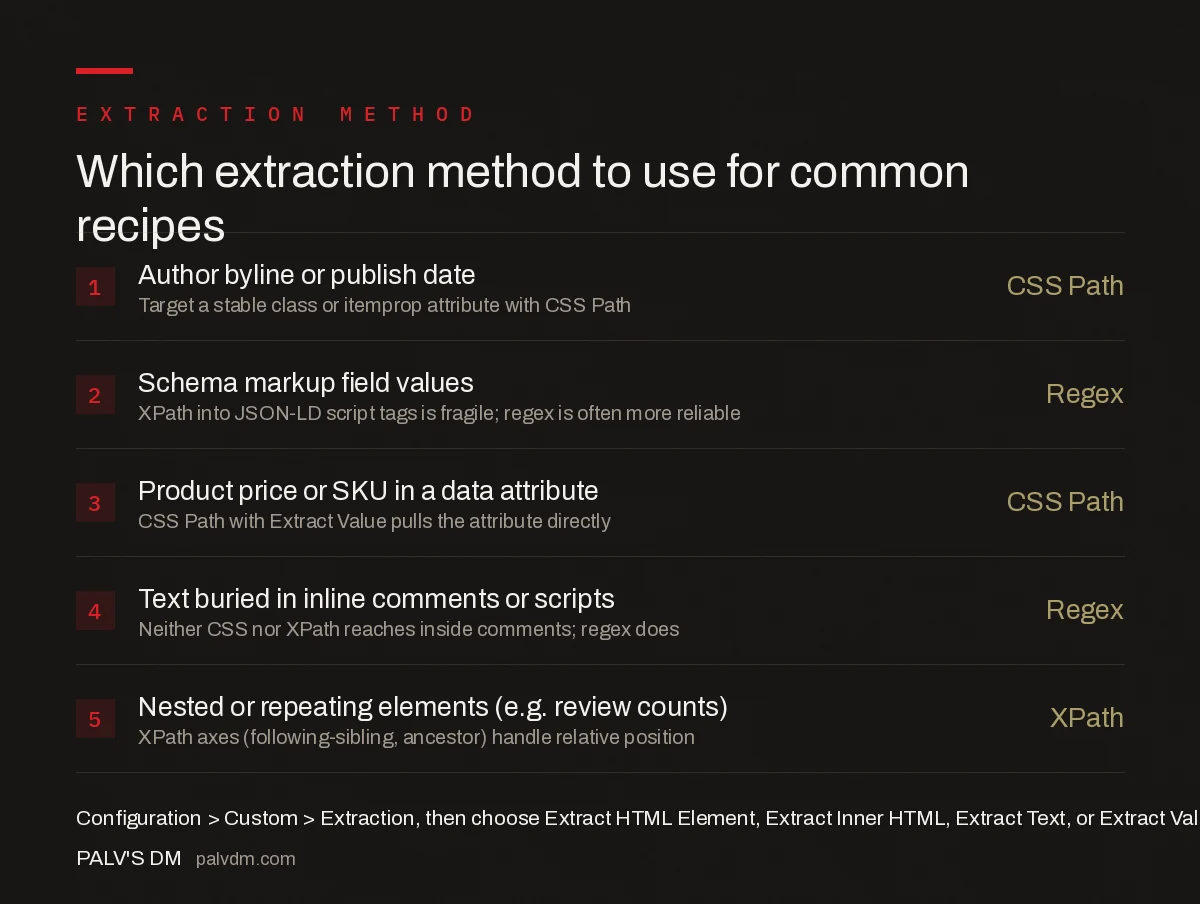
Which extraction method to use for common recipes
- Author byline or publish date — CSS Path. Target a stable class or itemprop attribute.
- Schema markup field values — Regex. XPath into JSON-LD script tags is fragile; regex is often more reliable.
- Product price or SKU in a data attribute — CSS Path. Extract Value pulls the attribute directly.
- Text buried in inline comments or scripts — Regex. Neither CSS nor XPath reaches inside comments; regex does.
- Nested or repeating elements (e.g. review counts) — XPath. Axes like following-sibling and ancestor handle relative position.
Recipe: pulling a schema field at scale
To confirm every product page has a populated price field in its JSON-LD, a regex extractor is usually more reliable than XPath, because JSON-LD lives inside a <script type="application/ld+json"> tag as a text blob, not as structured DOM elements XPath can navigate. A regex like "price"s*:s*"?([d.]+)"? pulls the numeric value directly from that text blob. Run it against the whole crawl and any page returning a blank result is a page missing that field entirely, which is faster to spot in a spreadsheet column than by opening the schema testing tool page by page.
Recipe: checking author bylines across a large site
A CSS Path selector targeting the byline’s class or an itemprop="author" attribute, set to Extract Text, returns the visible author name for every crawled page in one column. Cross-referencing that column against a list of active writers surfaces orphaned bylines — posts still attributed to a former contributor — and pages with no byline at all, both common findings on sites that have changed CMS templates over time.
Recipe: confirming canonical tags match what actually renders
An XPath extractor targeting //link[@rel="canonical"]/@href with Extract Value pulls the canonical URL as it appears in the raw HTML. Running the same crawl with JavaScript rendering enabled and comparing that column against the raw-HTML version catches pages where a JavaScript framework injects a different canonical value than what the server originally sent — a mismatch Google’s two-pass rendering process can resolve unpredictably.
Recipe: extracting content that only appears after JavaScript runs
If the target data is injected client-side — a price loaded via an API call, a review count rendered by a JS framework — a CSS Path or XPath extractor against the raw HTML crawl will return blank for every page. Enable JavaScript rendering under Configuration > Spider > Rendering, set to “JavaScript,” and re-run the crawl; Screaming Frog then extracts against the rendered DOM instead of the raw server response, which is what a CSR page like this depends on.
What common mistakes cause an extractor to return blank or wrong data?
- Selector targets a class name that isn’t stable across templates. A class used by one page type but not another returns blank for every page using a different template.
- Forgetting JavaScript rendering for client-side content. The extractor syntax can be perfectly valid and still return nothing if the crawl only sees raw HTML.
- XPath written against a live DOM inspector, not the actual crawled HTML. Browser DevTools show the rendered DOM, which can differ from what Screaming Frog’s raw-HTML crawl mode sees.
- Too many extractors running per crawl. Each one adds processing overhead; unscoped extractors on a very large site slow the crawl considerably for data you may only need on a subset of URLs.
Frequently asked questions
What’s the difference between CSS Path and XPath in Screaming Frog?
CSS Path selectors are faster to write and run, and cover most extractions where you’re targeting an element by class, ID, or tag. XPath is slower to write but supports relative navigation — selecting a sibling, parent, or ancestor of a matched element — which CSS Path cannot do.
When should I use regex instead of XPath or CSS Path?
When the target text sits inside a script tag, an HTML comment, or a pattern that isn’t cleanly wrapped in its own element — a phone number embedded in a paragraph, or a value inside a JSON-LD block. Regex reads the raw HTML as text, so it reaches places element-based selectors can’t.
How many custom extractions can I run in one crawl?
Screaming Frog supports up to 100 custom extractors per crawl in recent versions, configured under Configuration > Custom > Extraction. Each one runs against every crawled page, so extractions on a large site should be scoped with include/exclude rules to avoid unnecessary processing time.
Why does my extractor return blank results for a page I can see the data on?
The most common cause is JavaScript rendering: if the target content is injected client-side, Screaming Frog needs JavaScript rendering enabled in the crawl configuration, or it will only see the raw HTML the server returns, which won’t include the data yet.
Sources
- Web Scraper Tool — Screaming Frog official documentation
- Technical SEO: The Complete Working Guide
- How to Read a Screaming Frog Crawl Report
- Subdomain vs Subfolder for Your Blog: Settling It
- Soft 404s: Why Google Ignores Pages That Return 200
Want this done on your site?
Every PalV’s DM engagement starts with a free audit of your actual website — a 12-point
crawl covering what is blocking indexation, on-page gaps against your primary keywords, speed
findings, and the three to five fixes worth making first. Delivered in two working days. No
payment details, and the findings are yours whether you hire us or not.