WordPress Security Basics Every Business Site Actually Needs
WordPress security basics that actually stop hacks: patch priority, backups, 2FA, and the one admin-account mistake we find on nearly every client site.
WordPress security basics come down to five things: keep everything updated, lock down admin access, back up off-site daily, run one firewall or malware scanner, and force HTTPS everywhere. Skip any of those and you are running on luck rather than a plan. Most business owners assume their host handles this for them. Most hosts don’t, not fully, and the gap between “hosted somewhere reputable” and “actually secured” is where most hacks start.
The security industry loves to make this sound complicated: obscure your login URL, disable XML-RPC, rotate your salts every quarter, run three overlapping plugins just in case. Some of that helps at the margins. None of it matters if you’re running a contact form plugin that hasn’t been updated since 2023. Fix the fundamentals first. Worry about the edge cases later, if at all.
Why do most WordPress hacks actually happen?
Not because WordPress itself is insecure. In 2025, researchers at Patchstack logged 11,334 new vulnerabilities across the WordPress ecosystem, a 42% jump from 2024’s 7,966, and only six of those were in WordPress core. All six were rated low risk. The other 11,328 lived somewhere else.
Ninety-one percent of newly discovered vulnerabilities in 2025 were found in plugins. Themes accounted for most of the rest. Core WordPress, maintained by a large team and audited constantly, is not where the risk sits. The risk sits in the plugin you installed for one feature three years ago and never opened again.
That reframes the whole problem. “Is WordPress secure” is the wrong question. “Is everything installed on this WordPress site still maintained, and is it up to date” is the right one.
What’s the actual checklist, in priority order?
Skip the twenty-point lists that treat renaming your database prefix as equally important as running backups. Here is the order that actually reduces risk, ranked by how much each item matters.
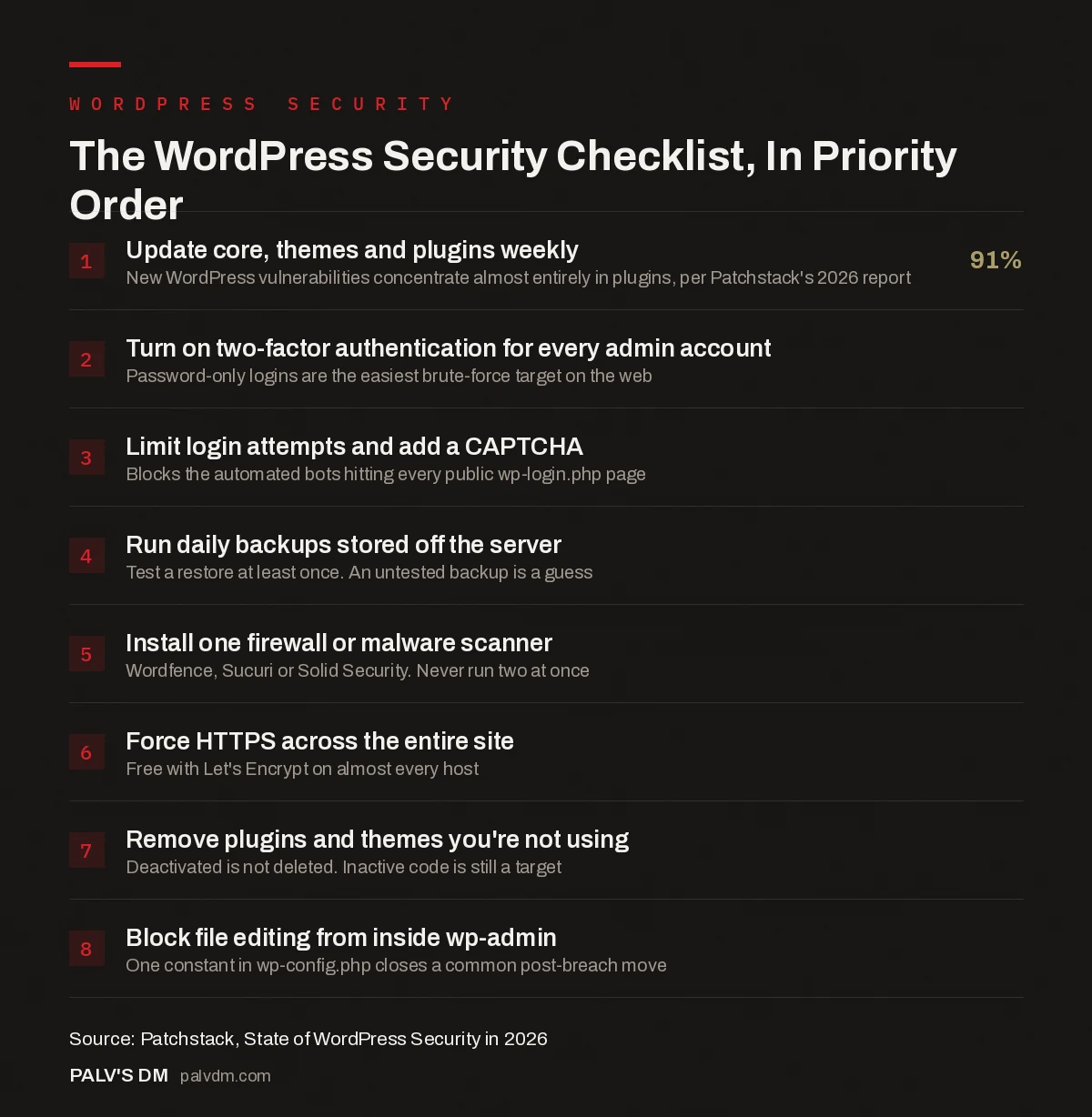
The WordPress Security Checklist, In Priority Order
- Update core, themes and plugins weekly: 91%. New WordPress vulnerabilities concentrate almost entirely in plugins, per Patchstack’s 2026 report.
- Turn on two-factor authentication for every admin account. Password-only logins are the easiest brute-force target on the web.
- Limit login attempts and add a CAPTCHA. Blocks the automated bots hitting every public wp-login.php page.
- Run daily backups stored off the server. Test a restore at least once. An untested backup is a guess.
- Install one firewall or malware scanner. Wordfence, Sucuri or Solid Security. Never run two at once.
- Force HTTPS across the entire site. Free with Let’s Encrypt on almost every host.
- Remove plugins and themes you’re not using. Deactivated is not deleted. Inactive code is still a target.
- Block file editing from inside wp-admin. One constant in wp-config.php closes a common post-breach move.
A few of those deserve more than one line.
- Updates come first because they close known holes. Attackers work from public vulnerability disclosures. A plugin update that patches a security hole is a countdown clock: the fix is public the moment it ships, and so is the roadmap for exploiting anyone who hasn’t applied it yet.
- Two-factor authentication stops the single most common attack path. Brute-force and credential-stuffing bots try leaked username and password combinations against your login page around the clock. A second factor makes a correct password worthless to them on its own.
- Backups are a security control, not just a disaster-recovery plan. If something does get through, a tested, recent, off-site backup is what turns a two-hour recovery into a two-week rebuild, or the other way around.
Do you need a security plugin, and which one?
Yes, for a business site, and one is enough. Wordfence’s free tier includes a firewall, a malware scanner, and login security (rate limiting plus 2FA). Sucuri’s free plugin focuses on malware scanning and post-hack cleanup, with its firewall sold separately as a DNS-level product. Solid Security (formerly iThemes Security) leans toward hardening and login protection rather than a full firewall.
Pick one. Running two overlapping security plugins at once is a common cause of the exact problems people install them to prevent: conflicting firewall rules, duplicate login-attempt tracking, and support tickets that take twice as long to diagnose because nobody can tell which plugin is doing what. For a single small business site, free Wordfence or free Sucuri covers the basics. Paid tiers earn their price when you’re managing a dozen client sites from one dashboard, or when you specifically need a firewall sitting in front of the server rather than inside WordPress itself.
How do backups actually fit into a security setup?
Most sites we inherit have a backup plugin installed and switched on, which owners understandably read as “covered.” It usually isn’t. The backup is often stored on the same server as the site, which means a compromised server takes the backup down with it. Or it’s never been tested, so nobody actually knows if the restore works until the day it matters most, which is the worst possible day to find out it doesn’t.
Store backups somewhere separate from the hosting account: an external storage bucket, a different provider entirely, anywhere that a compromised server can’t reach. Run a real restore test on a staging copy at least once. If you haven’t set up a staging environment for that kind of testing, our guide to staging environments covers the setup, and our backup strategy piece goes deeper on restore testing specifically.
Does your hosting provider actually affect how secure you are?
Somewhat, and less than most hosts imply in their marketing. Patchstack’s 2026 report found that standard hosting-level defenses block roughly a quarter of exploit attempts against known vulnerabilities, meaning the large majority get through to the application layer regardless of which host you’re on. A managed WordPress host with a real web application firewall and staff who patch quickly is meaningfully better than shared hosting with none of that. But “we’re hosted on a good provider” is not a substitute for the checklist above. It’s one layer, not the whole wall.
What’s the one mistake we see on almost every client site before we touch it?
An old admin account nobody remembers creating. Every agency handover, every “we inherited this site from our last developer” project, turns up at least one administrator account named after a freelancer who left two years ago, or a generic “admin” or “test” login set up during the original build and never removed. Nobody’s using it. Nobody’s watching it. It still has full access, and if its password ever leaked in some unrelated breach, it’s sitting there waiting to be tried against your login page. Audit your user list before you audit anything else. It takes five minutes and it’s the fastest actual risk reduction on this whole page.
What about maintenance beyond security specifically?
Security and general upkeep overlap more than people expect: a site that’s maintained on a schedule rarely has the multi-version-behind plugins that account for most breaches in the first place. If security basics are the floor, our website maintenance checklist covers what a properly maintained site looks like month to month, security included.
What does a realistic incident response plan look like?
Most small businesses don’t have one until the day they need it, and that day is the worst possible time to figure it out. A workable plan fits on one page.
- Take the site offline or into maintenance mode the moment you suspect a breach, rather than leaving a compromised site live while you investigate. A defaced or spam-injected page loses you more, in both trust and rankings, the longer it sits public.
- Change every password that touches the site. WordPress admin, hosting control panel, database, FTP or SFTP, and any connected third-party services. If one credential leaked, assume the attacker tried it everywhere it might work.
- Restore from the last clean backup rather than trying to manually hunt down and delete malicious files. Hand-cleaning a hacked site is slow, and it’s easy to miss a backdoor script tucked into an unrelated plugin folder.
- Check Search Console for manual actions or security issues after restoring. Google flags hacked sites directly there, and a flagged site needs a reconsideration request once you’ve confirmed it’s clean, not just a quiet fix.
- Work out how the attacker got in before you put the site back exactly as it was. Restoring a backup without closing the entry point just resets the clock until the next attempt succeeds.
This is also where the earlier checklist pays for itself twice over. A site with recent, tested, off-site backups turns this into a same-day fix. A site without one turns it into a week of forensic guesswork, and sometimes a total rebuild.
Is this different for a WooCommerce or membership site?
The basics don’t change, but the stakes do. A site processing payments or storing customer accounts is a more attractive target and a more expensive one to get wrong: a breach there can mean exposed customer data, not just a defaced homepage. If you’re running WooCommerce, treat the checklist above as the minimum, not the finish line, and add a payment-gateway-specific review (PCI compliance requirements, tokenised payment handling rather than storing card data locally) on top of it. That’s a separate conversation from general WordPress hardening, but it starts from the same foundation.
Frequently asked questions
How do I know if my WordPress site has been hacked?
Watch for unexpected admin users, new files in wp-content you didn’t add, a sudden spike in outbound traffic or server load, your site flagged by Google Safe Browsing, or search results showing spammy pages you never created. A malware scanner catches most of this automatically before you’d notice it manually.
Is a free security plugin enough for a small business site?
For most small business sites, yes. Free Wordfence or free Sucuri covers a firewall or malware scanning, login protection, and basic hardening, which addresses the majority of real-world attack attempts. Paid tiers add things like faster firewall rule updates and managed cleanup, useful once a site handles payments or sensitive data directly.
How often should I update WordPress plugins and themes?
Weekly, at minimum, and immediately for any update flagged as a security release. Most reputable plugins note in their changelog when an update patches a vulnerability. Waiting on those specifically is the single most avoidable way sites get compromised.
Does changing the wp-admin login URL actually help?
It reduces automated bot traffic hitting your login page, which is a genuine minor benefit, but it is not a security control on its own. Treat it as noise reduction that makes your real defenses (2FA, rate limiting, strong passwords) easier to monitor, not a replacement for them.
Do I need an SSL certificate for security, or is that just for SEO?
Both. HTTPS encrypts data between your visitor’s browser and your server, including login credentials and any form submissions, which is a real security function. It’s also a confirmed, if minor, Google ranking signal and a requirement for browsers to show your site as “secure” rather than flagging it.
Sources
- State of WordPress Security in 2026, Patchstack
- Hardening WordPress, WordPress.org Developer Documentation
- WordPress SEO: The Complete Configuration Guide
- Backups and Restore: Testing Before You Need It
- Staging Environments: Why Every Site Needs One
- Website Maintenance: What Actually Needs Doing Monthly
Want this done on your site?
Every PalV’s DM engagement starts with a free audit of your actual website — a 12-point
crawl covering what is blocking indexation, on-page gaps against your primary keywords, speed
findings, and the three to five fixes worth making first. Delivered in two working days. No
payment details, and the findings are yours whether you hire us or not.
Get your free SEO audit
See Web Development plans and prices