WordPress Caching: What Each Layer Actually Does
WordPress caching runs in four layers: browser, page, object and CDN. Here's what each one actually speeds up and which plugin handles which layer.
WordPress caching isn’t one setting, it’s four separate layers stacked on top of each other: browser cache, page cache, object cache and CDN cache, and each one solves a different bottleneck. Turning on a caching plugin fixes one of those layers. It doesn’t automatically fix the other three, which is why “I installed a cache plugin and it’s still slow” is one of the most common complaints we hear from new clients.
Most explanations of WordPress caching either oversimplify it into “just install WP Rocket” or bury you in server terminology that doesn’t help you decide anything. Here’s the layer-by-layer version, what each one actually does, and how to tell which one is missing on a slow site.
What happens on a WordPress page with no caching at all?
Every single request rebuilds the page from scratch. PHP runs, WordPress loads its core files and every active plugin, it queries the MySQL database for the post content, the menu, the widgets and the theme settings, then assembles the final HTML and sends it to the browser. On a typical plugin-heavy site that’s dozens of database queries per page load, sometimes over a hundred. None of that work is reused for the next visitor. The next person to load the same page triggers the exact same process, even if nothing on the page has changed since the last request three seconds ago.
That’s the problem every caching layer exists to solve, in one form or another: stop redoing work that already produced the same answer.
What does page caching actually do?
Page cache saves the fully rendered HTML output of a page after it’s built once, then serves that saved copy to every subsequent visitor who isn’t logged in and isn’t submitting a form. No PHP execution, no database queries, just a static file handed straight to the browser. This is the single biggest speed win available on most WordPress sites, and it’s what plugins like WP Rocket, LiteSpeed Cache, and W3 Total Cache do by default.
The catch: page cache only applies to cacheable requests. Logged-in sessions, cart pages, checkout, search results and anything with query strings usually bypass it, sometimes correctly, sometimes because the plugin’s exclusion rules are too broad and it’s caching less than it should.
What does object caching do, and who actually needs it?
Object caching stores the results of individual database queries in memory, usually Redis or Memcached, so WordPress doesn’t have to re-run the same query on every request. This matters most for anything page cache can’t cover: logged-in dashboards, WooCommerce carts, membership content, and admin screens. A WooCommerce store with page caching but no object cache is still hammering the database on every product page a logged-in customer views, because logged-in traffic skips the page cache entirely.
If your site is a static-ish brochure site with no logins, no cart, and low traffic, object caching probably won’t move the needle much. If it’s an ecommerce store, a membership site, or anything with real user accounts, it’s not optional, it’s the layer doing the actual work once page cache stops helping.
Four caching layers, side by side
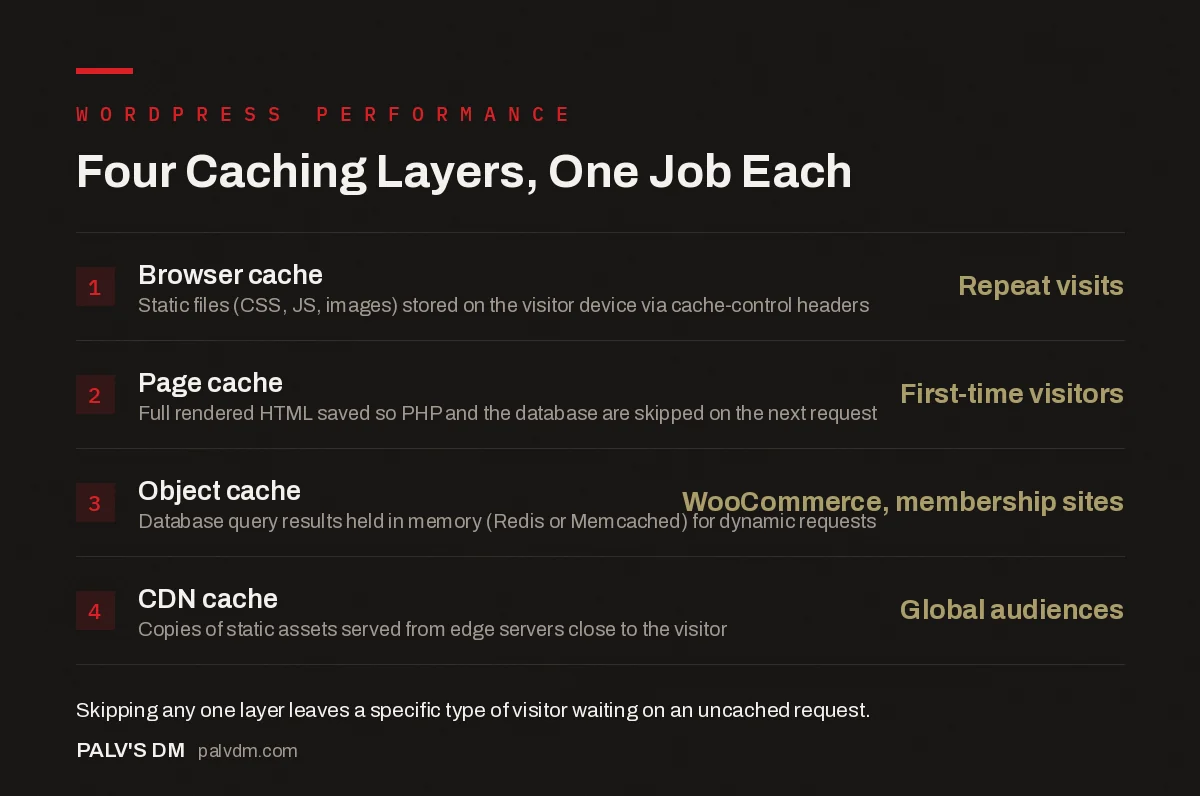
Four Caching Layers, One Job Each
- Browser cache: repeat visits. Static files, CSS, JS, images, stored on the visitor’s own device using cache-control headers, so a second visit loads instantly for anything unchanged.
- Page cache: first-time visitors. Full rendered HTML saved so PHP and the database are skipped entirely on the next matching request.
- Object cache: logged-in and dynamic requests. Database query results held in memory (Redis or Memcached), covers WooCommerce and membership traffic that page cache can’t touch.
- CDN cache: global audiences. Copies of static assets served from edge servers close to the visitor, cuts the distance data has to travel.
Where does a CDN fit into all of this?
A content delivery network caches static assets, images, CSS, JS, sometimes full HTML, on servers distributed around the world, so a visitor in Mumbai isn’t pulling files from a server in Virginia. It’s a different kind of caching from page or object cache: it’s about physical distance and network latency, not about avoiding PHP execution. Cloudflare’s free tier does this automatically for static files. Full-page caching for logged-out HTML through Cloudflare needs either the Automatic Platform Optimization product or manually configured page rules, it isn’t switched on by default the way people assume.
For a site with a mostly local audience (an Ahmedabad clinic serving Ahmedabad patients, say), a CDN matters less. For a site with visitors spread across states or countries, it’s often a bigger win than tuning the page cache further.
Which caching plugin actually covers all four layers?
None of them do, completely, and that’s worth knowing before you install one expecting it to. Here’s what the common options actually handle, verified against each plugin’s own documentation:
| Plugin | Page cache | Object cache | CDN | Cost |
|---|---|---|---|---|
| LiteSpeed Cache | Yes, server-level on LiteSpeed hosting | Connects to Redis/Memcached if available, doesn’t provide it | Free QUIC.cloud CDN included | Free |
| WP Rocket | Yes | Connects to Redis/Memcached if available | Compatible with any CDN, doesn’t include one | $59/yr, one site, no free tier |
| W3 Total Cache | Yes | Connects to Redis/Memcached if available | CDN integration, no bundled CDN | Free, paid Pro tier available |
The pattern to notice: almost no plugin provides object caching by itself. They all connect to a Redis or Memcached service that has to exist on the server already. On shared hosting without that service installed, “enabling object cache” in the plugin settings does nothing, because there’s nothing on the other end to connect to. This trips people up constantly. Check with your host before assuming the object cache toggle is doing anything.
How do you actually tell which layer is broken?
Run a page speed test (PageSpeed Insights or GTmetrix both work) and look at Time to First Byte first. A high TTFB on a logged-out page, anything over 600 milliseconds, usually points at a missing or misconfigured page cache. If TTFB is fine but the page still feels sluggish for logged-in users specifically, that’s an object cache gap. If everything’s fast for local visitors but slow for anyone geographically distant, that’s the CDN layer.
- Check if page cache is actually active. View the page source and look for an HTML comment most caching plugins add, or check response headers for an
x-cache: HITor similar flag. - Confirm object cache is connected, not just enabled. Most plugins show a connection status in their settings screen, “enabled” and “connected” are not the same thing.
- Test from outside your own network. A site can feel fast to you because your browser already cached everything locally. Use an incognito window on a different connection.
- Don’t stack two page-cache plugins. Running LiteSpeed Cache and WP Rocket together causes conflicts more often than it compounds speed gains. Pick one.
Does more caching always mean a faster site?
No, and this is where a lot of setups go wrong. Aggressive page cache expiry set too long serves stale content, a price change or a fixed typo that doesn’t show up for hours. Object cache with a bad invalidation rule can serve a logged-in user someone else’s cached data on a badly configured multi-tenant setup, rare, but it happens. Every layer needs a sensible expiry and purge strategy tied to your actual publishing frequency, not just switched to maximum and left alone.
A news site publishing hourly needs a short page cache TTL or event-based purging. A five-page brochure site that changes twice a year can cache aggressively for weeks. Match the setting to how often the content actually changes, not to a default that some plugin author picked for the average case.
What breaks when caching is set up carelessly?
The most common failure we see on client sites isn’t a missing cache, it’s a stale one. Someone updates pricing on a service page, checks it on their phone an hour later, and it still shows the old number because the page cache hasn’t purged. Most caching plugins purge automatically on publish or update, but that automatic purge often excludes archive pages, category listings, and the homepage unless it’s configured to cascade. A single blog post edit can leave the homepage showing outdated content for the rest of the cache’s TTL.
The fix is boring but reliable: after any content change that matters, clear the full cache manually once, don’t assume the automatic purge caught everything, and check the live page in an incognito window before calling it done. It takes ninety seconds and it catches the mismatch before a client or a customer does.
Plugin conflicts cause a second, quieter class of problem. A security plugin that adds custom HTTP headers can interfere with a CDN’s caching rules. A form plugin that injects a nonce into every page can accidentally make an otherwise static page uncacheable, because the nonce changes on every load and the cache treats that as new content. If a page refuses to cache no matter what you try, check for a dynamic element like this before assuming the cache plugin itself is broken.
Frequently asked questions
Do I need object caching if I already have page caching?
Yes, if any part of your site is dynamic. Page cache only serves logged-out, non-personalised requests. WooCommerce carts, membership dashboards and logged-in admin screens skip the page cache entirely, so object caching is what keeps those pages fast.
Does caching improve Core Web Vitals?
It helps Time to First Byte and, indirectly, Largest Contentful Paint, because the server responds faster. It does nothing for Cumulative Layout Shift or Interaction to Next Paint, which are caused by layout and JavaScript issues that caching can’t touch.
Is Cloudflare a CDN or a cache?
Both, depending on configuration. Cloudflare’s free tier caches static assets like images, CSS and JS at edge locations by default. Full-page caching for logged-out HTML requires either Cloudflare’s APO product or explicit page rules, it isn’t automatic.
Why does my site still feel slow with a caching plugin active?
Usually because the cache is only handling one layer. A page cache plugin does nothing for a bloated database, an unoptimised hero image, or forty active plugins competing for memory. Caching hides slow processing, it doesn’t fix it.
Which caching plugin should I use on shared hosting?
If your host runs LiteSpeed Web Server, install the free LiteSpeed Cache plugin, it does server-level page caching plus optional object cache support. On Apache or Nginx shared hosting without LiteSpeed, WP Super Cache or a hosting-provided cache plugin is usually the realistic free option.
Sources
- Cache, WordPress Advanced Administration Handbook
- LiteSpeed Cache for WordPress documentation
- WordPress SEO: The Complete Configuration Guide
- LiteSpeed Cache Configuration That Doesn’t Break Anything
- Choosing a WordPress Theme That Won’t Sabotage Core Web Vitals
- Shared vs VPS vs Managed Hosting: Choosing Honestly
Want this done on your site?
Every PalV’s DM engagement starts with a free audit of your actual website — a 12-point
crawl covering what is blocking indexation, on-page gaps against your primary keywords, speed
findings, and the three to five fixes worth making first. Delivered in two working days. No
payment details, and the findings are yours whether you hire us or not.
Get your free SEO audit
See Web Development plans and prices