WordPress Plugins That Quietly Slow Your Site Down
Page builders, sliders, live backups and stats plugins are the usual culprits. Here's how to find the plugin slowing your WordPress site and what to use instead.

A handful of plugin categories cause almost all WordPress speed problems: page builders, sliders, live backup tools, stats plugins and anything that scans your site on every page load. It’s rarely the plugin count that hurts you. It’s five bloated ones doing the damage that forty lightweight ones never would.
Every audit we run starts the same way: install Query Monitor, load the homepage, and look at which plugin is generating the most database queries. Nine times out of ten, the client already suspected the wrong plugin. The one they blame is usually the contact form. The one actually responsible is the slider on the homepage nobody’s touched since 2023.
Do plugins really slow WordPress down?
Yes, but not evenly, and not in the way most site owners assume. WordPress has to load every active plugin before it can render a page. If one plugin is poorly coded, that single bottleneck can drag down the entire load time regardless of how efficient everything else is.
What matters is quality, not quantity. A site running forty small, well-coded plugins that only load their scripts on the pages that need them will beat a site running five heavy ones that execute sitewide database queries on every visit. Counting plugins in your dashboard tells you almost nothing about your actual speed problem.
Which plugin categories are the repeat offenders?
Based on WP Hive’s plugin impact data and years of Query Monitor audits, the same categories show up again and again. Here’s the pattern, sorted by how they tend to hurt you.
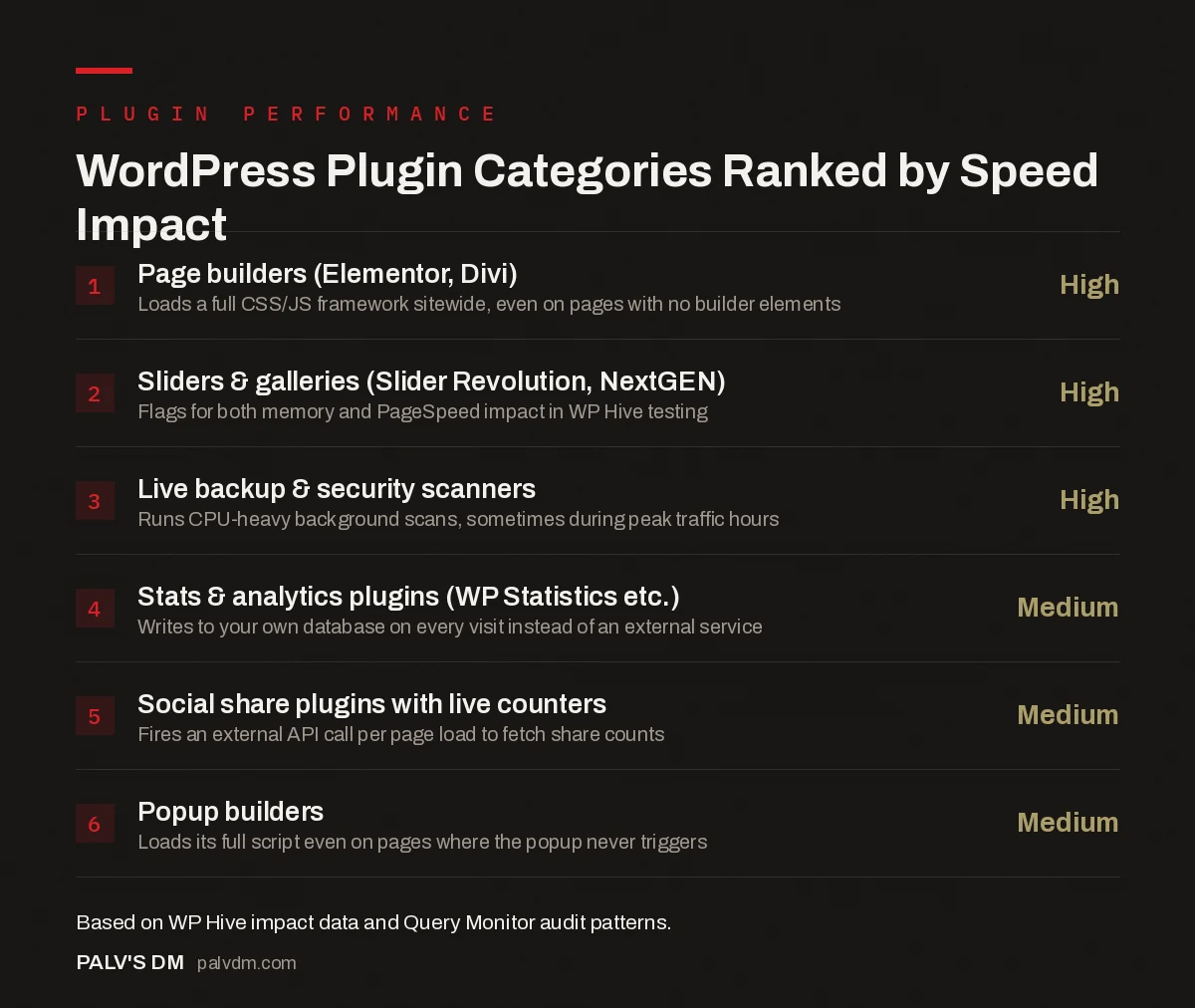
WordPress Plugin Categories Ranked by Speed Impact
- Page builders (Elementor, Divi): high impact. Loads a full CSS/JS framework sitewide, even on pages with no builder elements.
- Sliders & galleries (Slider Revolution, NextGEN): high impact. Flags for both memory and PageSpeed impact in WP Hive testing.
- Live backup & security scanners: high impact. Runs CPU-heavy background scans, sometimes during peak traffic hours.
- Stats & analytics plugins (WP Statistics etc.): medium impact. Writes to your own database on every visit instead of an external service.
- Social share plugins with live counters: medium impact. Fires an external API call per page load to fetch share counts.
- Popup builders: medium impact. Loads its full script even on pages where the popup never triggers.
Page builders top the list because they load their own CSS and JS framework on every page, whether or not that page uses builder-specific elements. Elementor and Divi both show measurable PageSpeed impact in WP Hive’s testing, and that’s before you add the third-party addon packs most sites stack on top.
Sliders deserve more suspicion than they get. Slider Revolution and Smart Slider both flag for memory and PageSpeed impact, and most sites use them for one hero image that a static, properly compressed banner would render in a fraction of the time.
How do you actually find the plugin doing the damage?
Guessing wastes time. Four tools do this job properly, and you only need one of them to get a clear answer.
- Query Monitor. The free plugin every WordPress developer has installed at some point. Go to Queries → Queries by Component, sort by time, and the slowest plugin names itself. Delete the plugin once you’re done testing since it adds its own overhead.
- Chrome DevTools Coverage tab. Load a page, run Coverage, and filter by
wp-content/plugins/in the URL column. This shows exactly how much CSS and JavaScript each plugin ships and how little of it the page actually uses. - WP Hive. A free Chrome extension that rates a plugin’s memory and PageSpeed impact before you even install it. Useful for vetting a new plugin before it becomes a problem you have to diagnose later.
- WP-Optimize. Shows database table bloat by plugin. We’ve found old plugin tables sitting in a client’s database eighteen months after the plugin itself was deleted, still being queried by leftover cron jobs.
What should replace the worst offenders?
You don’t always need to remove a heavy plugin outright. Sometimes a lighter alternative does the same job, and sometimes you just need to stop it loading where it isn’t needed.
| Instead of | Consider | Why |
|---|---|---|
| Elementor / Divi for a mostly static site | Native Gutenberg blocks or a lightweight theme like GeneratePress | No page-builder framework loading on pages that don’t need one |
| Slider Revolution / Smart Slider | A single optimised hero image, or MetaSlider for genuine carousels | Cuts a full JS library down to one compressed image |
| Social share plugins with live counters | Static share buttons with no counter API calls | Removes a per-page external request that blocks nothing useful |
| A dedicated stats plugin (WP Statistics etc.) | Google Analytics or Search Console, loaded outside wp-admin’s query cycle | Moves the tracking overhead off your own database |
For plugins you genuinely need but that only apply to a few pages, script-management tools like Perfmatters or the free Asset CleanUp let you disable a plugin’s frontend assets everywhere except the pages that use it. A booking calendar plugin has no business loading its CSS on your blog posts.
How many plugins is actually too many?
There’s no fixed number, and any article that gives you one (20, 30, 50) is guessing. We’ve handed off sites running 55 plugins that load faster than a five-plugin site with one bloated page builder in the mix. The number itself isn’t the metric. Total database query time and total CSS/JS payload per page are the metrics, and those come from Query Monitor and DevTools, not from counting rows in your plugins screen.
That said, redundancy is a real cost even when individual plugins are fine. Running three SEO-adjacent plugins that each hook into the same page load, or two caching plugins fighting over the same job, adds conflict risk on top of raw performance cost. If two plugins do overlapping jobs, that’s worth fixing regardless of how “light” either one tests individually.
Does a caching plugin fix a bad plugin problem?
Caching hides the symptom. It doesn’t cure the cause. A page cache like a properly configured LiteSpeed Cache or WP Rocket serves a pre-built HTML file to visitors, so a bloated page builder’s server-side cost mostly disappears for logged-out traffic. That’s genuinely useful. But it does nothing for the CSS and JavaScript payload the browser still has to download and parse, which is what Core Web Vitals metrics like LCP and INP actually measure.
We see this mistake constantly: a site owner installs a cache plugin, watches their PageSpeed score climb a few points, and assumes the plugin problem is solved. Then they add a Google PageSpeed Insights test on mobile with throttled CPU, and the page builder’s JavaScript execution time shows up exactly where it did before. Caching buys you server response time. It doesn’t buy you a lighter frontend. Both matter, and they need separate fixes.
The right order is: fix the plugin bloat first with the tools above, then layer caching on top for the server-side win. Caching a bloated site just means you’re serving the bloat faster.
What about admin-side slowness, not just the frontend?
A slow wp-admin is its own warning sign, and it’s usually caused by the same categories. WooCommerce, page builders, and any plugin with a complex settings screen tend to load their full asset library on every admin page, not just the ones where you’d use them. If your dashboard takes six or seven seconds to load and you’re not running a particularly large site, that’s almost always a plugin loading assets globally in wp-admin when it should be scoped to its own settings page.
Query Monitor works in the admin area too, and it’s worth running there separately. A plugin can be perfectly fine on the frontend and still be the reason your team dreads opening the dashboard every morning.
Frequently asked questions
Do WordPress plugins really slow down a site?
Some do, some don’t. The plugin count matters far less than plugin quality. A site running forty lean, well-coded plugins that only load scripts where needed can easily outperform a site running five bloated ones that fire heavy database queries on every single page.
Which plugin categories cause the most slowdown?
Page builders, sliders and gallery plugins, social share counters, live backup and security scanners, and statistics or analytics plugins are the repeat offenders. They tend to load CSS and JavaScript sitewide and, in the case of backup and stats tools, run background processes that hit the database constantly.
How do I find which plugin is slowing my site?
Install Query Monitor, open any page while logged in, and check Queries by Component sorted by time. It names the exact plugin behind every slow database call. Chrome DevTools’ Coverage tab does the same job for unused CSS and JavaScript bloat.
Should I just delete plugins to speed up my site?
Only after you’ve confirmed which ones are actually the problem. Deleting a lightweight contact form plugin does nothing if an unoptimised page builder or a live-scanning security plugin is the real drag. Diagnose first with Query Monitor, then remove or replace what’s confirmed slow.
Can I keep a heavy plugin and still speed up my site?
Often yes. Tools like Perfmatters or Asset CleanUp let you stop a plugin’s scripts from loading on pages that don’t use it, so a slider plugin only loads its JavaScript on the three pages with a slider instead of on all of them.
Sources
- Which WordPress Plugins Are Slowing Down Your Site?, WPBeginner
- 75 Slow WordPress Plugins That Increase CPU Usage, Online Media Masters
- WordPress SEO: The Complete Configuration Guide
- How Many WordPress Plugins Is Too Many?
- WordPress Caching: What Each Layer Actually Does
- Page Builders vs Native Gutenberg Blocks: The Real Cost
Want this done on your site?
Every PalV’s DM engagement starts with a free audit of your actual website — a 12-point
crawl covering what is blocking indexation, on-page gaps against your primary keywords, speed
findings, and the three to five fixes worth making first. Delivered in two working days. No
payment details, and the findings are yours whether you hire us or not.
Get your free SEO audit
See Web Development plans and prices